EasyManua.ls Logo

Tesla GATEWAY PRO - User Manual

Tesla GATEWAY PRO
51 pages
Print Icon
To Next Page IconTo Next Page
Loading...
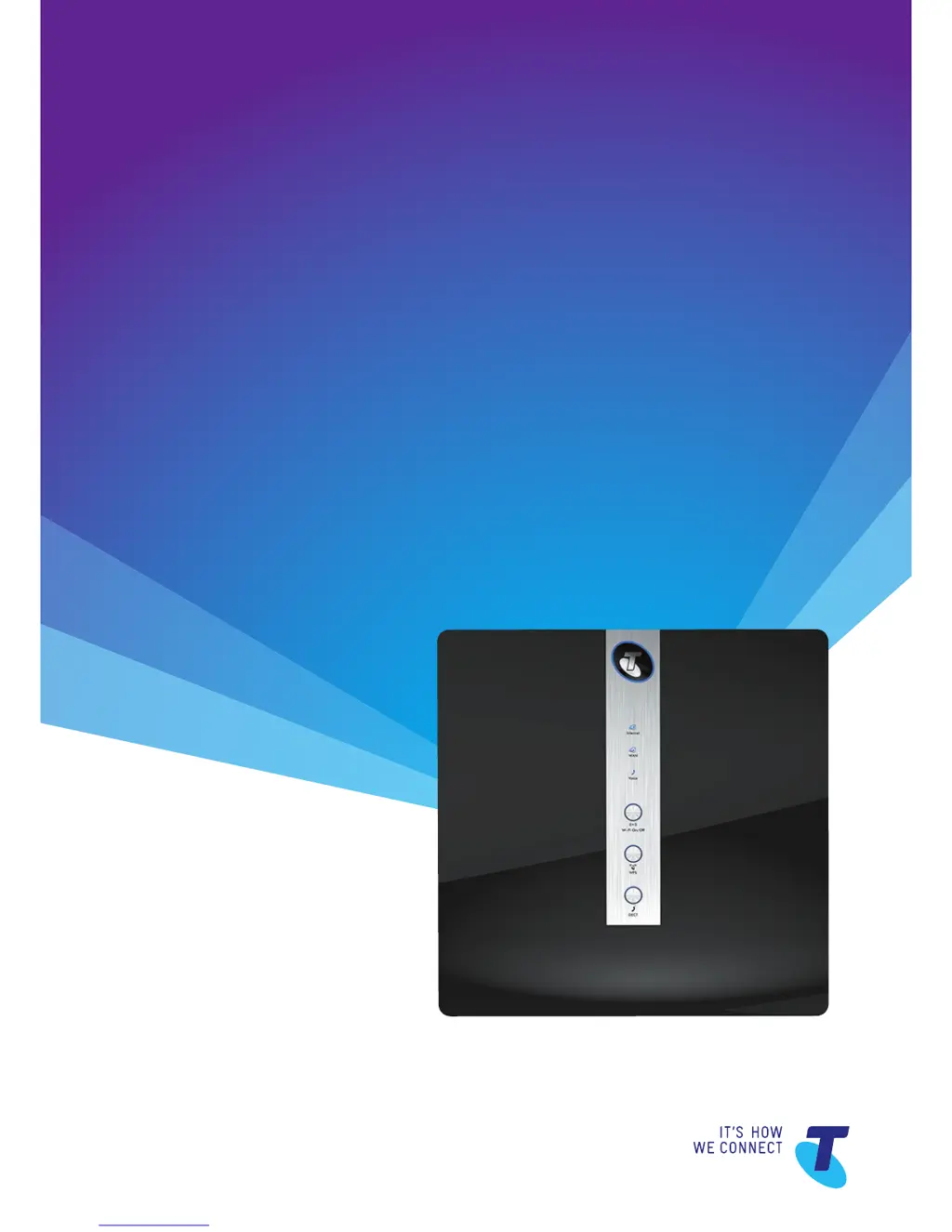
TELSTRA
GATEWAY PRO
USER GUIDE

Questions and Answers

  • D
    davidoscarAug 2, 2025
    Why aren’t my devices connecting to my Tesla Gateway?
    • J
      Jennifer VanceAug 2, 2025
      If your devices aren’t connecting to the Tesla Gateway, first ensure that Wi-Fi is enabled. The Wi-Fi button should be glowing blue when enabled. Also, verify that the wireless connection setting is enabled on your connecting device. If your device lacks a wireless adapter, you may need to purchase one.
  • A
    Amber WardAug 7, 2025
    What to do if there is a red internet light (ADSL) on Tesla Gateway?
    • B
      bethleeAug 7, 2025
      If the Internet light (ADSL) on your Tesla Gateway is red, it could be due to unsuccessful authentication. To resolve this, check if the Internet is connected in the Gateway Control Panel. Also, verify your login and password details, update them if necessary, and apply any changes.
  • E
    Earl DayAug 13, 2025
    How to fix Tesla Gateway when the Internet is not working or WAN light is off?
    • N
      Nancy Gordon MDAug 13, 2025
      If the Internet is not working or the WAN light is off on your Tesla Gateway, please check that your DSL line or WAN cable has not been unplugged from the Gateway.
  • A
    Amanda GonzalezAug 19, 2025
    What to do if Wireless Adaptor lights are blinking repeatedly on Tesla PRO Gateway?
    • R
      Reginald HughesAug 19, 2025
      If the lights on your Wireless Adaptor are blinking repeatedly, it indicates that the Wireless Adaptor is not associated with the Tesla Gateway. Check the SSID and WPA security settings or reconnect using WPS. The Gateway may also be out of range, so try moving the device closer to the Gateway.
  • N
    Nicholas MitchellAug 26, 2025
    What to do if no lights are lit on the Wireless Adaptor of Tesla PRO Gateway?
    • M
      mark70Aug 26, 2025
      If no lights are lit on the Wireless Adaptor of your Tesla Gateway, it might not be securely inserted in the USB port (or USB cable if used), or the A6200 software might not be installed. Try removing and reinserting the Wireless Adaptor. Check the Windows device manager to see if the Wireless Adaptor is recognized and enabled, and reinstall the A6200 software if necessary. If available, insert the Wireless Adaptor in a different USB port on your computer.

Summary

Setting Up Your Telstra Gateway Pro

Setting Up for ADSL and VDSL Connections

Step-by-step instructions for setting up the Gateway for ADSL and VDSL connections.

Setting Up with an NBN Box (Fibre to the Premises)

Instructions for setting up the Gateway with an NBN Fibre to the Premises connection.

Initial Gateway Configuration Process

Initial Setup via Installation Wizard

Guides users through the automated installation wizard for initial setup.

Configuration Using the Control Panel (GUI)

Explains how to manually configure settings using the Gateway's web-based control panel.

Further Gateway Settings Configuration

Configuring Gateway Wi-Fi Settings

Guides users through changing Wi-Fi settings like SSID, password, and security.

Troubleshooting and General Tips

Internet Not Working or WAN Light Off

Guides on diagnosing and resolving issues where the internet is down or WAN light is off.

Device Connection Issues

Troubleshooting steps for when devices cannot connect to the Gateway.

Resetting the Telstra Gateway Pro

Procedures for performing a factory reset on the Gateway.

Tesla GATEWAY PRO Specifications

General IconGeneral
BrandTesla
ModelGATEWAY PRO
CategoryGateway
LanguageEnglish