5.3. LAN IP Pool/DHCP Change
The Telstra Gateway Pro™ allows you to recongure the LAN IP pool if required. The following steps
outline how to congure the Gateway to suit existing devices connected on a complex network. If
you have an existing LAN IP range that does not match that of the Gateway’s default LAN IP pool
(192.168.15.1) the following will need to be completed to identify the required LAN IP range.
• For Windows computers:
− Open a command prompt, type in ipcong and press enter.
− The number next to Default Gateway is your current router/gateway IP address.
• For Apple computers:
− Access System Preferences and select Network.
− Select the appropriate port (e.g. Ethernet / Airport) Click Advanced and then the TCP/IP tab.
− The number next to Router is your current router/gateway IP address.
Once you have noted down the new LAN IP address to be used, you are ready to update these details
into the Gateway. Complete the following steps to change the LAN IP pool it in the Gateway:
• Connect your computer to the Gateway via an Ethernet connection. To access the Gateway Control
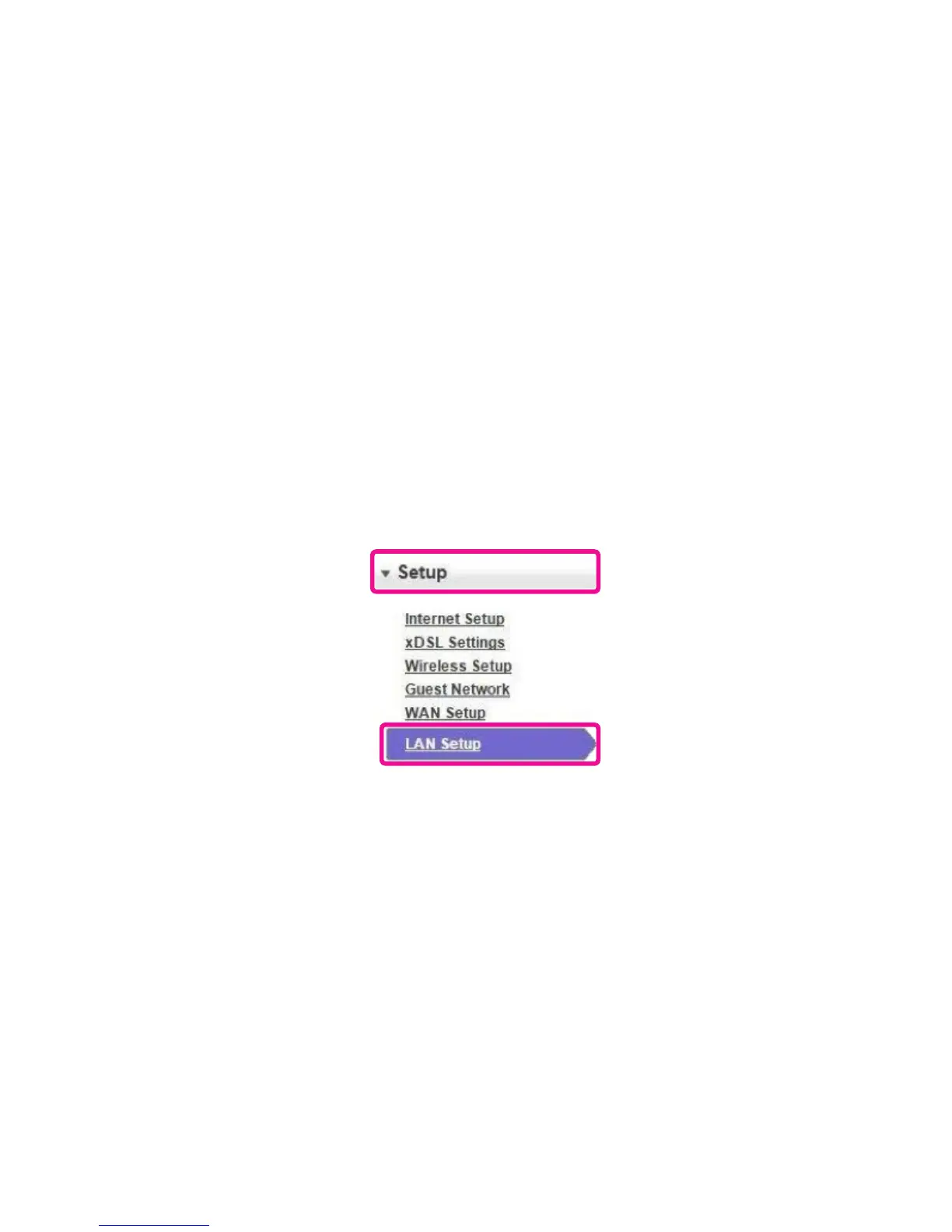
Panel page go to 192.168.15.1 in your browser and navigate to Advanced> Setup > LAN Setup.
Figure 49: LAN Setup
• Under LAN TCP/IP Setup change the IP Address/IP Subnet Mask to the new range.



 To Next Page