49
TELSTRA GATEWAY PRO
™
USER GUIDE
6.5. Wireless Adaptor Faults
6.5.1. General
Wi-Fi can be negatively affected by interference. Possible sources of interference or connection failure
are listed below:
• A sh tank (or large body of water) between modem and wireless adaptor
• Interference to or from a cordless phone (any device operating at 2.4GHz)
• Interference from fridges, microwave ovens etc.
• Out of date or incorrectly con gured Wi-Fi drivers on a PC
• Need to disable ‘Centrino’ (inbuilt wireless devices that some PCs have)
• If a PC has rewall software, it needs to be con gured to allow the Wi-Fi connection.
The rewall software may need to be deactivated or disabled.
• A wireless adaptor may be faulty
6.5.2. Lights Are Blinking Repeatedly
• The Wireless Adaptor is not associated with the Gateway. Check the SSID and WPA security settings
or reconnect using WPS.
• The Gateway may be out of range. Try moving the device closer to the Gateway.
6.5.3. No Lights Are Lit On The Wireless Adaptor
• The Wireless Adaptor is not inserted securely in the USB port (or USB cable if used) or the A6200
software is not installed.
• Remove and reinsert the Wireless Adaptor.
• Check the Windows device manager to see if the Wireless Adaptor is recognized and enabled. Reinstall
the A6200 software, if necessary.
• Insert the Wireless Adaptor in a different USB port on your computer if one is available
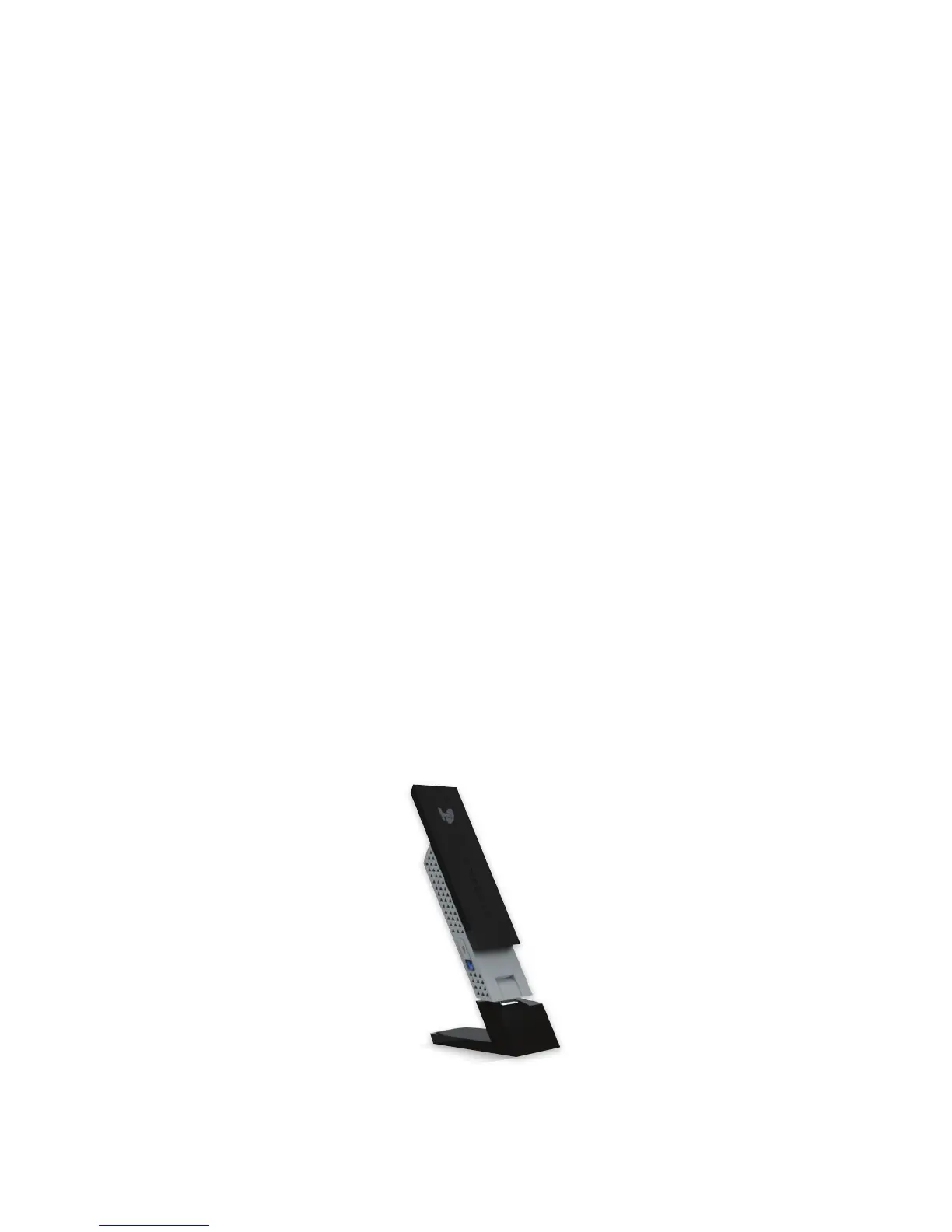
Figure 65: Netgear Wi-Fi USB Adaptor A6200


 To Next Page