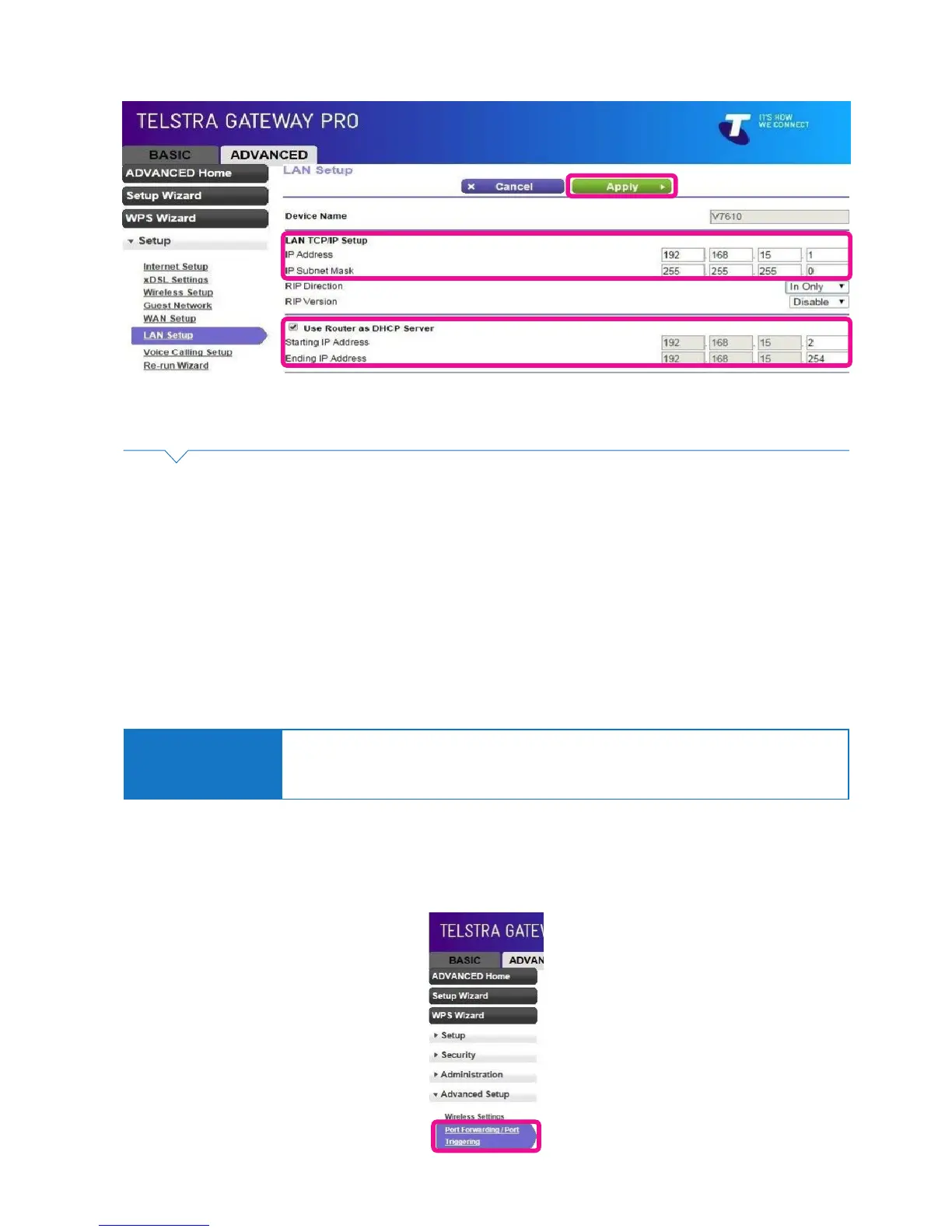
Figure 50: TCP/IP and DHCP Settings
Figure 51: Port Forwarding
Note: The DHCP starting & ending IP addresses may also be changed if necessary.
• Click Apply and then click OK on the notication pop-up to apply the new settings and reboot the
Gateway.
• After the Gateway has rebooted test the new network settings by trying to log back into the Control Panel
using the new IP address for the Gateway.
5.4. Port Forwarding
Port forwarding allows the Telstra Gateway Pro™ to forward trafc from the Internet to a specic device
that is connected or a specic application on a device. You may require remote access to devices such as
servers, cameras etc. The Gateway allows you to congure these.
Important Note:
The ports referred to in this section are virtual, not physical. You will need the port numbers
that need to be forwarded and the IP addresses of the devices to be forwarded to.
Refer to device documentation for how to access this information.
Complete the following steps to congure port forwarding on the Gateway:
• Connect your computer to the Gateway via an Ethernet connection. To access the Gateway Control
Panel page go to 192.168.15.1 in your browser and navigate to Advanced> Advanced Setup >
Port Forwarding / Port Triggering.


 To Next Page