There are a number of conguration items you can change to manager security, connected devices and
update your connection details. This section provides instructions to complete:
• Changing your Gateway login password.
• Customising your Internet (WAN) connection.
• Customising your Wi-Fi settings to connect new or existing devices.
• Setting up voice calling on your Gateway.
• Connecting devices to your Gateway.
• Setting up a mobile broadband back up device.
4.1. Changing your Gateway login Password
As a security measure you may wish to change your Control Panel username and password settings.
This provides an additional layer of security for your Gateway and business network. You can follow the
steps below to complete this process.
There are two ways to change your Gateway login password, via the Installation Wizard, or in the
Control Panel.
4.1.1. Change Gateway Password Using the Installation Wizard
If you have selected change admin password as part of the installation process using the installation
wizard, complete the following steps:
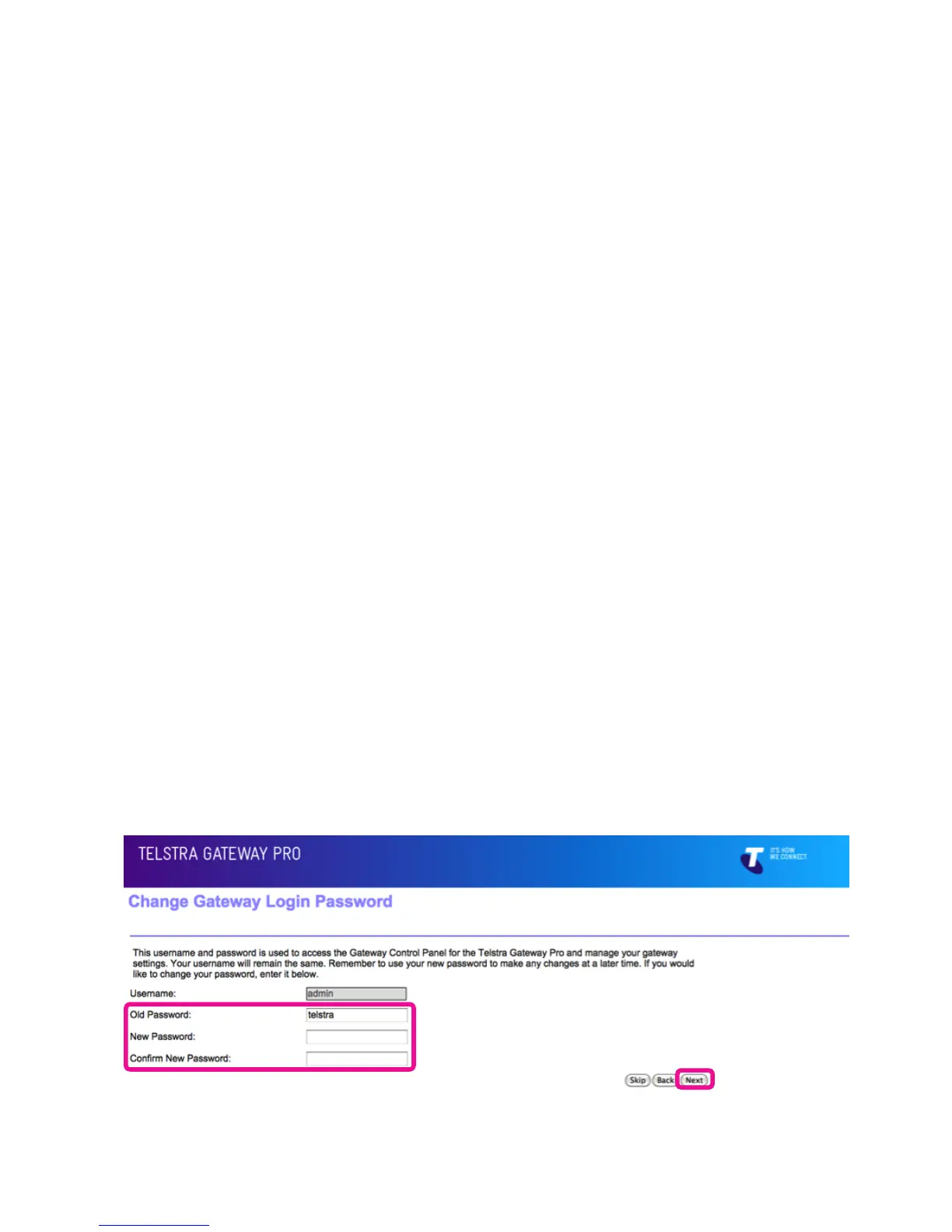
• Enter the old password into the Old Password eld (the default password is telstra).
• Enter your new password into the New Password and Conrm New Password elds.
• Click Next to continue the Installation Wizard process.
4. FURTHER CONFIGURATION
OF GATEWAY SETTINGS
Figure 22: Wizard Password Screen


 To Next Page