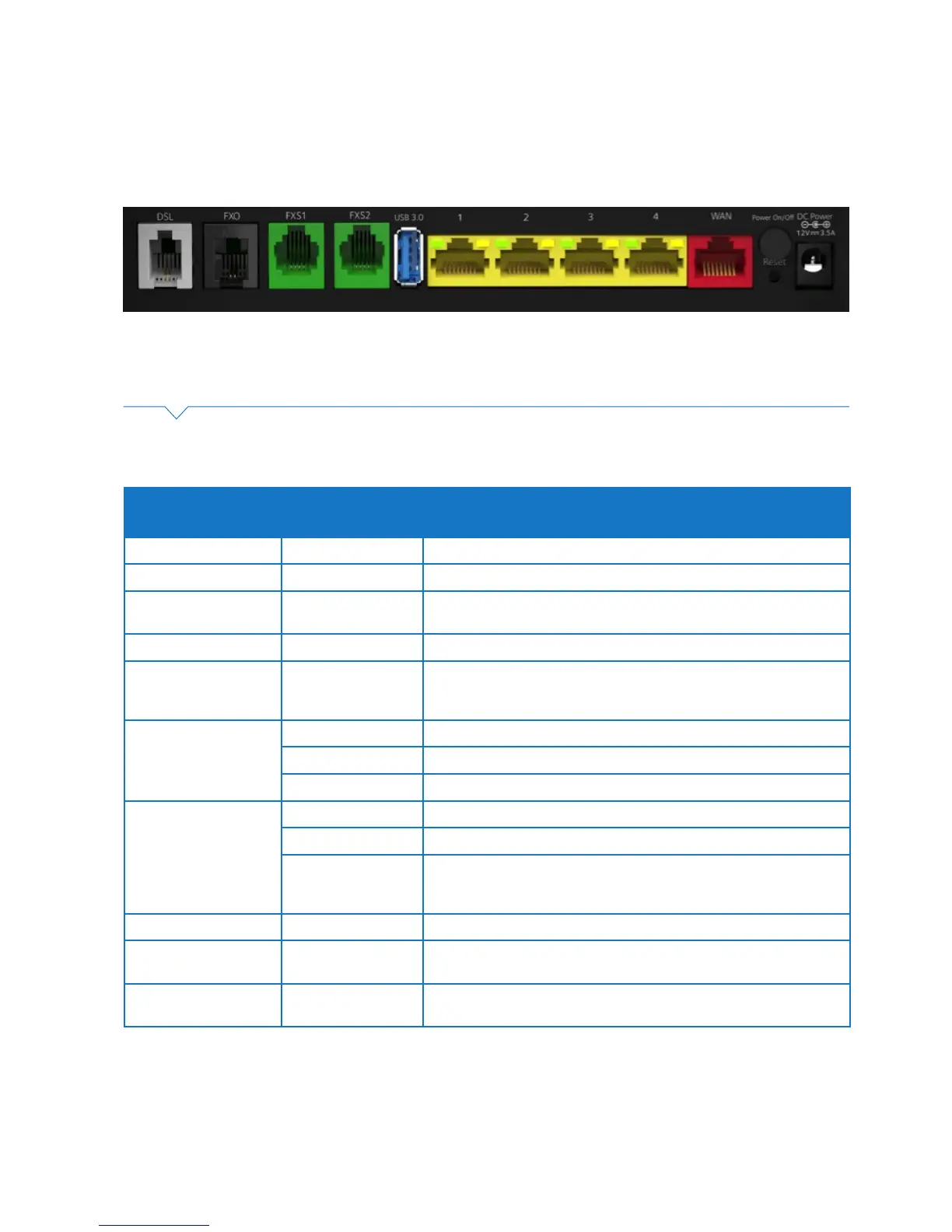
1.4.2. Getting to know the back panel
Back Panel LED
& port description
LED Activity Description
DSL port None The DSL port is connected for ADSL and VDSL connections
FXO port None N/A
FXS1 port None Plug an analogue phone / device into this port when voice is enabled
on the Gateway
FXS2 port None If enabled plug a second analogue device into this port
USB (3.0) port None To plug a Mobile Broadband backup device and/or a storage device to
share on the network. There is one USB port on the back and one USB
on the side of the Gateway.
LAN ports 1-4 Solid Green LAN port is connected at 1000Mbps
Flashing green LAN port is connected at 10/100Mbps / packets are transmitting
Off No trafc transmitted or no Ethernet cable plugged in
WAN port Solid green WAN port is connected successfully
Blinking green Packets are sending and receiving
Off Physical WAN port is not connected
(Note: individual LED on the physical Ethernet port at the back panel
to indicate: AMBER = 10/10Mbps, GREEN = 1Gbps)
On/Off button None Turns on the power to the Gateway
Reset button None Using a paperclip to initiate the reset function. This will take the device
back to default factory settings. Refer 6.4.1 for more detail.
Power port None Plug in power pack/cable supplied to the power point and turn power
point on from the wall to turn on power to the Gateway.
In the diagram above there are a number of ports and buttons on the back of the Gateway.
These ports and buttons are described in the table below:
Figure 4: Telstra Gateway Pro™ Back Panel


 To Next Page