EasyManua.ls Logo

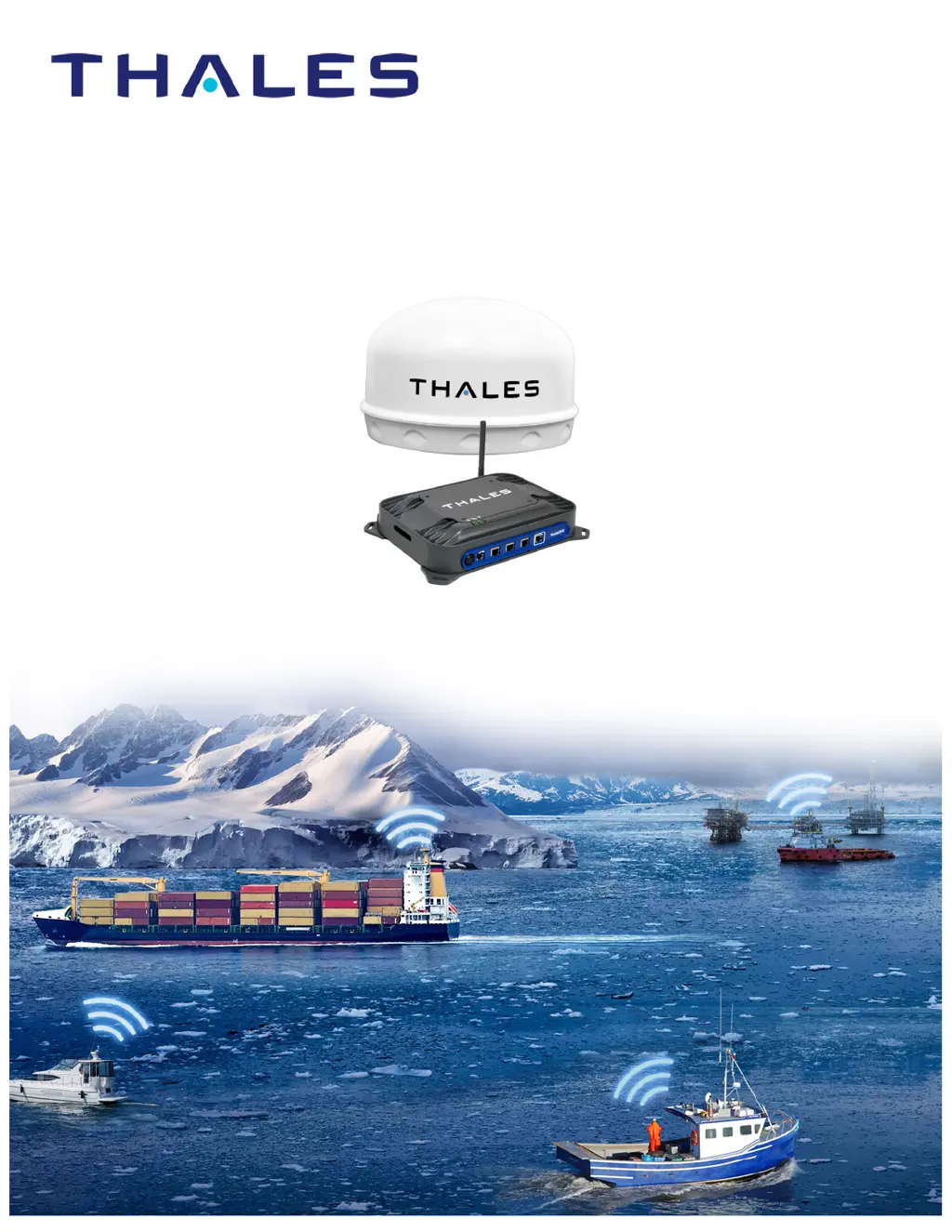
Thales VesseLINK - User Manual

Thales VesseLINK
107 pages
Print Icon
To Next Page IconTo Next Page
Loading...
i
User Manual PN 84469 Rev B
SEPTEMBER 2018
COPYRIGHT © 2018
THALES DEFENSE & SECURITY, INC.
ALL RIGHTS RESERVED
This document contains technology controlled for export by the U.S. Department of
Commerce in accordance with Export Administration Regulations. Diversion contrary to
U.S. law prohibited.
VesseLINK
™
User Manual

Table of Contents

Other manuals for Thales VesseLINK

Questions and Answers

  • D
    Dominique MonroeSep 8, 2025
    How to troubleshoot Thales Marine Radar BDU not connecting to Management Portal?
    • J
      jenniferweeksSep 8, 2025
      If the BDU is not connecting to the Management Portal, consider the following: * Reconnect via Ethernet or Wi-Fi to the BDU. * If using an Ethernet connection, replace the cable and re-check the connection. * Ensure the correct address is entered: http://portal.thaleslink. * If the System LED is flashing GREEN, wait until it turns solid GREEN before reconnecting.
  • L
    Laura Bartlett MDSep 10, 2025
    How to troubleshoot Thales Marine Radar BDU when it does not power on?
    • J
      jefferymartinSep 10, 2025
      If the BDU does not power on, check the following: * Check the BDU for green lights. If a green light is on, push the power button on the front of the BDU. * Ensure at least one input power option is securely connected to the BDU. * Verify the AC/DC power supply brick is connected to AC power. * Check that the Power D-SUB 10-32V DC cable polarity is correct. * Ensure the ignition line is connected to a switched line or the red (positive) line for continuous operation.
  • D
    Daniel SheppardSep 12, 2025
    What to do if Thales Marine Radar BDU has power but accessories are not working?
    • D
      Devon RitterSep 12, 2025
      If the BDU has power but the accessories are not working: * Remove power from the accessories and disconnect them from the BDU. Restart the BDU using the power button or by removing power for 10 seconds. After the BDU reboots, re-attach the accessories. * If a POE accessory is not receiving power, ensure POE is enabled for that port. * Note that POE is not available on the WAN port; devices on the WAN port need their own power source. * For VoIP phones, refer to their manuals for proper configuration, as each phone may have a different configuration method.
  • A
    Anthony JohnsonSep 13, 2025
    Why can't I connect to the Wi-Fi service on my Thales Marine Radar?
    • C
      Curtis WhiteSep 13, 2025
      If you cannot connect to the Wi-Fi service, try the following: * Check for available connections on the Status Current Devices page. * Note that only 5 devices can connect simultaneously; additional attempts will be blocked. * Remove one or more devices from the Wi-Fi and try connecting again. * Use the Wi-Fi Device Whitelist to limit access to specific wireless devices.
  • D
    Dakota SantanaSep 15, 2025
    What does a network error mean on my Thales Marine Radar?
    • K
      Katrina ThomasSep 16, 2025
      A network error message indicates that another user is attempting to use the same IP address as your computer. Only one administrator can be logged on at a time.
  • M
    Michael ChavezSep 18, 2025
    Why are call logs not appearing on my Thales Marine Radar?
    • R
      Randall RossSep 18, 2025
      If call logs are not appearing, verify that call logs are enabled in the settings under PHONE CONFIGURATION.

Summary

Getting Started

Thales Management Portal

Accessing the Portal

Instructions for accessing the Management Portal via laptop or Wi-Fi.

System Configuration and Settings

Options for configuring system settings, network, data, and services.

Firmware Upgrade

Maintenance and Troubleshooting

Troubleshooting Common Issues

Guidance for diagnosing and resolving common system issues.

Safety and Regulatory Information

System Safety Warnings

Essential safety warnings for system installation, operation, and handling.

Antenna Radiation Hazards

Information on safe distances to maintain from the antenna due to radiation.

System Resets

System Reset Procedures

Methods for rebooting, factory resetting, or reverting firmware on the system.

Technical Specifications

Thales VesseLINK Specifications

General IconGeneral
Operating Temperature-25°C to +55°C
Data SpeedUp to 700 kbps (transmit) / 1.4 Mbps (receive)
Power Supply10-32 VDC
WeightVaries by model
FrequencyL-Band
VoiceVoIP supported
Frequency Range1616 to 1626.5 MHz
Data RateUp to 700 kbps (transmit) / 1.4 Mbps (receive)
InterfaceEthernet, Wi-Fi
ComplianceFCC
Ingress ProtectionIP67 (Base Unit), IP67 (Antenna)
Power Input10-32 VDC

Related product manuals