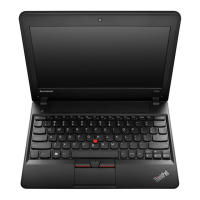
Table1.FRUtests
FRUApplicabletest
Systemboard1.Diagnostics➙CPU/Coprocessor
2.Diagnostics➙Systemboard
Power
Diagnostics➙ThinkPadDevices➙ACAdapter➙Battery1(Battery2)
LCDunit
1.Diagnostics➙VideoAdapter
2.InteractiveTests➙Video
Audio
EntertheBIOSSetupUtility(ThinkPadSetupforThinkPadX120e)andchange
SerialATA(SATA)settingtoCompatibility,andrunDiagnostics➙OtherDevice
➙ConexantAudio
SpeakerInteractiveT ests➙InternalSpeaker
Note:OnceAudiotestisdone,thenosoundisheardthistest.Inthiscase,turnoff
andturnonthecomputer.Then,runthistestagain.
Keyboard
1.Diagnostics➙Systemboard➙Keyboard
2.InteractiveT ests➙Keyboard
EntertheBIOSSetupUtility(ThinkPadSetupforThinkPadX120e)andchangeSerial
ATA(SATA)settingtoCompatibility,andrunDiagnostics➙FixedDisks.
Harddiskdriveorsolidstate
drive
ForThinkPadX100e,youcanalsodiagnosethedrivewithoutstartinguptheoperating
system.T odiagnosethedrivefromtheBIOSSetupUtility,doasfollows:
1.Removeanydiskettefromthediskettedrive,andthenturnoffthecomputer.
2.Turnonthecomputer.
3.Whilethemessage,“Tointerruptnormalstartup,presstheblueThinkVangate
button,”isdisplayedatthelowerleftofthescreen,pressF1toentertheBIOS
SetupUtility.
4.Usingcursorkeys,selectHDDdiagnosticprogram.Pressenter.
5.Usingcursorkeys,selectMainharddiskdrive.
6.PressEntertostartthediagnosticprogram.
Diskettedrive1.Diagnostics➙DisketteDrives
2.InteractiveT ests➙Diskette
Memory
1.IftwoDIMMsareinstalled,removeoneofthemandrunDiagnostics➙Advanced
MemoryTests.
2.Iftheproblemdoesnotrecur,returntheDIMMtoitsplace,removetheotherone,
andrunthetestagain.
TrackPointorpointing
device
IftheTrackPointdoesnotwork,checkthecongurationasspeciedintheBIOSSetup
Utility(ThinkPadSetupforThinkPadX120e).IftheTrackPointisdisabled,select
Automatictoenableit.
AfteryouusetheTrackPoint,thepointermaydriftonthescreenforashorttime.This
driftcanoccurwhenaslight,steadypressureisappliedtotheTrackPointpointer.
Thissymptomisnotahardwareproblem.Ifthepointerstopsafterashorttime,no
serviceactionisnecessary.
IfenablingtheTrackPointdoesnotcorrecttheproblem,continuewiththefollowing:
•InteractiveT ests➙Mouse
TouchPad
IftheTouchPaddoesnotwork,checkthecongurationasspeciedintheBIOS
SetupUtility(ThinkPadSetupforThinkPadX120e).IftheT ouchPadisdisabled,select
Automatictoenableit.IfenablingtheTouchPaddoesnotcorrecttheproblem,
continuewiththefollowing:
•InteractiveT ests➙Mouse
Powersystemcheckout
Toverifyasymptom,dothefollowing:
28HardwareMaintenanceManual



 To Next Page