Using THINKWARE CONNECTED LTE
25
2
Run THINKWARE CONNECTED LTE and tap Sign In on your smartphone.
You need a THINKWARE ID to use THINKWARE CONNECTED LTE. If you don’t have an ID, tap Sign Up
and sign up for a THINKWARE membership.
3
Insert the nano SIM card into the product and turn on the ACC or start the engine.
4
After the LTE LED indicator lights green, tap Register a Device, enter nano SIM's certification number
and tap Verify on THINKWARE CONNECTED LTE to register the product.
If it is the first time that you have connected the product to your smartphone, the LTE LED indicator may
flicker and fail to connect. Try several times by turning the product off and on again.
5
Press the manual recording (REC) button when the voice guidance is played by the product.
6
Check if the product is registered on THINKWARE CONNECTED LTE. If it is, the product is now
connected to the application and you can use the services and features.
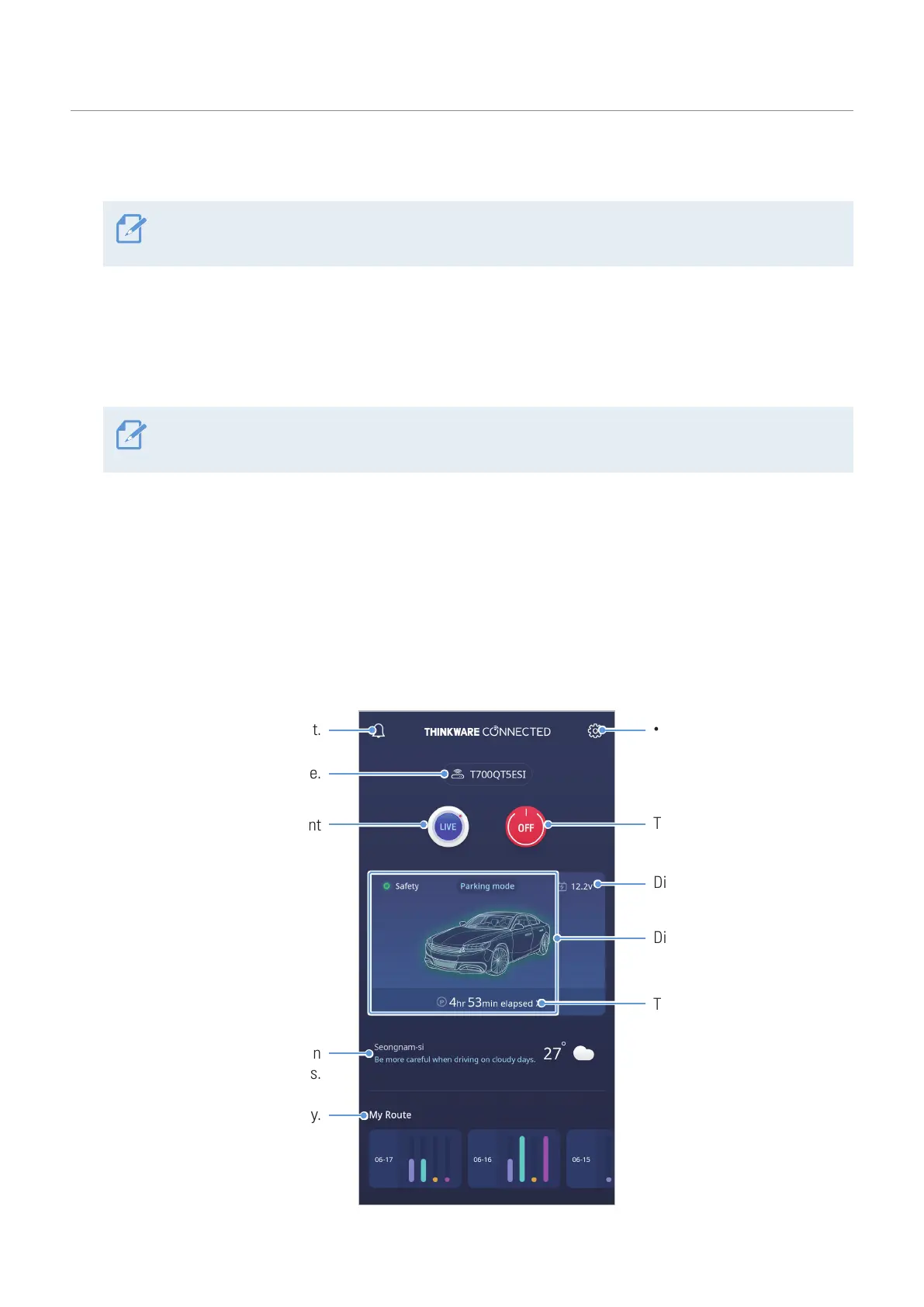
4.2 Viewing the THINKWARE CONNECTED LTE screen layout
View the event notification list.
Choose the desired registered device.
Check the vehicle’s current
location and live view.
Display the weather information
and driving tips.
Display driving history.
• Manage account and
registered device.
• Adjust the application settings.
Turn off the connected device.
Display the vehicle status.
Tap to check last parking time,
location, and the captured
image of the front camera.
Display the vehicle voltage.


 To Next Page