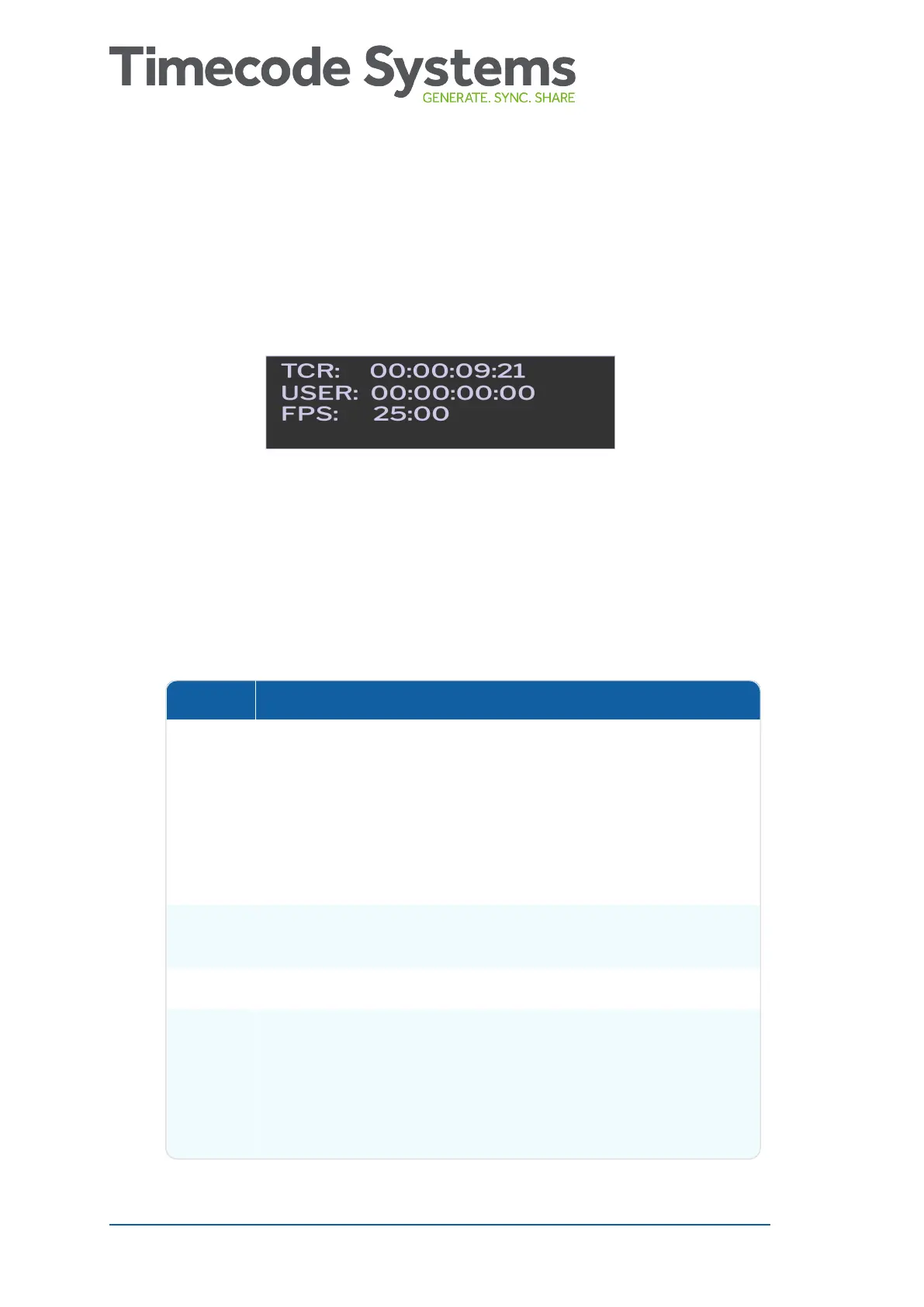
Synchronisation Status
You can use the synchronisation status screen to check if your
UltraSync BLUE is syncing with other UltraSync BLUEs or other
Timecode Systems devices.
1. Make sure your UltraSync BLUE is switched on (see Switch
UltraSync BLUE On and Off on page 8).
2. Display the Main Status screen.
3. Use the Up and Down buttons to scroll to the screen that shows
TCR or TCG at the top.
Status Description
TCR or
TCG
TCR (timecode receiving) is shown if your UltraSync
BLUE is a slave.
TCG (timecode generated) is shown if your UltraSync
BLUE is a master.
Next to TCR/TCG is the timecode that your UltraSync
BLUE is using.
User Reserved for use in future updates to the UltraSync
BLUE.
FPS The frame rate that your UltraSync BLUE is using.
Master The name of the master device that the UltraSync BLUE
is synchronised with (only available if your UltraSync
BLUE is in RF Slave mode).
If your UltraSync BLUE is in a master mode, the status
shows the number of slaves connected to the master.
46 UltraSync BLUE User Guide


 To Next Page