41
Tobii Glasses Eye Tracker
41
Tobii Glasses Eye Tracker
Tobii Glasses Workflow
C) Exporting Event Data
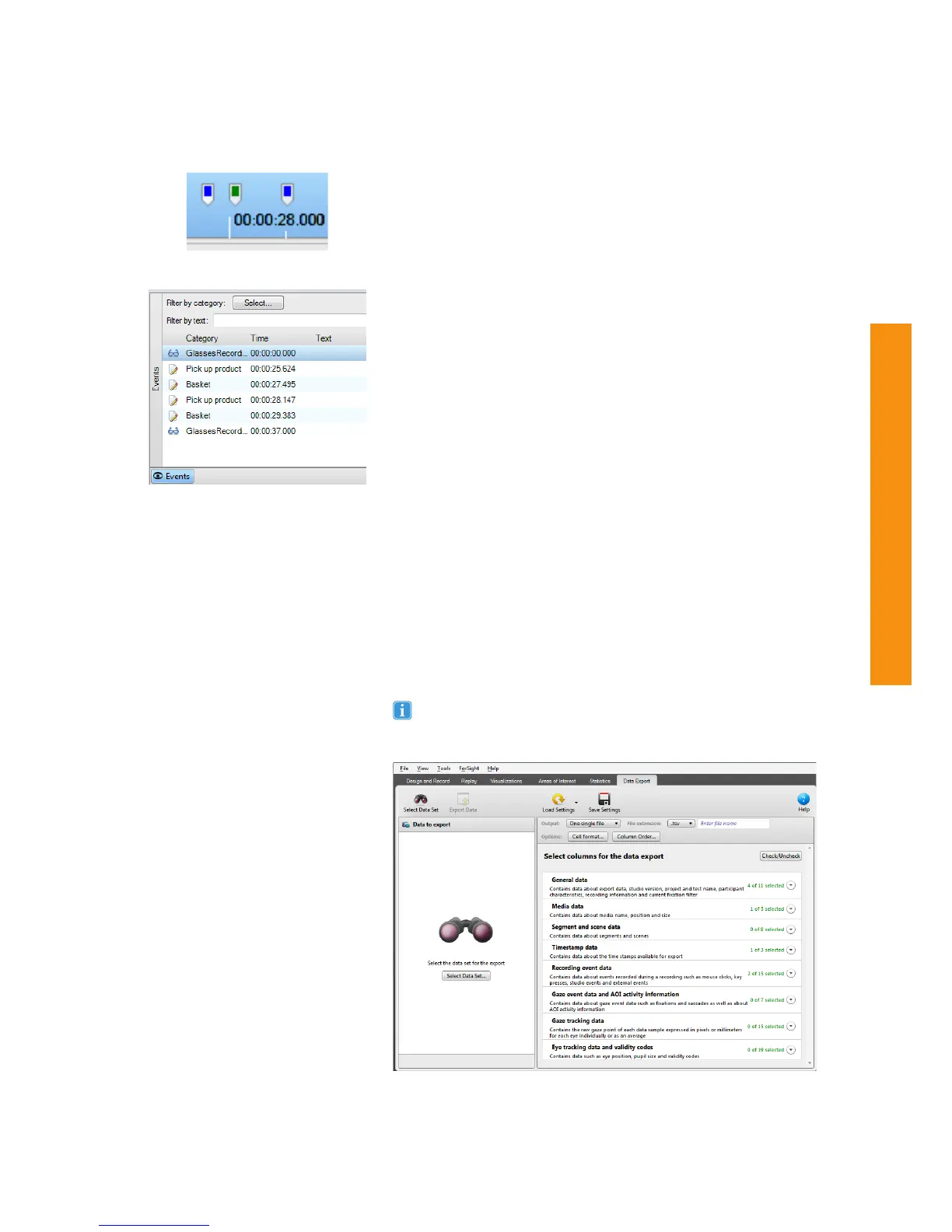
To export the event data:
1. Click the Data Export tab in Tobii Studio. Select the desired
Output to One single file or to Individual files, as desired.
2. Select the file type from the File extension dropdown list and
name the file(s).
3. Click the Load Settings button and choose Coding Scheme
Events. You can select more data to be added to your export by
ticking the corresponding checkboxes.
4. Click the Export Data button to export the event data.
For more details about the Data Export in Tobii Studio, please
read section 10. Exporting Data in the Tobii Studio User Manual.
B) Coding
To code:
1. Open the Replay tab and select the recording you want to begin
to code.
2. For each recording, during playback use the shortcuts to log
events, such as the start and stop of an action or individual
action counts. Logged events can be seen as a bookmark on
the timeline and also in the Events list on the left side, under the
Recordings list.
3. Move through the recording by using the on-screen playback
controls, the keyboard (Space = pause/play, Right/Left Arrow
Keys = frame forward/backward), or clicking on the timeline.
4. For a more convenient replay speed, move the replay speed
marker (below the playback controls) towards the tortoise on the
left to slow down the replay speed.
5. Edit or delete a logged event by right-clicking on the event in
the events list or by right-clicking on the event bookmark in the
timeline, and select Edit Log Entry or Delete Log Entry.
Events on the timeline
Events in the Events list


 To Next Page