IDVisor Smart V2 User Guide Page 11 of 28
Rev 6.1 - December 15, 2020
The About buon will display informaon about the ID Scanner including the current version
of the IDVisor Smart V2 soware and the device serial number.
View EULA displays the End User License Agreement.
The Back buon returns the applicaon to the Home Screen.
4 ID Scanner Functionality
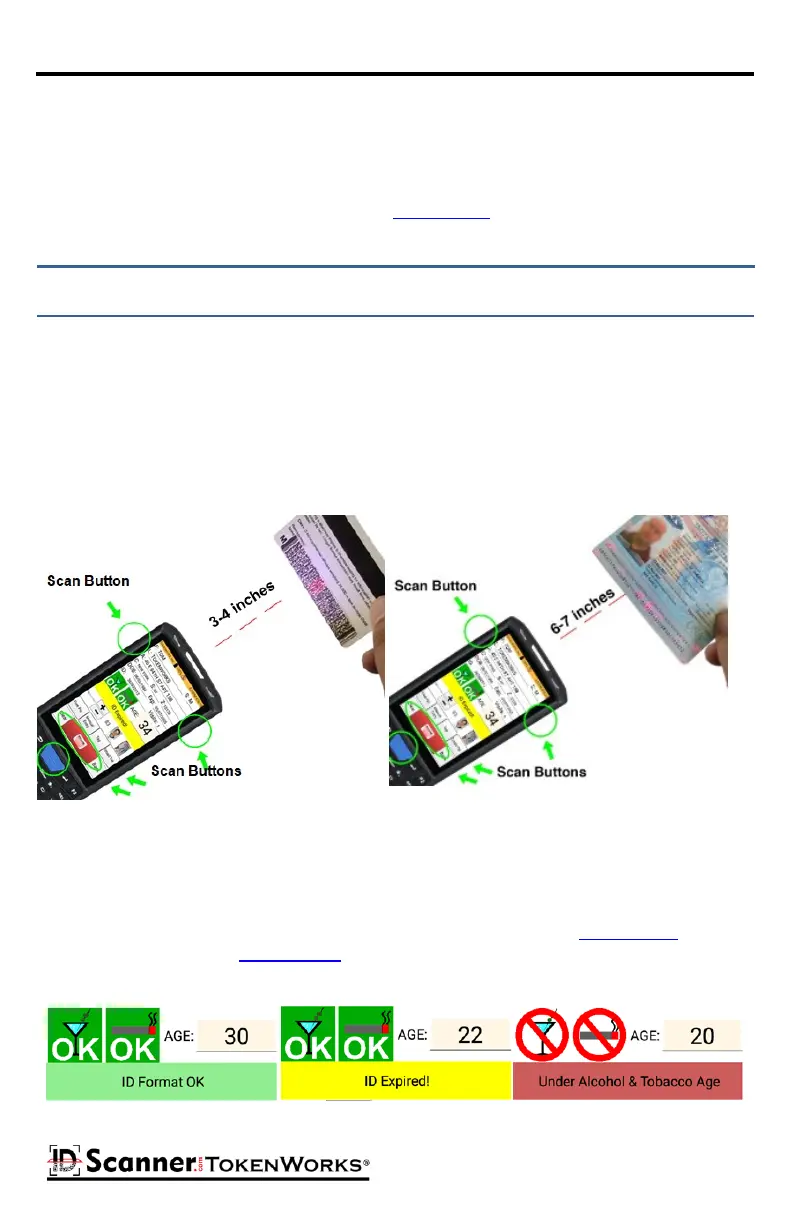
To scan an ID, press the red ID Scanner buon from the Home Screen to bring up the ID Scan-
ner form, hold the ID 3-5 inches away from the barcode reader and press one of the scan
buons. When a scan buon is pressed, point the laser light at the 2D barcode on the ID, the
scanner will then beep, and the informaon read from the ID will appear on the screen. For
convenience, there are 4 scan buons you may use – the physical blue buons on the front
and each side or the scan buon on the screen. All 4 perform the same funcon.
Driver’s License Passport
Aer the scan, the ID Scanner form will be populated with informaon read from the ID/
Driver License’s 2D barcode and the age will be calculated based on the date of birth. If the
person is of age the Primary (and Secondary, if enabled) age icons will display green and indi-
cate OK. Other possible outcomes include ID Expired, Underage, Tagged User (Banned, VIP,
etc.) and An-Passback alert. For more informaon on Tagging see the Tagging an ID secon,
for An-Passback see the An-Passback secon.
ID OK, ID Expired, and Underage Alerts



 To Next Page