IDVisor Smart V2 User Guide Page 6 of 28
Rev 6.1 - December 15, 2020
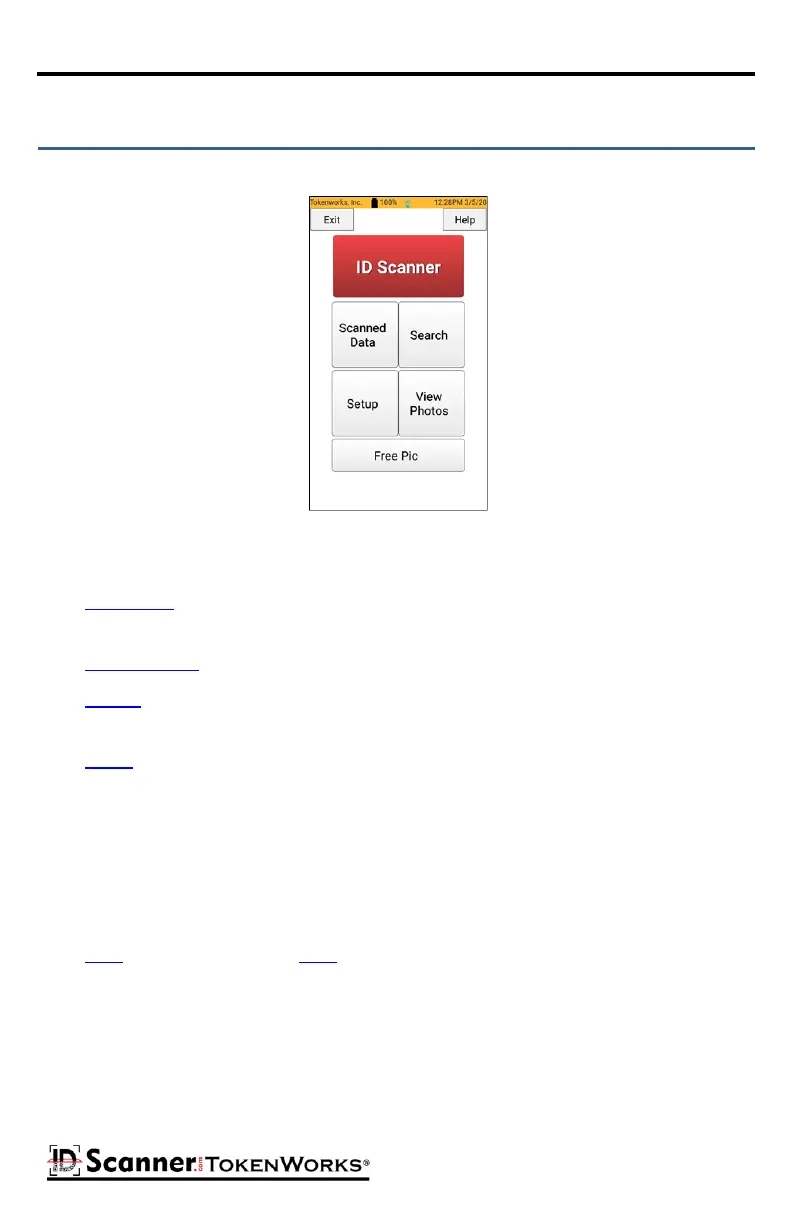
The Home screen is the launch point for all funconality.
The buons on the Home screen take you directly to the most accessed funcons.
The ID Scanner buon launches the ID Scanning form where IDs/Driver Licenses are
captured and displayed.
The Scanned Data buon displays previously scanned IDs.
The Search buon gives you the opon of searching for a scanned ID using the ID
number, rst and/or last name.
The Setup buon brings up opons to customize the sengs of the scanner applica-
on.
The View Photos buon shows all photos taken with the scanner camera.
The Free Pic buon allows you to take a picture of an ID that has diculty scanning.
The Exit buon is used to close the IDVisor Smart app. Before exing you will be
prompted for a passphrase (the default is 5678).
The Help buon brings up the Help menu.
Note: To view photos on a PC please restart and connect the device to a USB port
then navigate to Storage/Documents/IDVisorSmartPics. Scanned ID photos and Free
Pic photos will be separate, scanned ID photos will be organized by the name on the
ID and the date/me it was scanned, while Free Pic photos will be in a separate folder
shown from latest to oldest picture taken.
3 Home Screen
IDVisor Smart V2 Home Screen



 To Next Page