IDVisor Smart V2 User Guide Page 17 of 28
Rev 6.1 - December 15, 2020
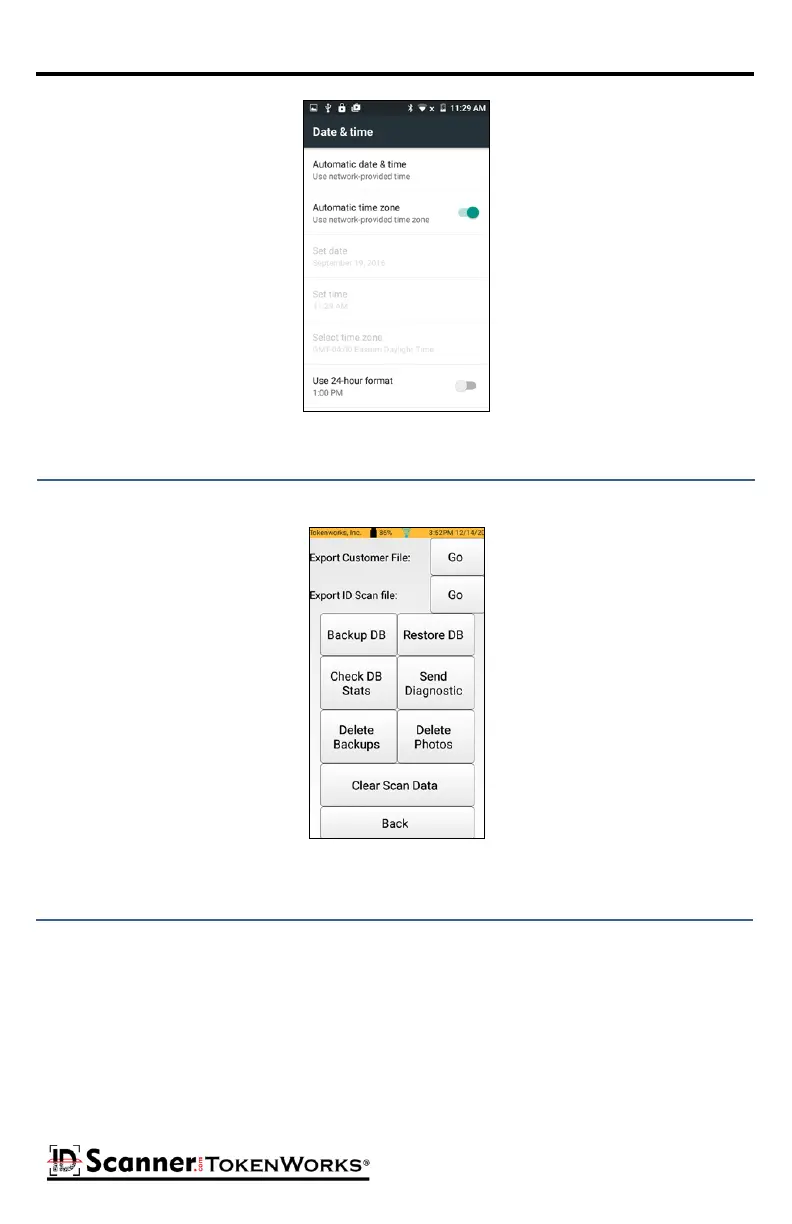
Date and Time Seng
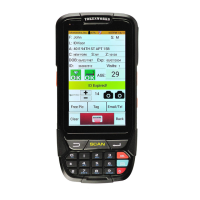
The Database buon displays the Database maintenance menu:
Database Menu
Tapping either of the buons labeled “GO” will begin exporng data to a device folder locat-
ed at Phone Storage/Documents/IDVisorSmart. The Customer le and the ID Scan le are
Comma Separated Value (CSV) les. Once they have been exported, they can be copied to a
PC via USB interface, where they can be opened with Microso Excel or other spreadsheet
soware. Aer the le has been created, you will be prompted with a message asking if you
would like to “send this le”. This allows you to wirelessly send the le using Gmail or anoth-
er app. To manually export the data, restart the device then connect it to a PC. The scanner
should show up as an external device. Under the external device navigate to the Phone Stor-
age/Documents/IDVisorSmart folder to locate the exported le(s).



 To Next Page