IDVisor Smart V2 User Guide Page 12 of 28
Rev 6.1 - December 15, 2020
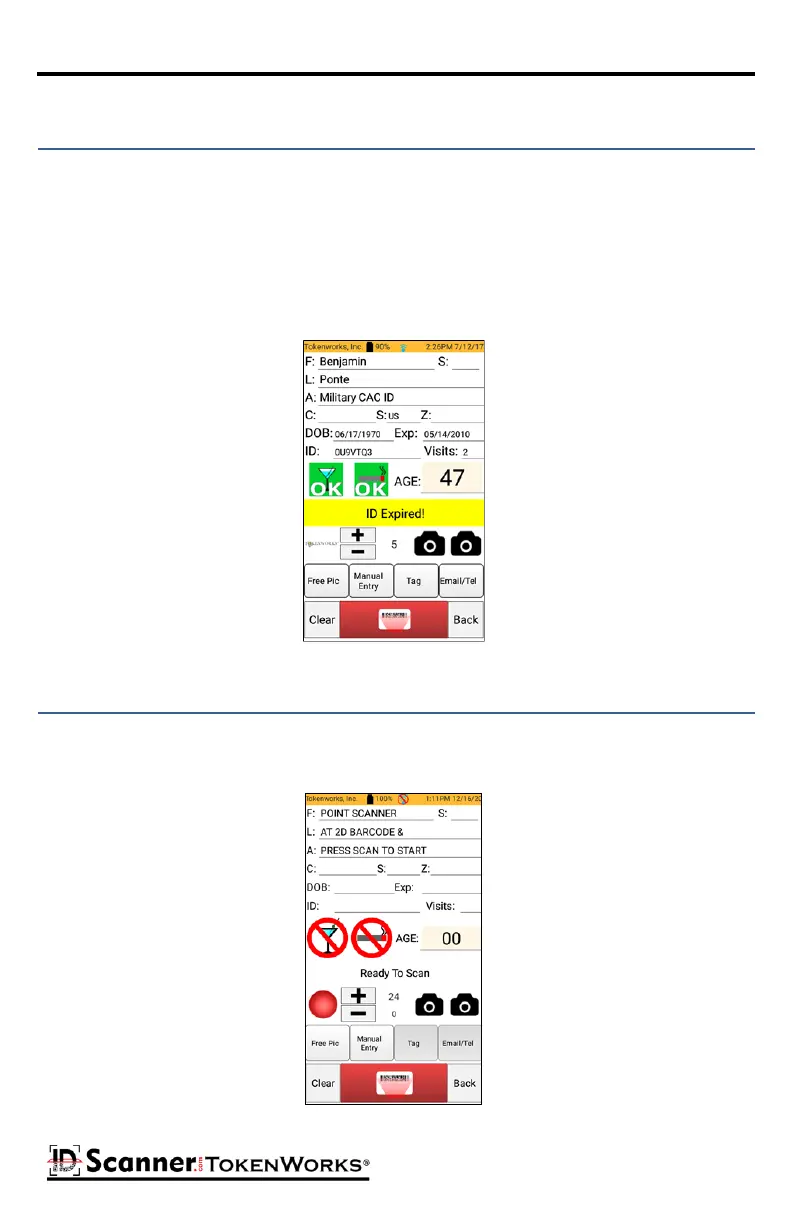
If the Photos opon is installed, once an ID is successfully scanned, you will now be able to
oponally take a picture of the scanned ID. The scanner soware allows two pictures per ID
scanned, which allows you to take a picture of the front and back of an ID. There are two
camera icons on the ID Scanner form screen. Tapping one of those camera icons will allow
you to take a picture of one side of an ID.
Note: The camera icons are only available when an ID is SUCCESSFULLY scanned and are NOT
the same as the Free Pic opon.
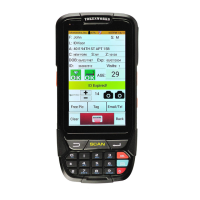
The Free Pic opon allows you to take a picture of an ID that you are NOT able to read due
to the condion of the ID. Tap on the Free Pic buon on the ID Scanner form screen, this will
iniate the camera and allow you to take a picture.
ID Scanner Form
ID Scanner Form



 To Next Page