18
STARTUP AND SETTING OF Ez Capture for DC-4
Print Setup
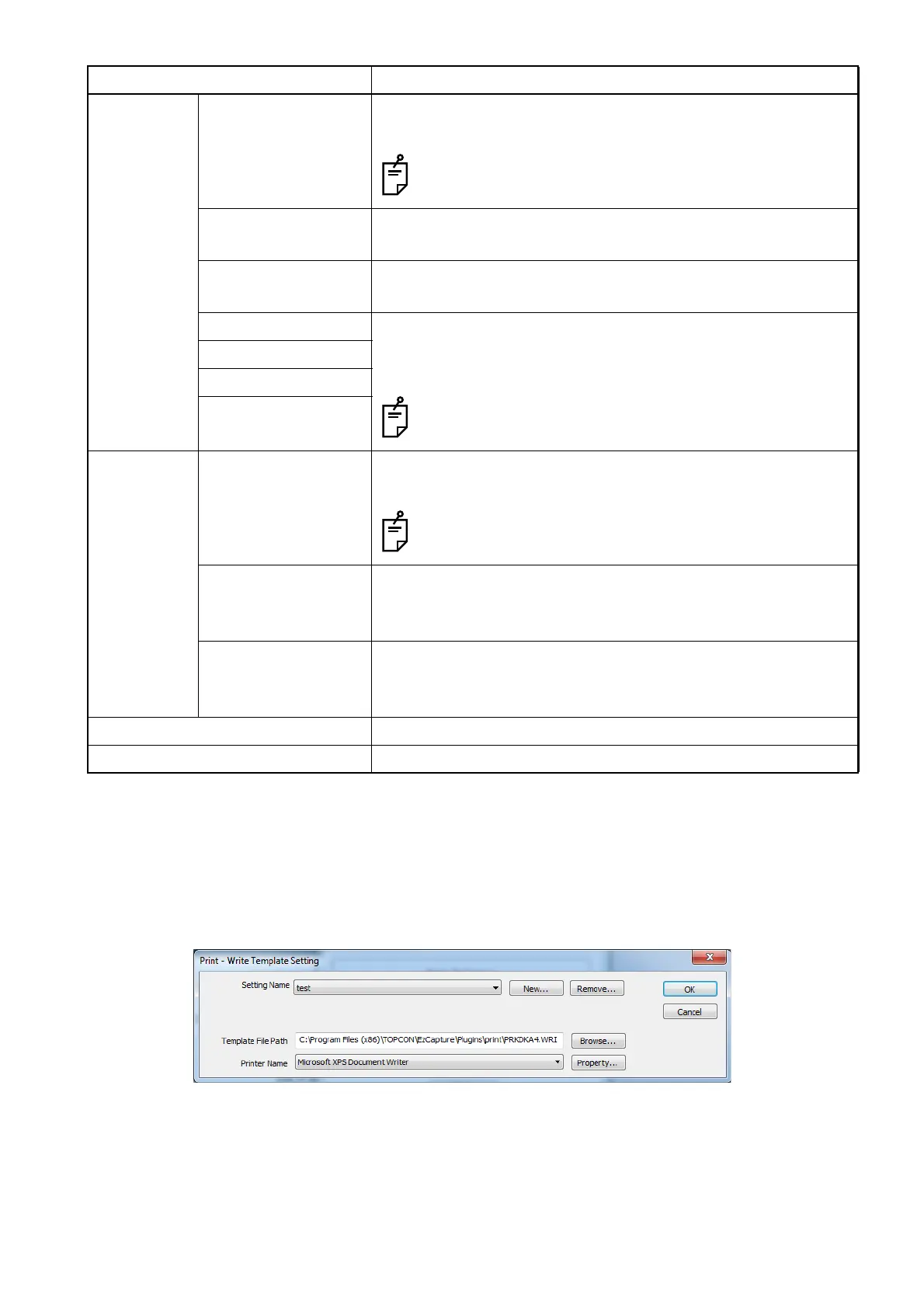
Select [Print] from the "Ez Capture Configuration" screen, and "Write Template Setting screen" (setting
example) appears.
When you perform the print setting for the first time, specifies the setting name from "New" before start-
ing the setting. The setting will be completed after setting the template file and the printer name.
The template file is installed to "C:\Program Files\TOPCON\EzCapture\Plugins\Print". When it is nec-
essary to adjust printing, contact your dealer.
Annotation Enable write to
image
Place a mark in the checkbox, and the image information is
written on the captured image.
In "Movie" mode, the image information is not written.
Font size Sets the size of the characters when writing the image infor-
mation on the captured image.
Date format Specifies the format of the date when writing the image infor-
mation on the captured image.
ID Specifies the position of information (the patient ID, the captur-
ing date, the procedure name and the captured eye) written on
the image.
When specifying [SL-2G] for [Slit lamp type], captured
eye is not written.
Date
Procedure
Eye
Trimming Trimming capture Place a mark in the checkbox, and the captured image in "Still"
mode is trimmed by the specified ratio.
The images (or movies) captured in "Movie" and "Multi-
ple" modes are not trimmed.
Left (%)/Right (%) Specifies how many percents of the area will be trimmed from
the right/left of the image. You can set up to 99% for the total
of the right and left.
Top / Bottom (%) Specifies how many percents of the area will be trimmed from
the top/bottom of the image. You can set up to 99% for the
total of the top and bottom.
OK Saves the setting and closes the dialog box.
Cancel Closes the dialog box without saving the setting.
Setting item Description
Write Template Setting screen



 To Next Page