20
OPERATION OF Ez Capture for DC-4
Operation of DC-4 Grabber
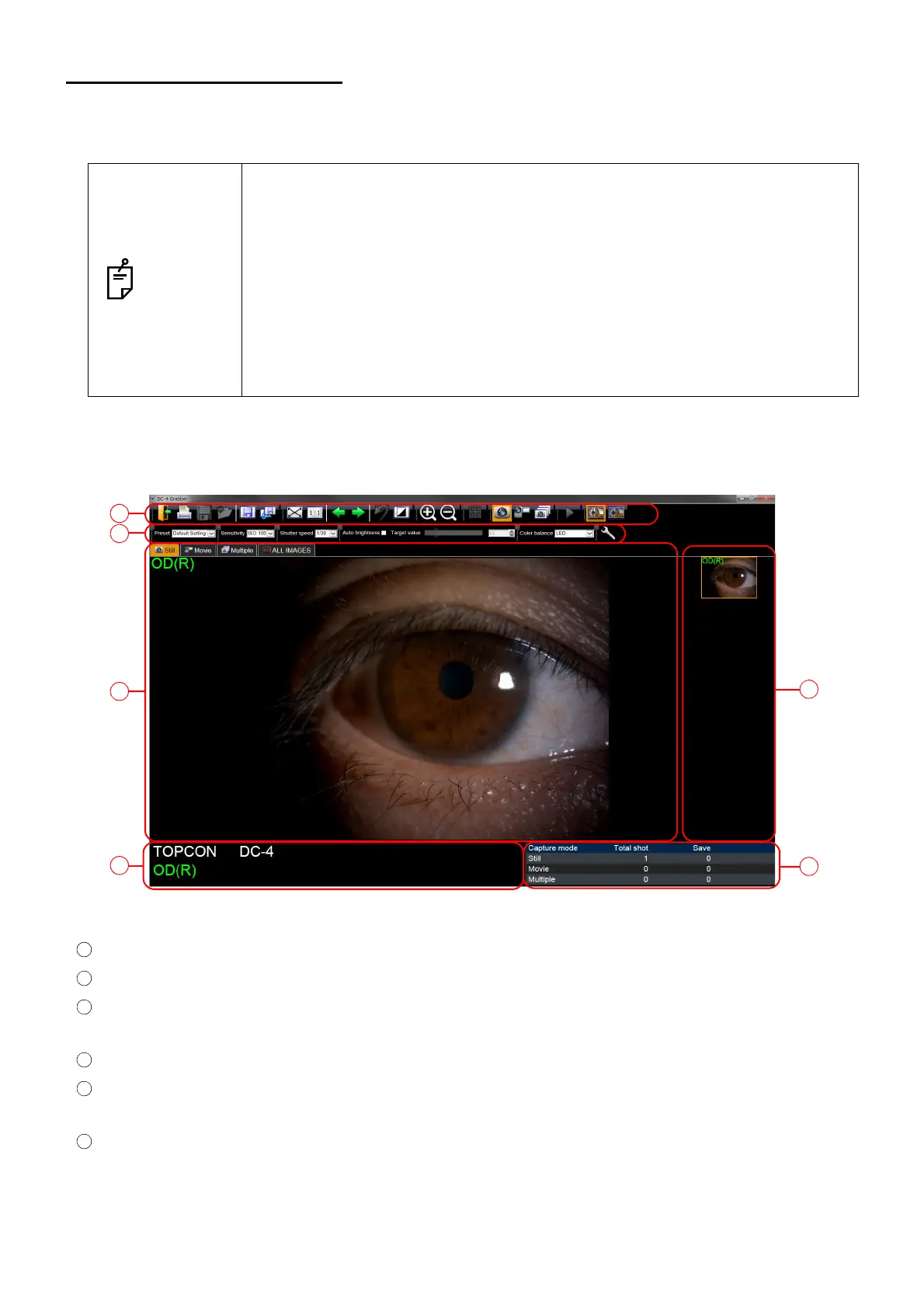
Outlines of DC-4 Grabber (Photography screen)
Pressing the photo switch of the slit lamp makes start capturing when the photography screen is dis-
playing and the connection of the computer, DC-4 and the slit lamp is correct.
This chapter will describe the outlines of DC-4 Grabber (Photography screen) as follows.
NOTES
• The display of the DC-4 disconnected state may appear on the photography
screen immediately after launching the screen. The display disappears
because the connection of DC-4 is automatically recognized in a few seconds.
Then, the photographing will be allowed.
When the display of the DC-4 disconnected state does not disappear though
you are waiting for a while, please check the connection of the computer, DC-
4, and the slit lamp, then restart DC-4 or the slit lamp.
At this time, please restart Ez Capture, too.
• Pressing space key on the keyboard in the photography screen makes start
capturing when [SL-2G] is set for [Slit lamp type] of "DC-4 Setting page".
Tool Bar icon Use them for the basic operation of DC-4 Grabber.
Real time setting Changes the ISO sensitivity, shutter speed, color balance, etc.
Photography window Displays a live video under photography or a photographed image (or
movie).
Captured image list Displays the thumbnails of captured images (or movies).
Information window Displays the information of the patient being photographed and the status
of DC-4.
Photography result list The number of images captured and the number of images reserved to be
saved are displayed by photography mode.
Outlines of DC-4 Grabber
2
1
3
5
4
6



 To Next Page