EasyManua.ls Logo

Toshiba B-FV4D-GL Series - User Manual

Toshiba B-FV4D-GL Series
38 pages
Print Icon
To Next Page IconTo Next Page
Loading...
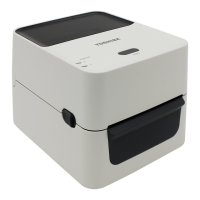
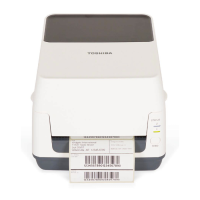
TOSHIBA Barcode Printer
B-FV4D-GL SERIES
Owner’s Manual

Questions and Answers

Toshiba B-FV4D-GL Series Specifications

General IconGeneral
Print MethodThermal Transfer/Direct Thermal
Resolution203 dpi
InterfacesSerial (RS-232)
Optional InterfacesWireless (IEEE 802.11b/g)
Media TypeTag
Media Width25.4 mm - 112 mm
Media Thickness0.06 mm - 0.19 mm
BarcodesCode 39, Code 128, UPC-A, UPC-E, EAN-8, EAN-13
2D CodesPDF417, Data Matrix, QR Code, MaxiCode
Power Supply100-240 VAC, 50/60 Hz

Summary

Safety Precautions

Safety Summary

Overview of safety information for safe handling and maintenance.

Symbol Meanings

Explains the meaning of warning, caution, prohibited, and must-be-performed symbols.

1. Product Overview

1.1 Introduction

Introduction to the TOSHIBA B-FV4D-GL series barcode printer and manual.

1.2 Features

Details the printer's interfaces and ease of use.

1.3 Unpacking and Accessories

Instructions for unpacking and listing supplied accessories.

1.5 Printer Appearance - Front

1.5.1 Dimensions

Provides the physical dimensions of the printer.

1.5.2 Front View

Identifies components visible from the front of the printer.

1.5 Printer Appearance - Rear and Interior

1.5.3 Rear View

Identifies components visible from the rear of the printer.

1.5.4 Interior

Identifies internal components of the printer.

1.5.5 Printer Controls

Button and Indicator Lamp

Explains the functions of the FEED button and status indicator LEDs.

2. Printer Setup - Precautions

2.1 Precautions

General precautions to ensure safe and correct operation of the printer.

2.2 Printer Operation Procedure

2.2 Procedure before Operation

Steps required to correctly set up the printer before initial use.

2.3 Printer Power ON;OFF

2.3 Turning the Printer ON;OFF

Instructions for powering the printer on and off.

2.4 Printer Cable Connections

2.4 Connecting Cables to the Printer

Details how to connect communication cables like Ethernet, USB, and Serial.

2.5 Printer Power Cord

2.5 Connecting the Power Cord

Instructions for connecting the power cord to the printer.

2.6 Printer Cover Handling

2.6 Opening;Closing the Top Cover

Step-by-step guide to open and close the printer's top cover.

2.7 Printer Loading Media

2.7 Loading the Media

Instructions for loading media rolls into the printer.

2.8 Printer Setup Utilities

2.8 Self Print Test and Dump Mode Utilities

How to perform a self-print test and enter dump mode.

3. Maintenance - Print Head Cleaning

3.1.1 Print Head

How to clean the printer's print head element.

3.1 Sensor and Roller Cleaning

3.1.2 Sensor

Instructions for cleaning the transmissive sensor.

3.1.3 Platen Roller

How to clean the platen roller.

3.1 Housing and Cutter Cleaning

3.1.4 Media Housing

How to clean the media housing.

3.1.5 Cutter

Instructions for cleaning the printer's cutter unit.

3.2 Media Care and Handling

3.2 Care;Handling of the Media

Guidelines for proper handling and storage of printer media.

4. Troubleshooting Guide

4.1 Troubleshooting Guide

A guide to diagnose and solve common printer problems.

4.2 Status Lamp Indicators

4.2 Status Lamp

Explains the meaning of different LED status lamp combinations.

4.3 Removing Jammed Media

4.3 Removing Jammed Media

Detailed steps for removing jammed media from the printer.

Appendix 1: Printer Specifications

A1.1 Printer

Lists the detailed technical specifications of the B-FV4D-GL printer.

Appendix 1: Media Specifications

A1.2.1 Media Type

Shows the size and shape of usable media for the printer.

Appendix 1: Effective Print Area

A1.2.2 Effective Print Area

Illustrates the relationship between print width and label width.

Appendix 2: Interface Details

Interface Cables

Requirements for interface cables to prevent electrical noise.

RS-232 C Cable Description

Details the pin assignments for RS-232C serial cable connections.

Glossaries

Related product manuals