52
Web Smart Gigabit Switch Family User's Guide
TL-SG2216WEB/TL-SG2224WEB
VLAN: The VLAN number. Select the number of the VLAN you want to
congure here.
Port: The switch port number.
Member: Select the member of the VLAN here. If this eld is checked, it
indicates the port belongs to the current VLAN.
Description: Displays the user-dened port description.
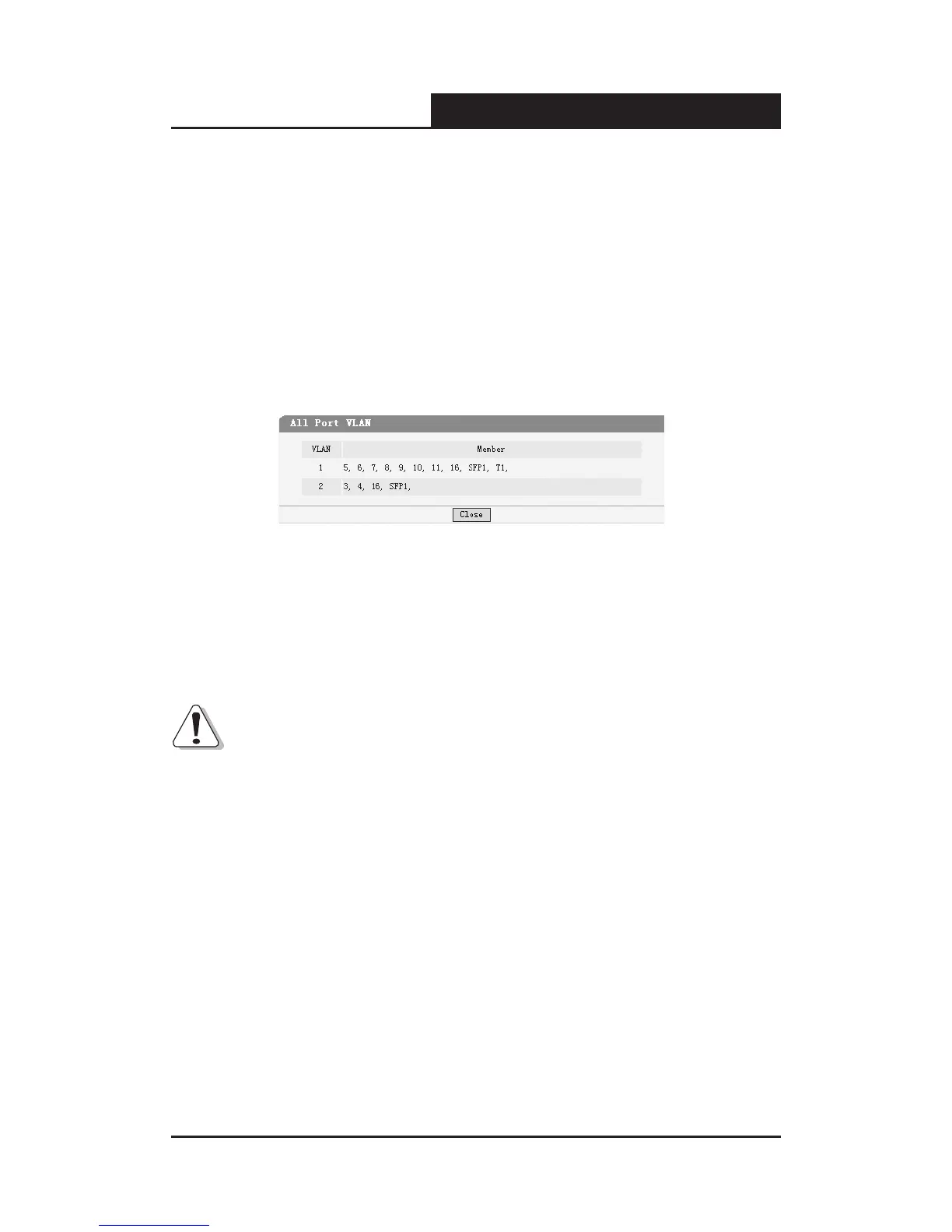
All VLAN: Displays all dened Port VLANs.
Figure 5-34 All Port VLAN
Select All: Select all ports to be VLAN members.
Clean Up: Clean up all members of the VLAN.
Submit: Submit to buildup a VLAN with the selected members.
Notice:
1) Any VLAN cannot be the subset or superset of other VLANs.
2) At least two port members should be included to add a VLAN group. (If the
page is submitted with 0 VLAN member, it indicates to delete the VLAN.)
3) If any Trunk has been set, the Trunk can be configured as a VLAN
member, and the member ports of the Trunk cannot be congured (see
Port 1 and 2 in the gure for example).
4) For the first time the Port VLAN mode is set, a default VLAN, which is
indexed as NO. 1 and contains all switch ports, will be built up.
5) The ports haven’t been assigned to any VLAN manually will be assigned
to a hidden VLAN automatically to make sure they can communicate with



 To Next Page