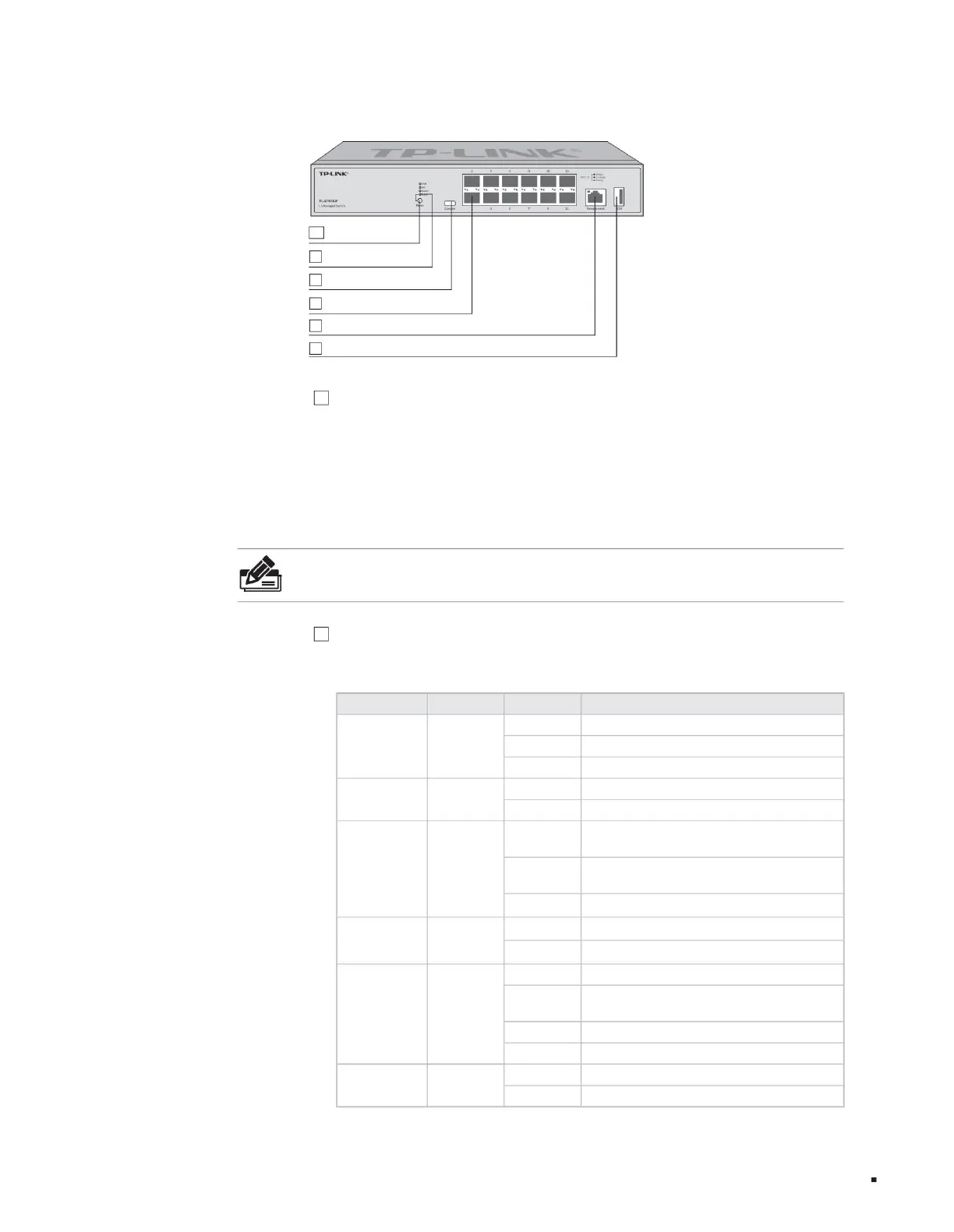
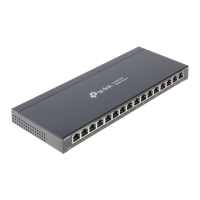
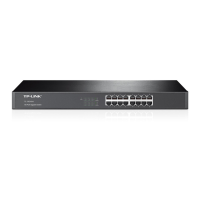
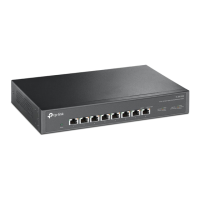
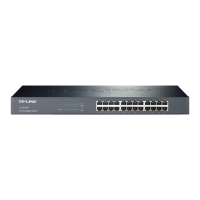
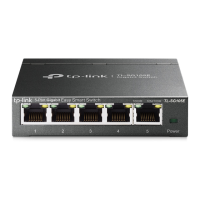
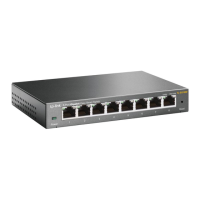
The front panel of TL-ST5012F is shown in the figure below.
2 indicator lights
product description
4
3
1 mode switching button
5
6 1 USB port
name work status work description
1-16
Off No device is connected to the port
SYS system indicator light
Stack mode indicator
Off No device is connected to the port
Red flashing system abnormality
Turn off this device and it is not the stack master device.
PWR power indicator light
Turn off the port indicator to work in other modes
Port indicator (port
mode)
The green port indicator is always on and works in stacking mode.
Flashing port is transmitting data
Always on port has connected device
Green flashing system is normal
Always on system power supply is normal
Master stack indicator
(TL-ST5016F) 1-12
Off. The system is not powered on or the power supply is abnormal.
Flashing. The system power supply is abnormal.
Yellow always on
(TL-ST5012F)
Yellow always on
indicator light
Steady green
Steady green The port is normally connected to the device and operates at a rate of 10Gbps.
The port is normally connected to the device
and operates at a rate of 1000Mbps/2.5Gbps.
Management port indicator
An error occurred in electing the stack master device, or other types of stack
errors occurred.
This device is the stack master device, or the stacking function has been enabled but has not
been stacked independently.
1 Type-C Console port
16 10Gbps SFP+ ports
1 RJ45 Management port
Layer 3 managed switch installation manual
Stacking mode: A certain port indicator light is solid green, indicating that the port number is the stacking ID of this device.
Table 1-1 Description of working status of indicator lights
Note:
ÿThe mode switching function software is supported by subsequent upgrades, please refer to the actual software functions.
02
Figure 1-2TL-ST5012F front panel diagram
1 Mode switching button The
mode switching switch is used to switch the indication status of the indicator light and supports switching between port mode and stacking mode. If
it is currently in port mode, press the button to switch to stack mode; if it is currently in stack mode, press the button to switch to port mode. If the button is not
pressed for more than 45 seconds in any mode, it will automatically return to port mode.
2 Indicator lights,
including PWR, SYS, Master, Stack, and Management indicators. You can monitor the working status of the switch through the indicator lights, see the table
below.
Port mode: The port indicator light identifies normal connection and speed status;
Machine Translated by Google



 To Next Page