105
Chapter 5
Congure the Router in WISP Mode
5. 9. 5. Remote Management
1. Visit http://tplinkwifi.net, and log in with the password you set for the router.
2. Go to Advanced > System > Administration, and focus on the Remote Management
section.
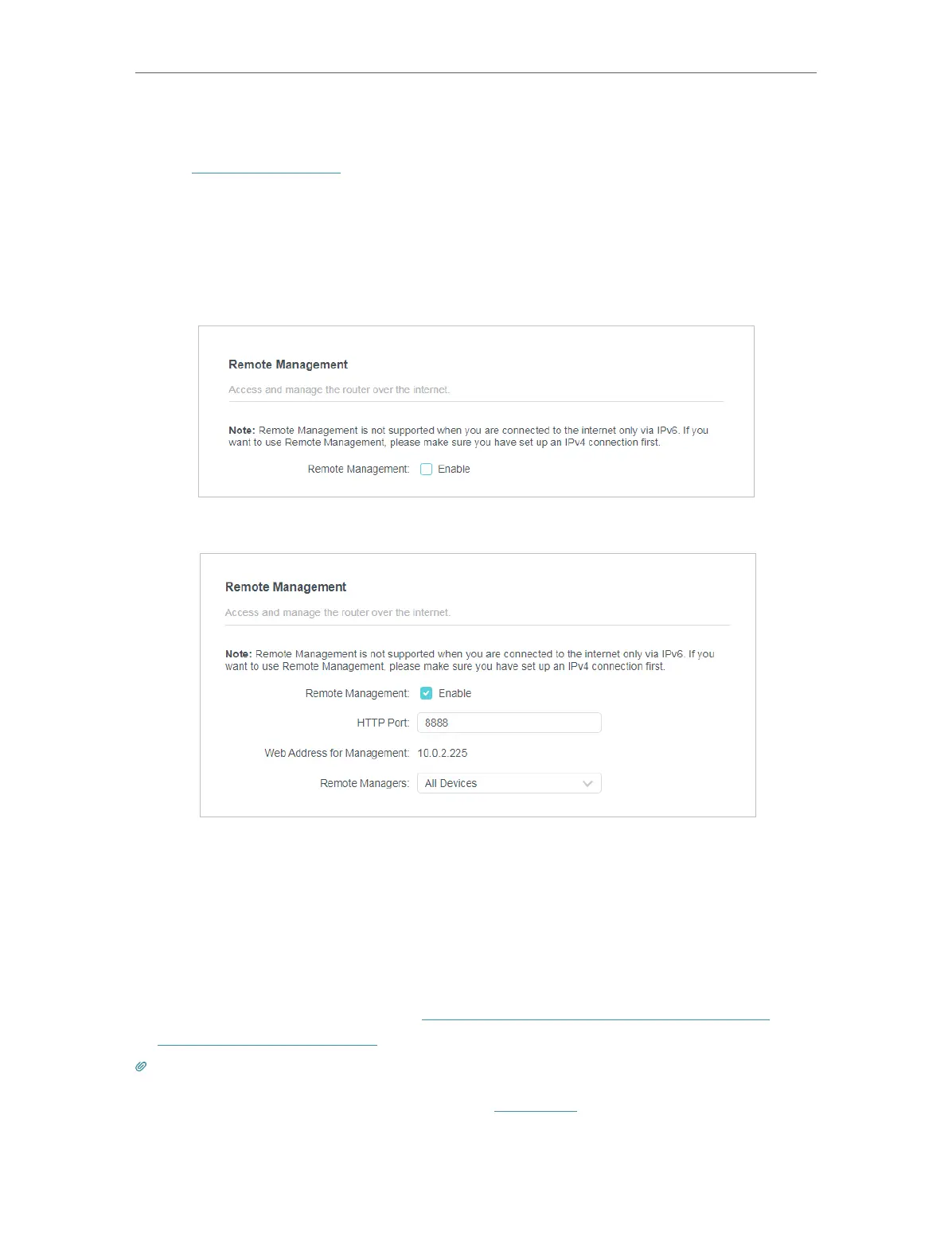
• Forbid all devices to manage the router remotely:
Do not tick the Enable checkbox of Remote Management.
• Allow all devices to manage the router remotely:
1. Tick the Enable checkbox of Remote Management.
2. Keep the HTTP port as default setting (recommended) or enter a value between 1024
and 65535.
3. Select All Devices for Remote Managers.
4. Click SAVE .
Devices on the internet can log in to http://Router’s WAN IP address:port number (such
as http://113.116.60.229:1024) to manage the router.
Tips:
• You can find the WAN IP address of the router on Network Map > Internet.
• The router’s WAN IP is usually a dynamic IP. Please refer to Dynamic DNS if you want to log in to the router through
a domain name.


 To Next Page
 Loading...