82
Chapter 5
Congure the Router in WISP Mode
1. Visit http://tplinkwifi.net, and log in with the password you set for the router.
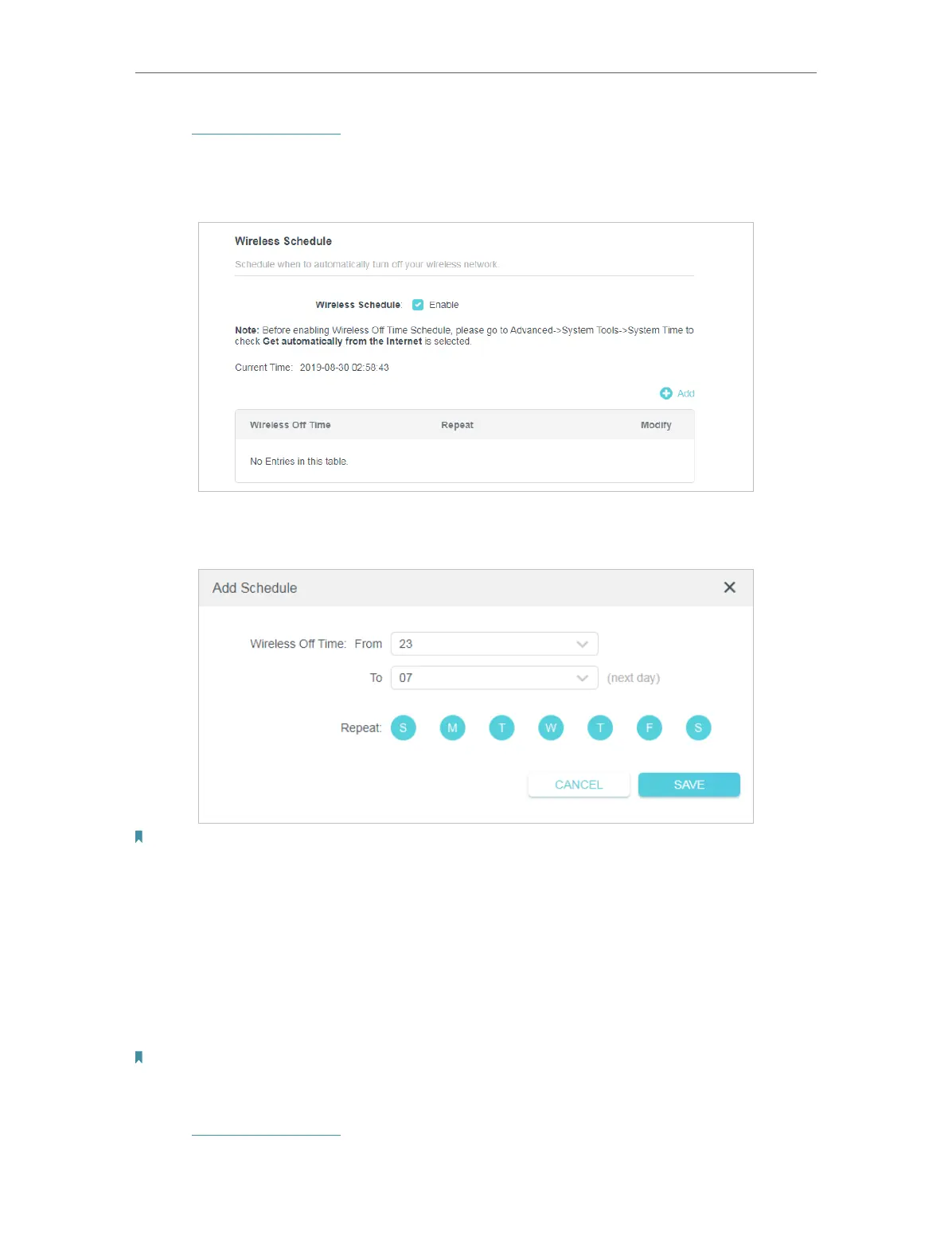
2. Go to Advanced > Wireless > Wireless Schedule.
3. Enable the Wireless Schedule function.
4. Click Add to specify a wireless off period during which you need the wireless off
automatically, and click SAVE.
Note:
• The effective wireless schedule is based on the time of the router. You can go to Advanced > System > Time to modify
the time.
• The wireless network will be automatically turned on after the time period you set.
5. 3. 4. WPS
WPS (Wi-Fi Protected Setup) can help you to quickly and securely connect to a network.
This section will guide you to add a new wireless device to your router’s network quickly
via WPS.
Note:
The WPS function cannot be configured if the wireless function of the router is disabled. Please make sure the wireless
function is enabled before configuration.
1. Visit http://tplinkwifi.net, and log in with the password you set for the router.
2. Go to Advanced > Wireless > WPS.


 To Next Page
 Loading...