1.
2.
3.
4.
5.
6.
7.
8.
9.
10.
Configuring schedules
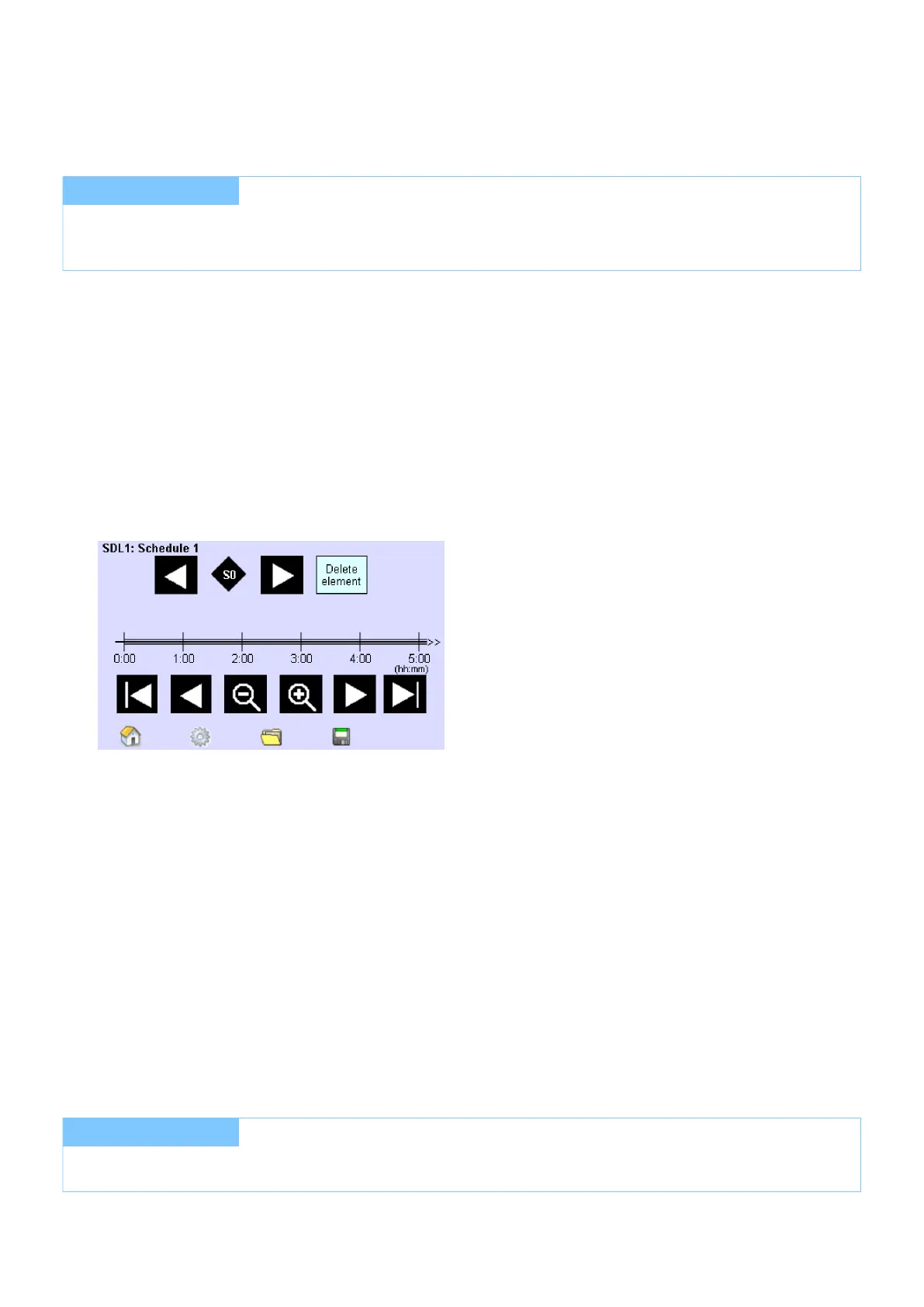
A schedule is defined by the order of scenes and sequences on the timeline.
Time and date are set.
Scenes and/or sequences are defined. The Main menu is visible.
Click on the "Main menu" symbol.
-> The "Main menu" is displayed
Click on the "Schedule (SDL)" button.
-> The SDL ... page is displayed.
Click on the Folder button to select the schedule in which the scenes/sequences are to be saved.
-> The dialog box Load is displayed.
Use the arrow keys to select the schedule and confirm with OK.
-> The schedule is displayed.
Use the arrow keys to select the marker Scene or Sequence.
Move the marker Scene or Sequence to the desired position on the timeline using Drag & Drop.
Repeat steps 4 to 5 to enter further scenes or sequences.
Click on the Save button.
-> The dialog box Save is displayed.
If necessary, change the schedule in which the scenes/sequences are to be saved and confirm with OK.
-> The schedule is saved.
Repeat steps 2 to 8 to define further schedules.
I NOTICE
If a sequence, schedule or schedule list is started in the Scheduler, the currently enabled function (Sequence,
Schedule, Schedule list) is terminated.
I NOTICE
A schedules is not saved until you click on the Save button and confirm the dialog box Save schedule with OK.


 To Next Page