5.
6.
7.
1.
2.
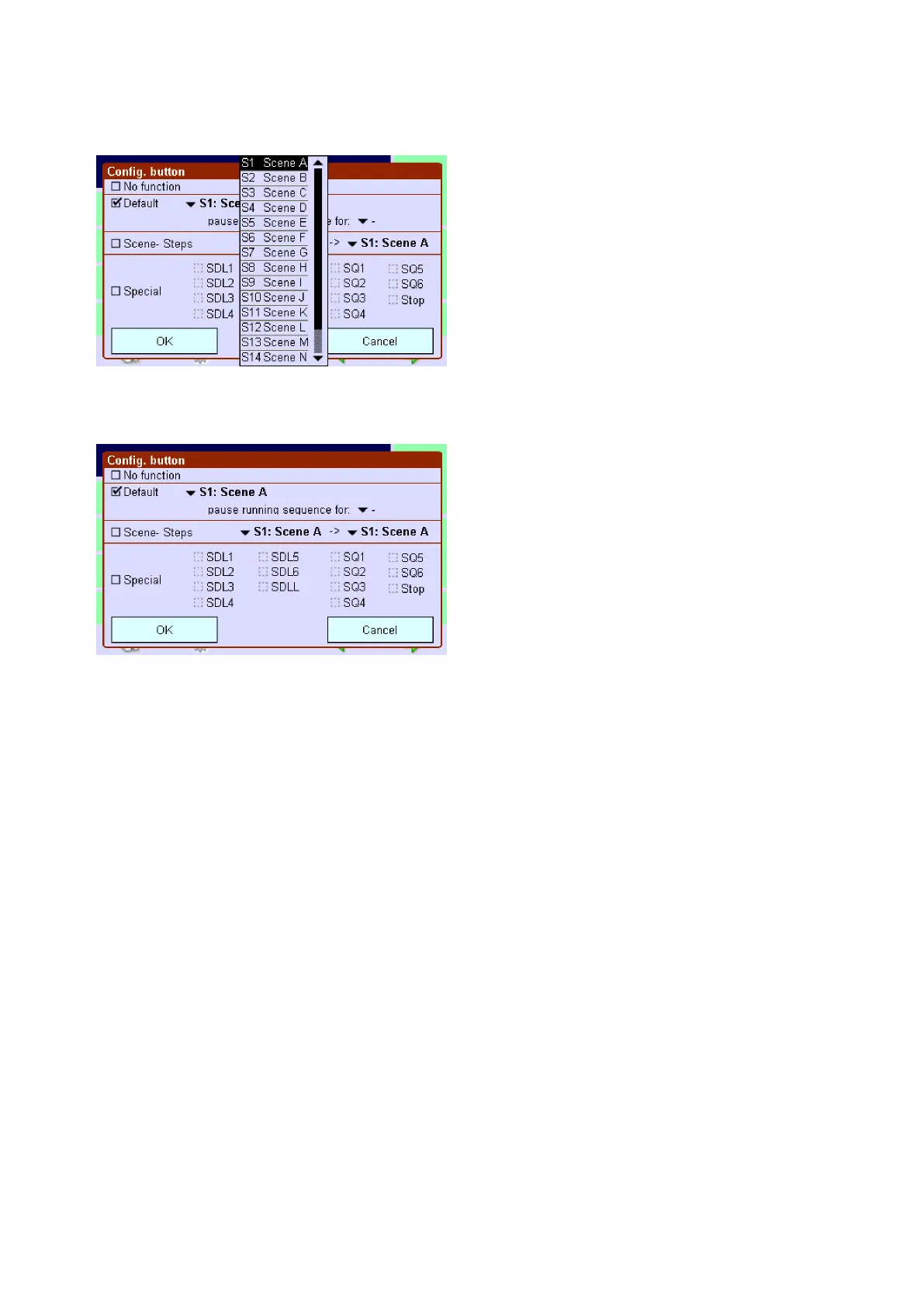
If this scene is only to be called up briefly and to interrupt the current sequence (e.g. cleaning of the room), click
on the black arrow key next to Stop current sequence for: and select the duration of the interruption.
Confirm the entry with OK.
-> The button with the desired function and designation is displayed in the Home menu.
Configuring the Colour scene button
Configuring the Colour scene buttons is suitable for applications where you want to call up different colour lighting
situation in zones by clicking just one button.
To assign a new function to a Colour scene button, there are several options for each of the four zones:
The layout for the "Home" menu has been created.
The Colour scene buttons are visible in the "Home" menu.
Click on the "Main menu" symbol.
-> The "Main menu" is displayed
The Colour scene buttons are visible in the "Home" menu.->
Click on the button (e.g. Colour scene1) until the dialog box with the four zones is displayed.
Colour setting_
Masking_
Switching off_
Fading_


 To Next Page