1.
2.
3.
4.
5.
OFF (on Scene, Group, Scheduler page) OFF (on Scene, Zone, Colour scene, Group,
Scheduler page)
Configuring the Scene button
Sequences or schedules are defined.
The layout for the Home menu has been created.
Click on the "Main menu" symbol.
-> The "Main menu" is displayed
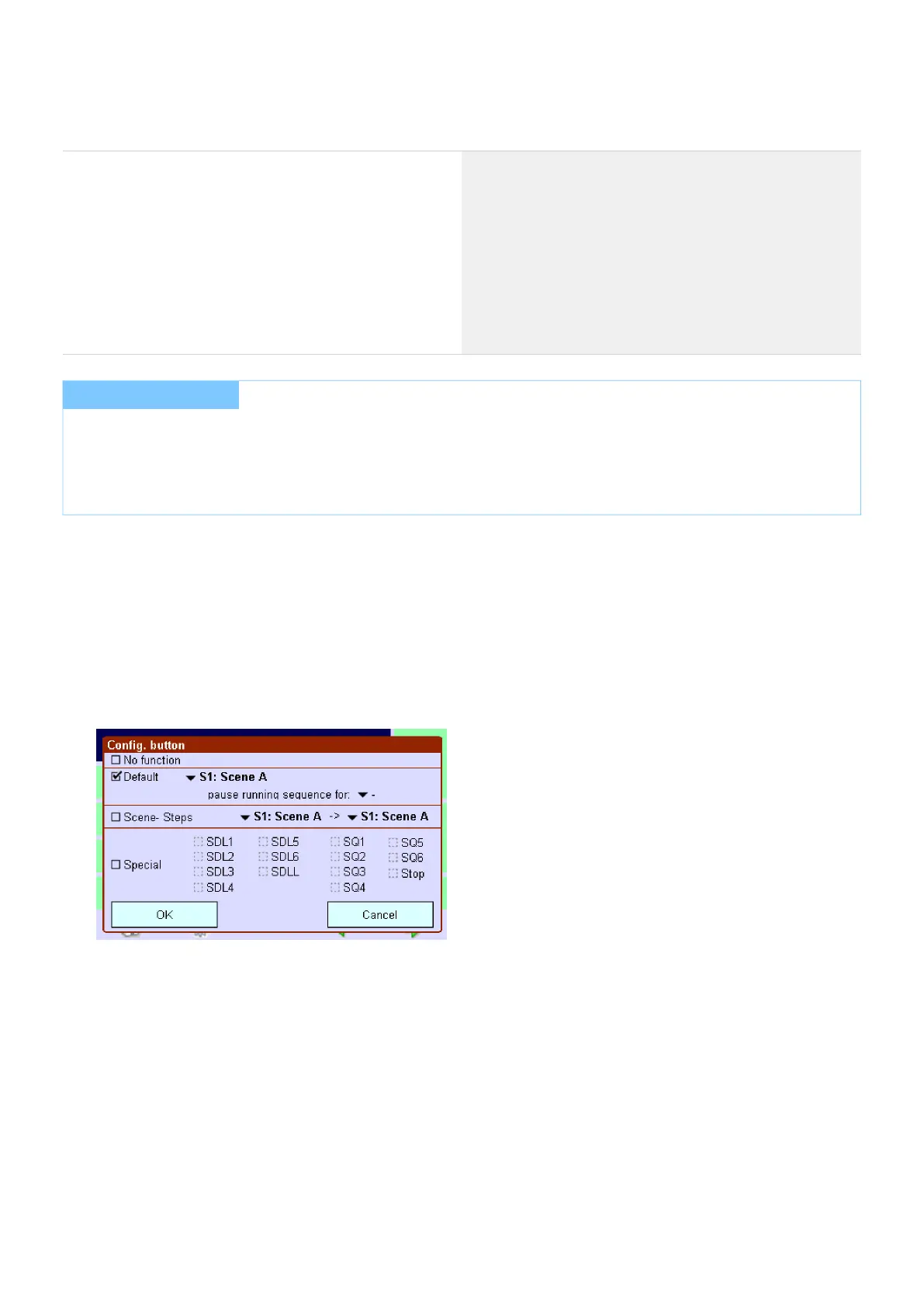
To assign a new function to a button, click on the button (e.g. Scene1) until the dialog box Config. button is
displayed.
To remove the function from the button, activate the check box No function.
- or -
To assign a scene to the button, activate the check box Scene and select a scene.
- or -
To assign a lighting situation to the button, activate the check box Special and then activate the check box
Schedule list SDLL, Schedule SDL, Sequence SQ or Stop.
Activate the check box Scene steps to define that the sequence of scenes is run one after another.
Select a scene in the dropdown menu that is to be the start and end of the sequence.
No function_
Broadcast OFF (switch off all operating devices)_
Group OFF_
G1 to G16_
No function_
Broadcast OFF (switch off all operating devices)_
Zone OFF_
Zone 1 to 4_
I NOTICE
In the Home menu, the buttons are displayed with the names that you have assigned to them in the Names tab of
the Configuration menu.
It is also possible to assign application-specific graphics to the buttons (see "Loading application-specific buttons,
").p. 85


 To Next Page