EasyManua.ls Logo

TSC Alpha-3R - User Manual

TSC Alpha-3R
51 pages
Print Icon
To Next Page IconTo Next Page
Loading...
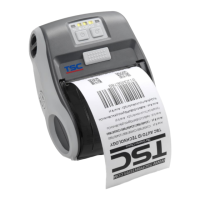
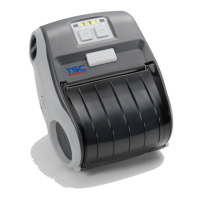
Mobile Barcode Printer
Alpha-3R
Direct Thermal
User Manual
Series Models
Alpha-3R
www.tscprinters.com

Other manuals for TSC Alpha-3R

Questions and Answers

  • M
    Morgan Edwards MDSep 7, 2025
    How to fix a TSC Barcode Reader when the power indicator doesn't turn on?
    • M
      Matthew PerrySep 7, 2025
      If the power indicator or display on your TSC Barcode Reader doesn't illuminate, the battery may not be properly installed. Try re-installing it. If that doesn't work, the battery may be out of power; recharge or replace it as needed.
  • J
    Jeffrey ChristensenAug 22, 2025
    Why is my TSC Alpha-3R not printing?
    • K
      Kristen CampbellAug 22, 2025
      If your TSC Printer is not printing, start by checking the cable connections to the USB interface and reconnect if necessary. If you're using a serial port cable, ensure it's pin-to-pin connected, and replace it if it's not. For Ethernet connections, verify that the green LED is lit on the RJ-45 connector. Also, the print head’s harness connector may not be well connected with printhead, so turn off the printer and plug the connector again. Finally, ensure there is a command PRINT at the end of the file and there must have CRLF at the end of each command line.
  • P
    Paige ScottSep 4, 2025
    Why is the print quality poor on my TSC Barcode Reader?
    • B
      brendapetersenSep 4, 2025
      Poor print quality on your TSC Barcode Reader can stem from several factors. Ensure the media is correctly loaded. Clean any dust or adhesive from the printhead and platen roller. Adjust the print density and speed settings. Verify that you're using a compatible media type. If the issue persists, run a self-test to check the printhead for any damaged elements.
  • K
    Kari FloresSep 3, 2025
    What does 'Head Open' mean on my TSC Printer?
    • M
      Maria ButlerSep 3, 2025
      If the DiagTool shows “Head Open” for your TSC Printer, it means the printer carriage is open. Please close the print carriage.
  • J
    Julia RitterSep 2, 2025
    Why won't the power indicator illuminate on my TSC Alpha-3R Printer?
    • Y
      youngheatherSep 2, 2025
      If the power indicator on your TSC Printer doesn't illuminate, it could be due to a couple of reasons. First, check if the battery is properly installed and reinstall it if necessary. If the issue persists, the battery might be dead, so try charging it.
  • D
    Derrick HernandezAug 31, 2025
    Why can't I download files to my TSC Barcode Reader's memory?
    • J
      Jeffrey DavisAug 31, 2025
      If you're unable to download files to your TSC Barcode Reader's memory, the FLASH memory or SD card may be full. Delete unnecessary files. If that doesn't work, the SD card might be damaged; try another SD card. Ensure the SD card is correctly inserted. Also, verify that the SD card is in a supported format and capacity.
  • C
    chris20Aug 30, 2025
    What to do if my TSC Alpha-3R shows 'Memory full'?
    • J
      Justin MahoneyAug 30, 2025
      If your TSC Printer displays a 'Memory full' error (FLASH / DRAM), it means the space of FLASH/DRAM is full. Delete unused files in the FLASH/DRAM to free up space.
  • C
    csmithAug 29, 2025
    How to fix irregular printing on my TSC Printer?
    • M
      Mark MorganAug 29, 2025
      If your TSC Printer is printing irregularly, it could be due to a couple of reasons. The printer might be in Hex Dump mode; turn it off and on to skip this mode. Alternatively, the RS-232 setting might be incorrect; in that case, re-set the Rs-232 setting.
  • D
    dharveyAug 27, 2025
    Why is my TSC Alpha-3R missing printing on the sides of the label?
    • X
      xsalasAug 27, 2025
      If your TSC Printer is missing printing on the left or right side of the label, the label size setup is probably incorrect. Set the correct label size to fix this.
  • C
    cstoneAug 26, 2025
    How do I remove a gray line on labels from my TSC Alpha-3R?
    • C
      Christopher StoneAug 27, 2025
      If you notice a gray line on the blank labels printed by your TSC Printer, it's likely that either the print head or the platen roller is dirty. Clean both the print head and the platen roller to resolve this issue.

Summary

Unpacking and Inspecting

Getting to Know Your Printer

Front View

Identifies components visible from the front of the printer, including buttons and indicators.

Inner View

Details internal components like the printhead, platen roller, and media path for maintenance and inspection.

Bottom & Rear View

Illustrates connection ports, battery compartment, and other features on the printer's base and rear.

Setting up the Printer

Installing the Battery

Provides step-by-step instructions for inserting and securing the printer's rechargeable battery pack.

Charging the Battery

Explains the battery charging process, including charging time, temperature limits, and status LED behavior.

Setting up the Connection

Guides users through establishing wired connections using USB or RS-232 interfaces.

Loading the Media

Details the procedure for correctly loading paper rolls or labels into the printer, including media holder adjustment.

Using Accessories

Installing the Belt Clip

Instructions for attaching the belt clip to the printer for convenient carrying and portability.

Using the IP54 Case with Shoulder Strap

Guide to placing the printer into its protective IP54 rated case and using the shoulder strap.

Operator Interface

LED Indicators and Buttons

Explains the function of each LED indicator and control button on the printer's operator interface.

Power-on Utilities

Describes how to access and use the printer's built-in utilities by following specific power-on sequences.

TSC Console

Launching TSC Console

Steps to open and start using the TSC Console application for printer management and configuration.

Adding Wi-Fi Interface

Details the process of configuring Wi-Fi connectivity for the printer within the TSC Console software.

Configuring Bluetooth

Provides instructions for setting up and managing the printer's Bluetooth wireless connection.

Initializing Printers Wi-Fi Settings

Explains how to restore the printer's Wi-Fi settings to their original factory default values.

Printers Main Functions

Outlines the purpose and usage of key function buttons available within the Printer Configuration interface.

Configuring Optional Kits

Guides users through configuring installed optional printer accessories like cutters or peelers.

Troubleshooting

Maintenance

Cleaning Supplies

Lists the recommended tools and materials required for performing routine cleaning of the printer.

Cleaning Procedures

Provides step-by-step instructions for cleaning various printer components for optimal performance.

TSC Alpha-3R Specifications

General IconGeneral
Flash memory4 MB
CertificationFCC, CE, CB, CCC, C-Tick, BIS, EAC, IC, NOM, NCC, RoHS, WEEE
Internal memory8 MB
Built-in barcodesCode 128 (A/B/C), Code 39, Code 93, Data Matrix, EAN128, EAN13, EAN8, GS1 DataBar, MaxiCode, PDF417, POSTNET, QR Code, UPC-A, UPC-E
Built-in processorYes
Page description languagesCPCL-native, EPL2, ESC/POS, TSPL-EZ, ZPL II
Core diameter25.4 mm
Media thickness0.14 mm
Maximum roll diameter57 mm
Package typeBox
Quantity per pack1 pc(s)
Storage temperature (T-T)-40 - 60 °C
Operating temperature (T-T)-10 - 50 °C
Storage relative humidity (H-H)10 - 93 %
Operating relative humidity (H-H)10 - 90 %
BluetoothNo
Wi-Fi standards802.11a, 802.11b, 802.11g, Wi-Fi 4 (802.11n)
Optional connectivitySerial (RS-232)
USB 2.0 ports quantity1
Connectivity technologyWired & Wireless
Product colorBlack, Grey
Battery voltage7.4 V
Battery capacity2500 mAh
Print technologyDirect thermal
Maximum resolution203 x 203 DPI
Maximum print height2286 mm
Maximum printing width72 mm
Mac operating systems supportedMac OS X 10.0 Cheetah, Mac OS X 10.1 Puma, Mac OS X 10.10 Yosemite, Mac OS X 10.11 El Capitan, Mac OS X 10.12 Sierra, Mac OS X 10.14 Mojave, Mac OS X 10.2 Jaguar, Mac OS X 10.3 Panther, Mac OS X 10.4 Tiger, Mac OS X 10.5 Leopard, Mac OS X 10.6 Snow Leopard, Mac OS X 10.7 Lion, Mac OS X 10.8 Mountain Lion, Mac OS X 10.9 Mavericks
Weight and Dimensions IconWeight and Dimensions
Depth148 mm
Width116 mm
Height70 mm
Weight550 g

Related product manuals