Customer Service: 888-269-7477 VIEWING CAPTIONS • 39
Setting the Color of the Captions
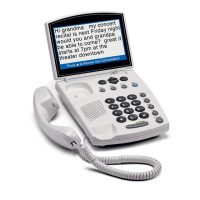
You can change the color of the caption font, corrections, and the background
color on the display screen to a color combination that you prefer. You need
to set the conversation colors before or after a call. You cannot change the
caption colors during a live captioned call. Color choices include: WHITE,
RED, GREEN, BLUE, CYAN, MAGENTA, GRAY, BLACK, ORANGE or YELLOW.
NOTE: Changing the font colors applies only to conversation captions. The font
size and style for your CapTel 840 menu Options always remains the same.
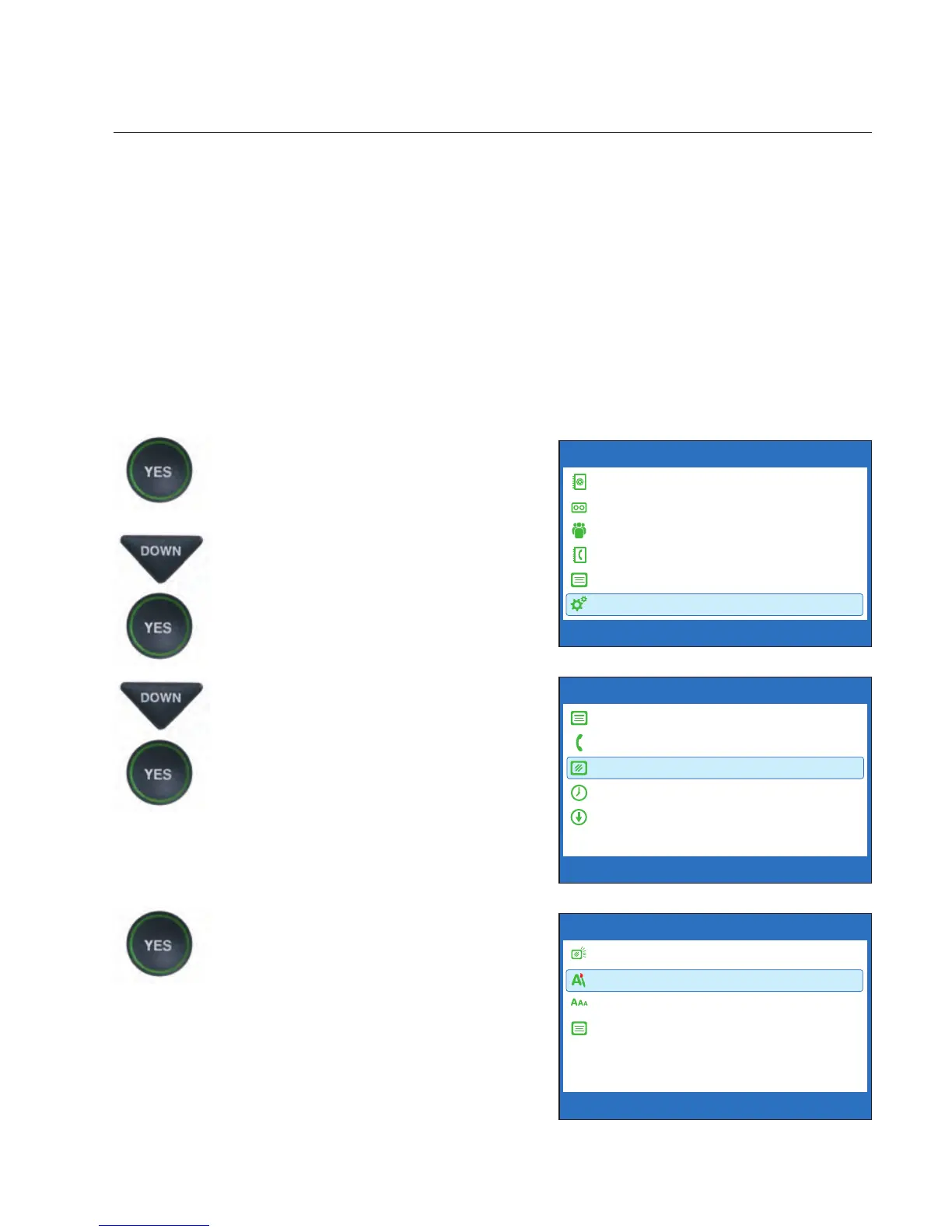
To change the caption font, background, or correction colors:
1. With the handset hung up,
press the YES button to see the
Options menu.
2. Press the DOWN arrow button
repeatedly until Settings is
highlighted. Press the YES
button to select.
3. Press the DOWN arrow button
repeatedly until Display
Settings is highlighted.
Press the YES button to select.
4. Press the DOWN arrow button
repeatedly until Set
Conversation Colors is
highlighted. Press the YES
button to select.
OPTIONS
Dial from Phone Book
Answering Machine
Call History
Edit Phone Book
Conversations
Settings
Press YES to select or press NO to exit Options
DISPLAY SETTINGS
LCD Brightness
Set Conversation Colors
Set Conversation Font Size
Conversation Smooth Scroll
Press YES to select or press NO to exit
SETTINGS
Caption Settings
Phone Settings
Display Settings
Set the Time and Date
Update Phone
Press YES to select or press NO to exit


 To Next Page