EasyManua.ls Logo

Unify OpenScape WLAN Phone WL4 - User Manual

Unify OpenScape WLAN Phone WL4
83 pages
Print Icon
To Next Page IconTo Next Page
Loading...
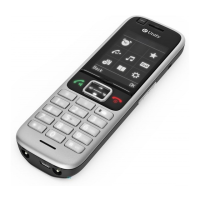
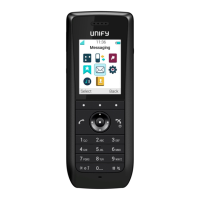
OpenScape WLAN Phone WL4
OpenScape WLAN Phone WL4 Plus
User Manual
A31003-M2000-U109-01-7619

Table of Contents

Other manuals for Unify OpenScape WLAN Phone WL4

Questions and Answers

  • D
    Dakota GutierrezSep 15, 2025
    Why is parameter version dark red on Unify OpenScape WLAN Phone WL4?
    • D
      Danielle MatthewsSep 15, 2025
      If the parameter version is displayed in dark red in the Device Manager GUI, import a .pkg file suitable for the device. This indicates that the version of the imported .pkg files are not 100% compatible with the device.
  • K
    kimberly01Aug 25, 2025
    What to do if Unify Telephone is locked?
    • R
      Roberto StoneAug 25, 2025
      If you can't use your Unify Telephone handset and see a dialog window saying it's locked, the phone lock feature is activated. To unlock it, enter the required PIN code. If you've lost the PIN code, contact your system administrator for assistance.
  • W
    Wanda HoganAug 25, 2025
    Why can't I mute my Unify OpenScape WLAN Phone WL4?
    • M
      Mr. Derek KnoxAug 26, 2025
      If you cannot mute the handset or set the ring volume to “Silent” on your Unify Telephone, the handset is likely configured to restrict you from muting or setting the volume to silent. Contact your system administrator for support and ask them to turn off the Prevent silent parameter to remove these sound restrictions.
  • C
    Cindy RosalesAug 26, 2025
    How to increase ring volume on Unify OpenScape WLAN Phone WL4 Telephone?
    • C
      Cynthia LarsenAug 27, 2025
      If the ring volume on your Unify Telephone is silent, check the status bar for the 'Silent volume' icon. If it's displayed, increase the volume by pressing the Volume up button or by navigating to Settings > Sound & Alerts > Volume on your handset.
  • A
    Albert MarshSep 16, 2025
    What does 'device busy' mean on Unify OpenScape WLAN Phone WL4?
    • N
      Nathan MoraSep 17, 2025
      If some devices report 'device busy' in the Device Manager when trying to change device parameters, no action is needed. The Device Manager will synchronize the changes when possible. The device is occupied with some action that it cannot combine with parameter synchronization.
  • C
    Charles DiazSep 23, 2025
    Why can't I apply a template when creating a new number on Unify OpenScape WLAN Phone WL4?
    • C
      Carmen MillerSep 23, 2025
      If it is not possible to apply a template at the creation of a new number, create a new template or upgrade an existing template and retry. This issue occurs when no compatible template exists for the desired device.
  • R
    Ricky WattsSep 8, 2025
    How to correct the system time on Unify OpenScape WLAN Phone WL4?
    • J
      Jacqueline SimmonsSep 8, 2025
      If the system time is incorrect on your Unify Telephone, configure the system to connect to a time server. This issue is caused by a configuration error where no time server is configured.
  • R
    Robin GarciaSep 9, 2025
    What to do if having firewall issues on Unify OpenScape WLAN Phone WL4?
    • K
      Kyle HamiltonSep 9, 2025
      If you are experiencing firewall issues or there is no indication of a connected device with your Unify Telephone, the firewall may need configuration to allow communication between the module and any devices.
  • P
    paulbautistaSep 2, 2025
    Why my Unify OpenScape WLAN Phone WL4 Telephone module is in Boot Mode?
    • M
      melissa95Sep 2, 2025
      Your Unify Telephone module may be in Boot Mode because no software is installed, or the installed software is malfunctioning. Install new software to resolve this.
  • R
    rgarciaAug 31, 2025
    Why can't I access my Unify OpenScape WLAN Phone WL4 module via the management port?
    • R
      Robert ArnoldAug 31, 2025
      Access issues via the management port on your Unify Telephone module can occur if the required port driver isn't installed correctly on your PC, or for the USB port you're using. Also, when switching between mass storage mode and network mode, the PC needs about 30 seconds to get an IP address from the DHCP server.

Summary

Calling

Call list

Stores the last 25 received, dialled, or missed calls with occurrence counts.

Incoming Calls

Details on how incoming calls are displayed and how to answer them.

Outgoing Calls

Describes various methods for making outgoing calls.

Call Using the Local Phonebook

How to make calls using the handset's local contact list.

Call Using the Company Phonebook

How to make calls using the downloaded company contact list.

Call Using the Central Phonebook

How to access and use a central phonebook.

During the Call

Describes actions that can be performed while a call is active.

Transfer the Call to a New Number

How to forward a call to a different number.

Turn the Microphone Off or On

How to mute and unmute the microphone during a call.

Turn the Loudspeaker On or Off

How to toggle the loudspeaker function during a call.

Conference Call

How to set up and manage conference calls with multiple participants.

Call Diversion

Divert All Calls

How to redirect all incoming calls to another number.

Divert Calls if No Reply

How to redirect calls when there is no answer.

Divert Calls When Busy

How to redirect calls when the recipient is busy.

Push-to-Talk Group Call

Accept a PTT Invitation

How to accept an invitation to a Push-to-Talk session.

Emergency Calls

Call Services

Call Waiting

How to receive a second call while on an active call.

Divert calls

Redirecting all incoming calls to another handset number.

Do Not Disturb

How to activate or deactivate the Do Not Disturb function.

Hide Calling ID

How to hide the caller's identification.

Messaging

Incoming Messages

How text messages are received and displayed on the handset.

Received Messages

How to view, reply, delete, or forward received messages from the Inbox.

Sent Messages

How to view, forward, or delete sent messages.

Messaging Basics

Write and Send the Message

Instructions for composing and sending new text messages.

Reply to the Message

How to respond to a received message.

Predefined Messages

Using pre-written messages for common responses or actions.

Call from the Message

How to initiate a call directly from a message content.

Alarm Operation

Push-button and Test Alarms

Setting up push-button or test alarms on the handset.

Silent Alarm

Sending alarms discreetly without visual or audible signals.

Man-down and No-movement Alarm

Automatic alarms triggered by lack of movement or handset tilt.

Cancel Man-down and No-movement Alarm

How to cancel a man-down or no-movement alarm before it's sent.

Delay Man-down and No-movement Alarm Temporarily

How to temporarily delay a man-down or no-movement alarm.

Reset Man-down and;or No-movement Alarm

How to reset an alarm that has already been triggered.

Automatic Call after Alarm

Emergency Call Alarm

Menu Operation

Messaging

Accessing the messaging functions of the handset.

Connections

Accessing connection settings like Bluetooth and network.

Calls

Accessing call menus and functions.

Shortcuts

How to access the shortcuts menu.

Define Keys Functions

Define Soft Keys

How to assign functions to the soft keys.

Define Hot Keys

How to assign functions to hot keys.

Define Navigation Keys

How to assign functions to navigation keys.

Define Multifunction Button

How to assign functions to the multifunction button.

Settings

Sound and Alert Settings

Configuring audio and vibration signals on the handset.

Set Different Ring Signals for Calls

Assigning specific ring signals to different call types.

Alarm Settings

Enable Man-down and No-movement Alarms

How to activate man-down and no-movement alarms.

Profiles

Contacts

Maintenance

Troubleshooting

Safety and Regulatory Instructions

Unify OpenScape WLAN Phone WL4 Specifications

General IconGeneral
Wireless StandardIEEE 802.11 a/b/g/n
Battery TypeLi-ion
SIP Protocol SupportYes
Operating Temperature0°C to 40°C
Humidity Range10% to 90% non-condensing
Audio CodecG.711
ProtocolsSIP, RTP
SecurityWPA2-Enterprise
Headset Jack3.5 mm

Related product manuals