Apollo Solo Manual Using UAD Plug-Ins 88
Working with User Presets
You cannot edit, delete, or move factory presets. However, you can edit a factory preset
and save it as a user preset. You can organize user presets into folders, import user
presets, and locate and share user presets from your system. Preset files can be shared
between macOS and Windows operating systems. When you load a preset into the
system, it is automatically added to the user preset list in the plug-in preset manager.
Editing presets
You can edit a preset you have loaded in a UAD plug-in, and save that preset with the
Preset browser.
You can also delete and rename presets that you have created. If you save changes to a
factory preset, the preset is saved as a user preset with the same name. Factory presets
cannot be edited.
To save a UAD plug-in preset:
1. Select a preset.
2. Make changes to the plug-in as required. The preset name changes to italic text to
indicate that it has been edited.
Note: Reopen the preset browser if it closes after adjusting settings in the plug-in
window.
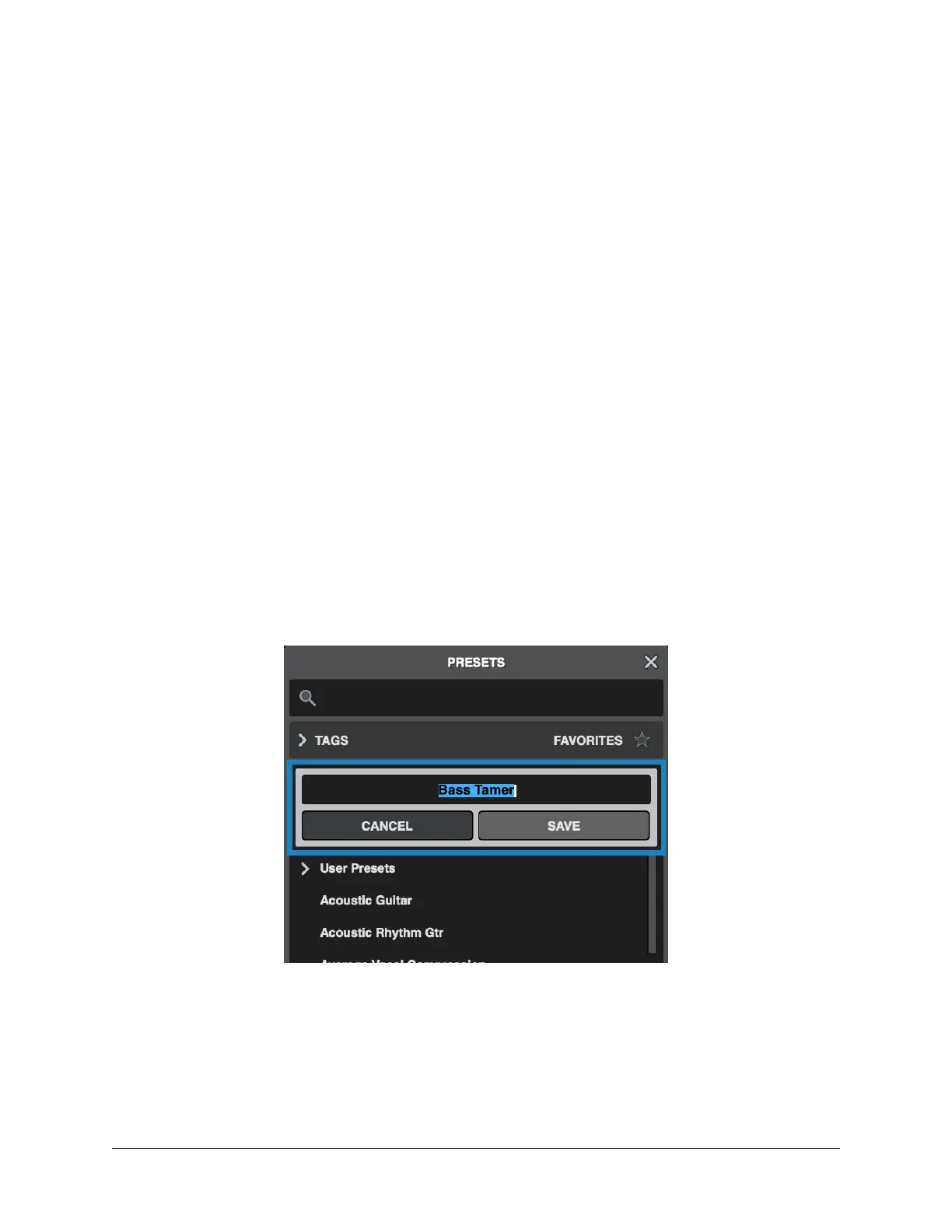
3. Click Save. The Save dialog opens.
4. Click Save to save the changes to the existing preset, or type a name for the pre-
set to save with a new name, then click Save.
If you save a preset that is based on a factory preset, the preset is saved in the User
Presets list. You cannot overwrite factory presets.




 To Next Page