Basic Operation
OPERATION GUIDE 3-5
3
Original Preview
You can display a preview image of the scanned document on the panel.
NOTE: To view a preview of an image stored in a Custom Box, refer to Previewing Documents/Checking
Document Details on page 3-39.
The procedure for previewing scanned originals is explained below.
The procedure described here is for copying a single-page original.
1 Press the Copy key and place the original on the
platen.
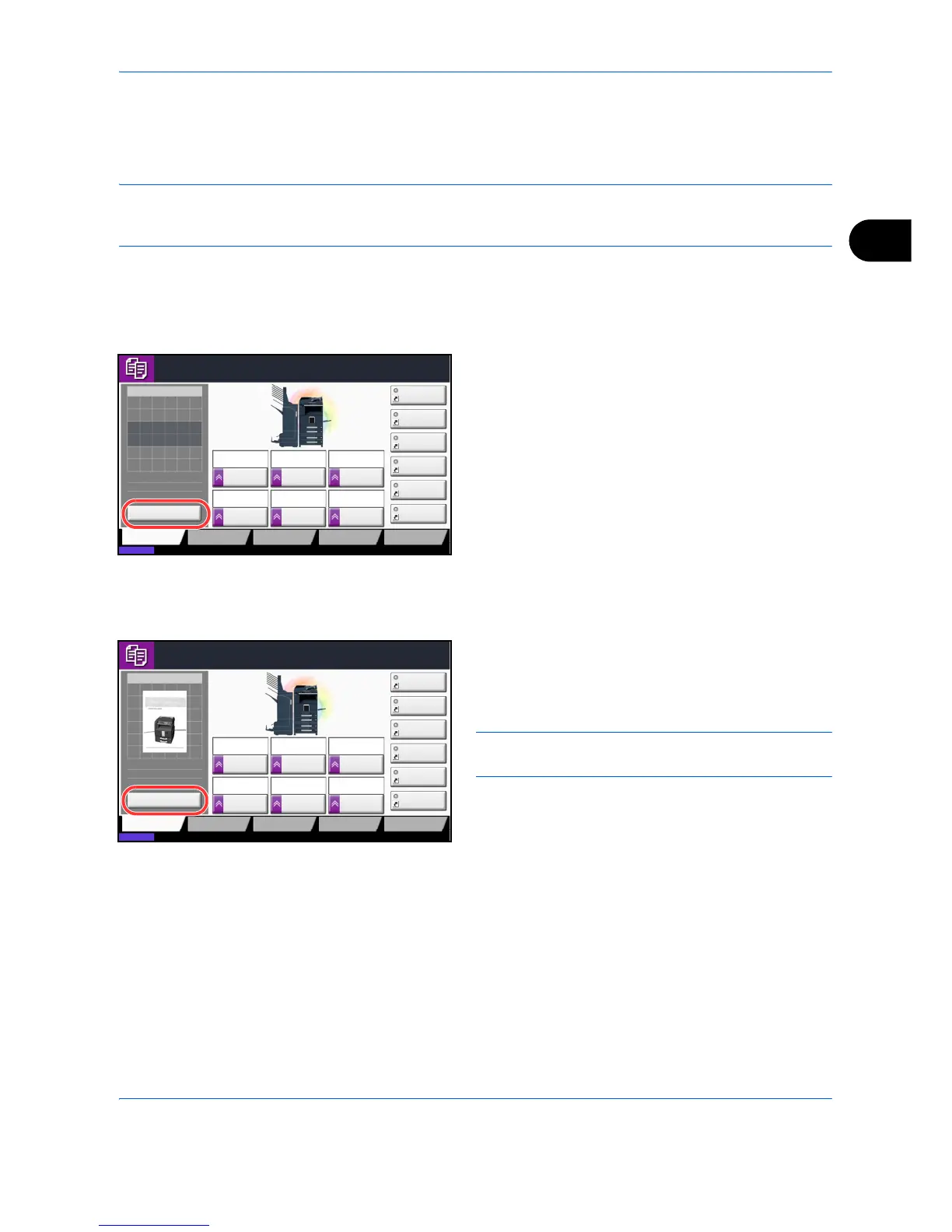
2 Press [Preview].
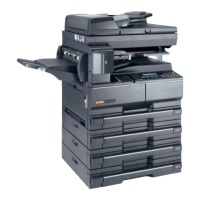
3 The machine starts scanning the original. When
scanning is completed, the preview image appears
on the panel.
4 To change the quality or the layout, press [Cancel]
or the Stop key. Change the settings and press
[Preview] again to see a preview image with the
new settings.
NOTE: If you scan a multi-page original, only the first
page is previewed.
5 If there is no problem with the preview image, press
the Start key. Copying begins.
Cancel
Copy Image
Copies
1
Image QualityOrg./Paper/
Finishing
Quick Setup Layout/Edit Advanced
Setup
Status
08/08/2009 10:10
Shortcut 1
Shortcut 4
Shortcut 3
Shortcut 2
Shortcut 6
Shortcut 5
LetterOriginal
Zoom
Paper
100%
:
:
Letter
Staple/Punch
Off2 in 1
Combine
2-sided
>>2-sided
Duplex
Normal 0
DensityPaper
Selection
Auto
Zoom
100%
Press Start key to start printing.
Press [Cancel] to change settings.


 To Next Page