Setup
3-2 ForceTriad User’s Guide
Setup
Before Startup
1. Verify the system is off by pressing the power switch off (O).
2. Place the energy platform on a flat, stable surface such as a table, platform,
boom system, or Valleylab cart. Carts with conductive wheels are
recommended. Refer to the procedures for your local institution or your local
codes.
3. Plug the system power cord into the rear panel receptacle.
4. Plug the system power cord into a grounded power receptacle.
Note: Do not plug into a power strip or extension cord.
Powering Up the ForceTriad Energy Platform
1. Turn on the system by pressing the power switch on ( | ). Observe the
following during the power-up self test:
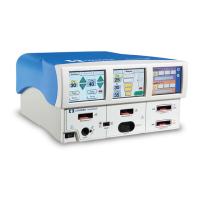
• The ForceTriad logo will appear on all three screens.
• A status bar indicates activity.
• An hourglass icon indicates activity after the status bar disappears.
• A tone will sound upon completion of self-test.
2. If the system does not pass the power-up self test, refer to Chapter 7,
Troubleshooting.
System Functions
Adjusting Display Brightness
The ForceTriad energy platform screens have two levels of brightness. Touch the
brightness icon on the right side of the right touchscreen to adjust the display
brightness.
Activation Log
The Activation Log allows the user to view the last 1000 activations and REM
alerts.
1. Touch the wrench icon on the right side of the right touchscreen. The main
menu display will appear in the left touchscreen.
2. Touch Activation Log in the main menu. The activation log will appear on the
center touchscreen.
3. Touch the single up or down arrows to the right of the activation log to scroll
through the log one line at a time.
4. Touch the green arrow button on the bottom right corner of the main menu
screen to return the ForceTriad energy platform to the previous setup
configuration. The last settings will be displayed.


 To Next Page