System Functions
3-4 ForceTriad User’s Guide
Time and Date Setup
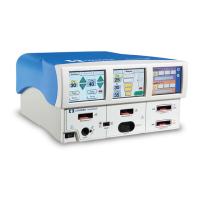
1. Touch the wrench icon on the right side of the right touchscreen. The main
menu display will appear in the left touchscreen.
2. Touch Setup in the main menu. The setup display will appear in the left
touchscreen.
3. Touch the Time and Date button in the setup menu. The time and date display
will appear in the left touchscreen.
4. Touch the desired numeric field (minutes, seconds, month, day, or year) to
select that field.
5. Touch the up or down arrows next to the time or date row to adjust the
selected numeric field.
Touch and hold the arrows to increase the number once per second. After four
seconds, the numbers will increase once per 100 milliseconds.
6. Touch the green check mark button to store the date and time information and
return to the setup menu.
or
Touch the red ‘X’ button to return the time and date to the previous settings
and return to the setup menu.
7. Touch the green arrow button below the setup menu to return to the main
menu.
Enable/Disable Autobipolar
1. Touch the wrench icon on the right side of the right touchscreen. The main
menu display will appear in the left touchscreen.
2. Touch Setup in the main menu. The setup menu will appear in the left
touchscreen.
3. If the Autobipolar mode is not enabled, the Autobipolar button will display
‘Enable Autobipolar’. Touch the Enable Autobipolar button to enable the
Autobipolar mode.
If the Autobipolar mode is enabled, the Autobipolar button will display
‘Disable Autobipolar’. Touch the Disable Autobipolar button to disable the
Autobipolar mode.
4. Touch the green arrow button below the setup menu to return to the main
menu.


 To Next Page