USER MANUAL
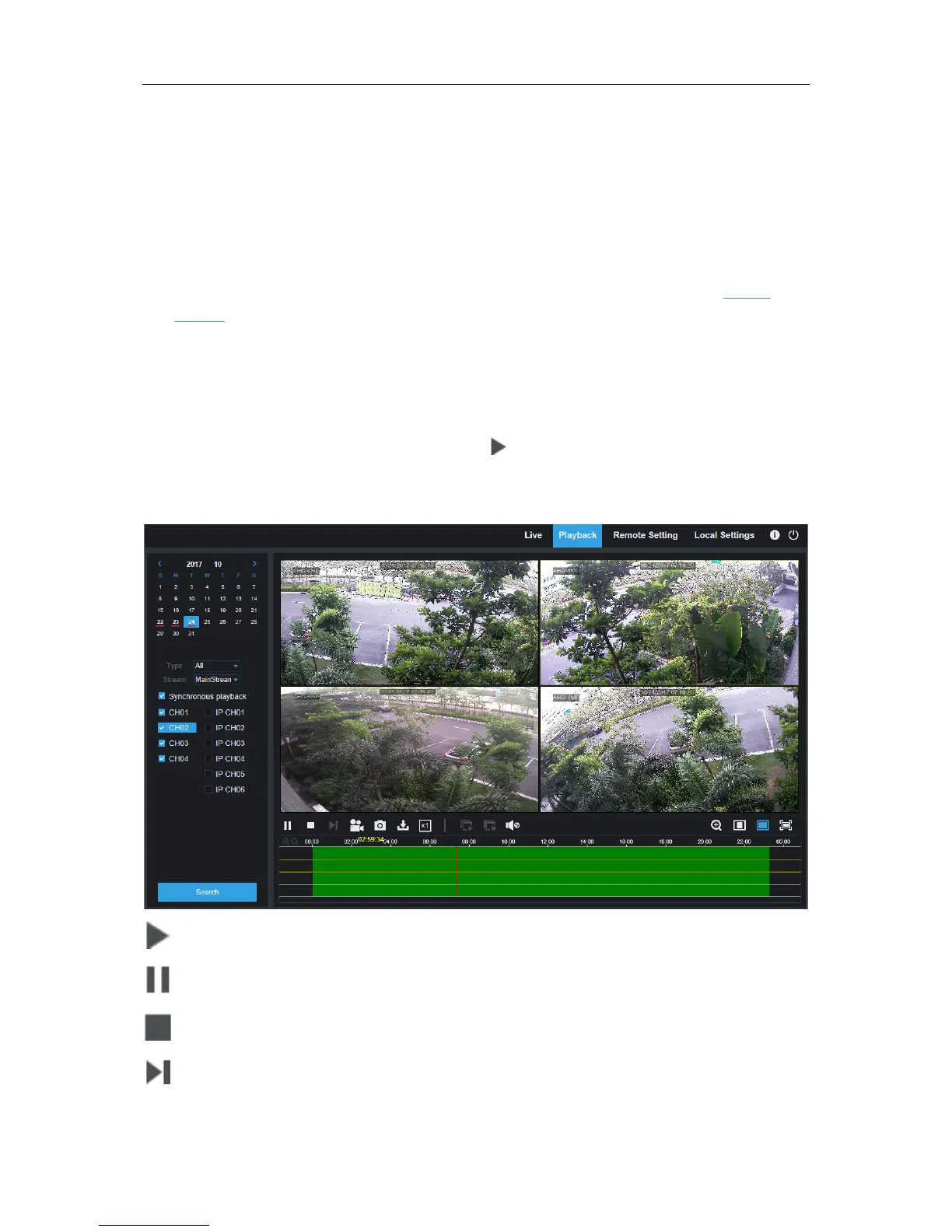
To search recordings:
1. Click Playback in the top-right corner of the window.
2. Select a day on the calendar to search for recordings from. Days with recordings appear with
a red underline.
3. Select the recording type to search for from the dropdown next to Type, or select All to
search for all recordings.
4. To choose the video stream you want to search & play. If you want to play Substream
recordings, please make sure you had set the DVR to record with Dualstream at
5.2.2.1
Record.
5. Check the channels you would like to search for recordings from. Check Synchronous
playback to play all channels at once.
6. Click Search.
7. Recordings that fit your search will be displayed in the timeline. Click a section of video where
you would like to begin playback and click the play button.
7.3.2.1 Playback Control Buttons
Play the recordings
Pause
Stop
Go Forward One Frame:
Move frame-by-frame through playback. Only available when the
Synchronous playback
option is not checked.
94



 To Next Page