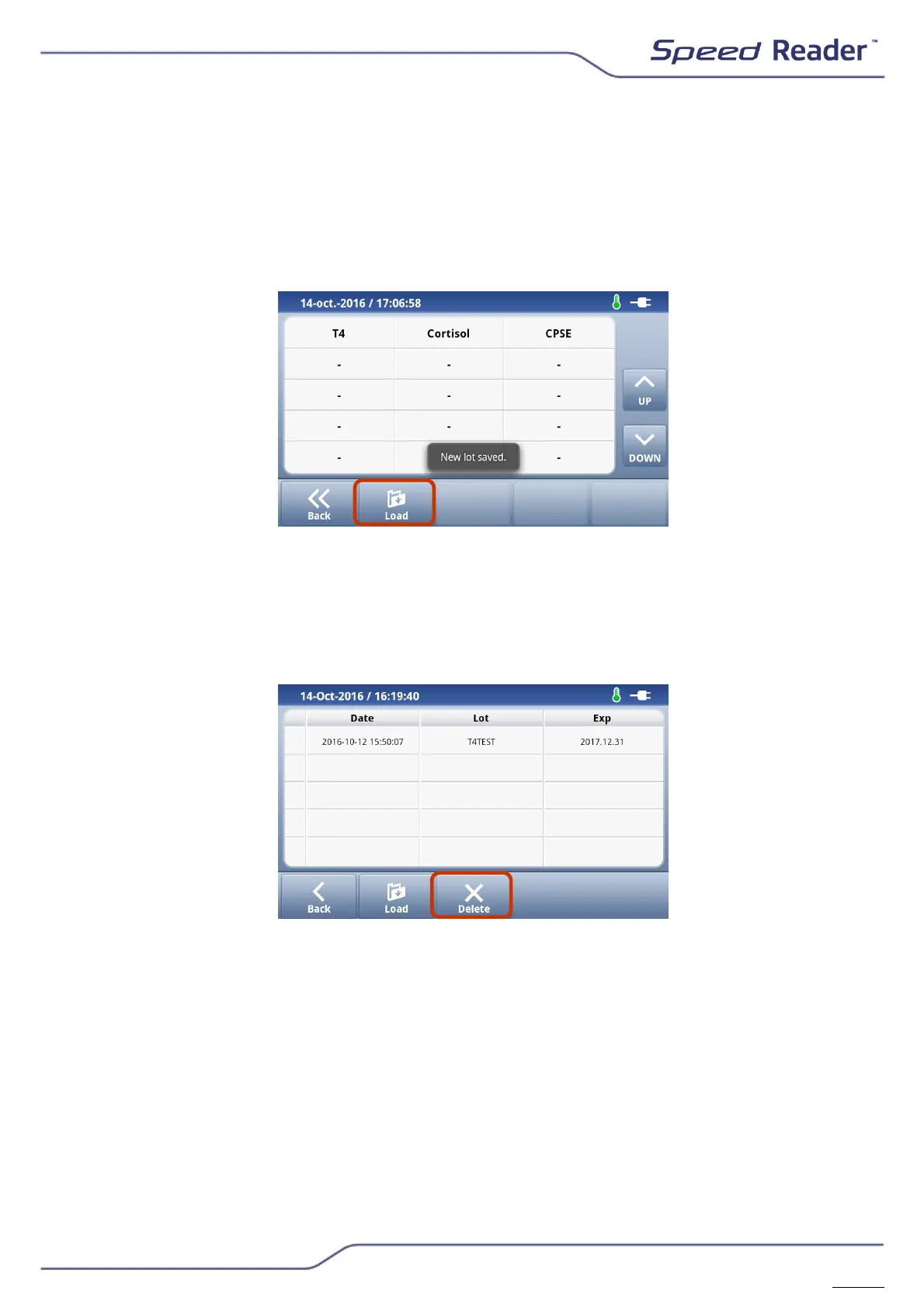
o Saving a new batch
o Go to the home screen, then select “New Lot”.
o Insert the calibration chip to be saved.
o Press “Load”.
o The message “New lot saved” confirms that the chip has been properly
saved.
o To check the batch number and expiration date, press the desired
valency.
o To delete a valency, first select it, then press “Delete” and confirm by
pressing “Yes”
The Speed Reader
TM
analyser can store up to 5 batch calibrations per test in
its memory. When the memory is full, the Speed Reader
TM
analyser will
erase the oldest batch calibration curve at each new saving.
Batches whose expiration date has passed appear in yellow on the reader.
You should store the calibration chip of each corresponding batch in each
test box until all of the box’s tests have been performed. It is possible to
have several chips of the same batch. In this case, when recording, the
message “New lot saved” appears even if the batch was already stored in
the memory; this will not create duplicates in the unit.


 To Next Page