z Press the EPG button, then the EPG menu will be displayed.
z Use the ARROW buttons to move to other services or to see previous/next guide.
z Press the EPG button once to view full EPG with multi service list, and press it twice to view the
additional EPG information of a specific channel service. Keep pressing the EPG button to
toggle between the full and detailed menus of EPG.
z Press the GREEN button to view next day EPG and the RED button to view EPG for a previous
day.
z Select the program by using the ARROW buttons then set the event timer by pressing OK.
z You can schedule a recording with the EPG menu as follows.
-
-
-
Press RECORD button to schedule the event. This schedule can be checked in the menu of
Timer Settings, in the System tool menu.
To cancel the schedule of the recording, press the OK button for the appointed event.
To edit the schedule of the recording, press the RECORD button for the appointed event.
5. Favorite Group
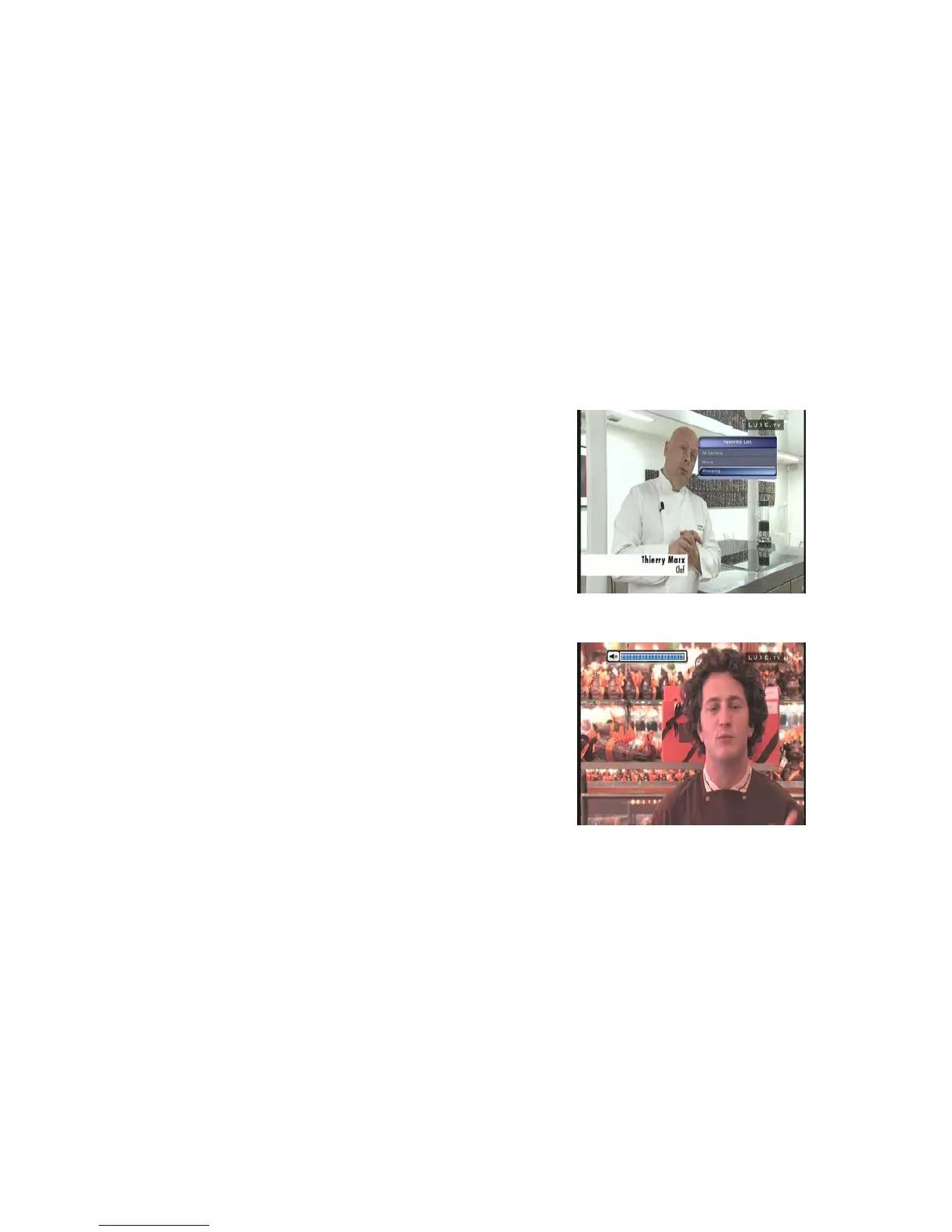
Select the FAV (Favorite) to view all favorite ten groups such
as sports, movie, drama, satellite group and so on. Scroll
through the various favorite group using the ARROW buttons,
and select the desired favorite group by pressing OK.
6. Volume Control
z To adjust the audio volume, press the VOL UP/ DOWN
buttons.
z Audio volume control bar will be displayed at the top of the
screen and disappear after 4 seconds.
z When necessary, press the MUTE button to turn on/off the
audio sound.
NOTE : The mute function remains set while you change
services.
7. Pause
The PAUSE button is used to freeze the video. Press PAUSE button once more to resume the
video.
8. Subtitle
You can select the language for a Subtitle, if the program provides subtitle information.
z Press the SUBTITLE button on your remote control unit.
z Select the desired subtitle language then press OK button.
20


 To Next Page