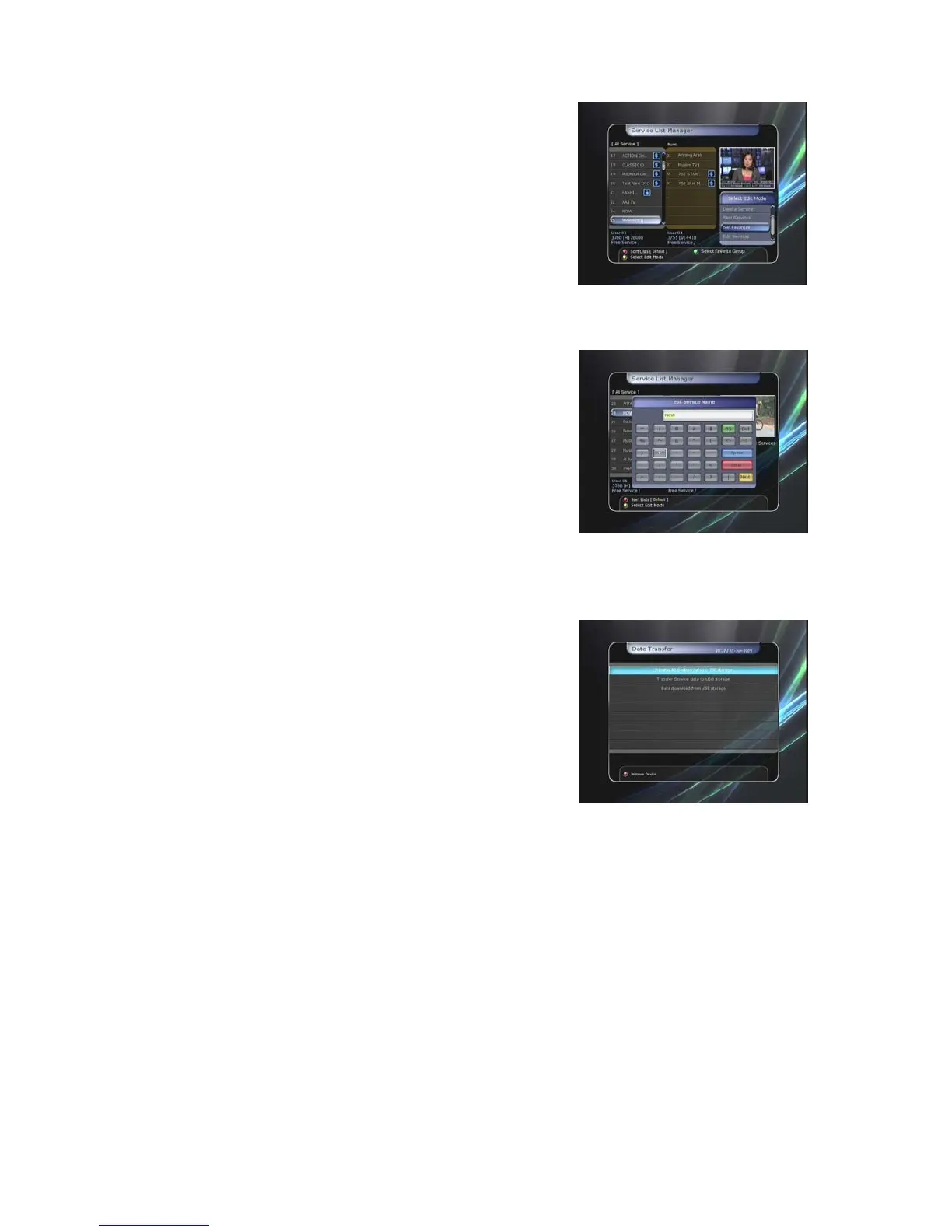
z Set Favorite Services : Use the ARROW and OK buttons
to select your desired favorite group. Once, favorite group
is chosen, the left side window will show all service lists
and the middle window will only show the selected
services of the favorite group selected. By using the
ARROW and OK buttons, you may ADD the desired
services to a favorite group or DELETE any from the
favorite group. The name of the favorite group can be
edited by pressing the GREEN button.
z Edit Services : All service names will be shown on the left
side of the window. Move the highlighted bar to the service
where you want to edit its name and press the OK button.
Then you will see the virtual keyboard. Using the ARROW
and OK buttons, you can edit the name of the service with
the keyboard.
1.4 Data Transfer
z Transfer all System data to USB storage : If you want to
transfer and use BOTH of the current system parameters
and service data in the future, this menu will allow you to
store all data to your USB device. Press OK button to store
all current data to an external USB storage.
z Transfer Service data to USB storage : If you want to
transfer and use ONLY the service data in the future, this
menu allows you to store current service data. Press the OK
button to store the current service data to your external USB
storage. The service data can also be viewed and edited on
a PC with an appropriate editor (DrEdit) for the file saved.
z Data download from USB storage device : This menu allows you to download the saved data
from the external USB storage to your STB. Press OK button to download data.
34


 To Next Page