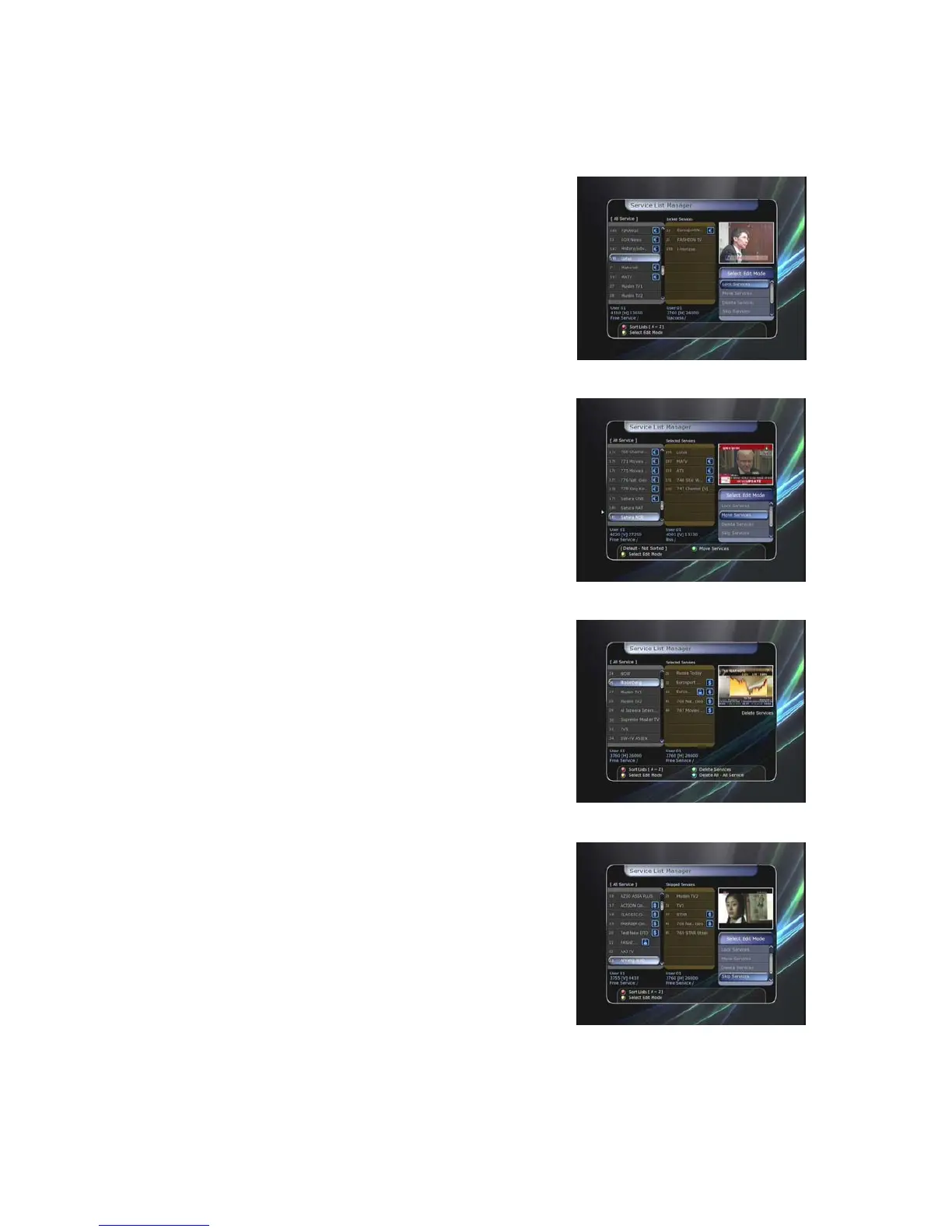
1.3 Service List Manager
Service List Manager menu will appear when you press the OK button.
You can select Edit Mode by pressing the YELLOW button.
z Lock Services : All service lists will be shown on the left
side of the window, the middle will show the list of service to
be locked. By using the ARROW and OK buttons, you may
move the chosen service to the middle window to lock that
service. Services can also be moved back from the middle
to the left side to un-lock them.
z Move Services : All service lists will be shown on left side
of the window, services to be moved will be shown on the
middle window. Move the service to the middle window by
using the ARROW and OK buttons, then the middle window
service will be moved to a specified location when the
desired location is selected from the left window.
z Delete Services : All service lists will be shown on left side
of the window. By using the ARROW and OK buttons you
may select services to be deleted by placing them in the
middle window. The press the GREEN button to delete the
selected services.
z Skip Services : All services will be shown on left side of the
window, the middle window will only show the services that
are chosen to be skipped. By using the ARROW and OK
buttons you may move the selected services from the left to
middle window to skip them.
33


 To Next Page