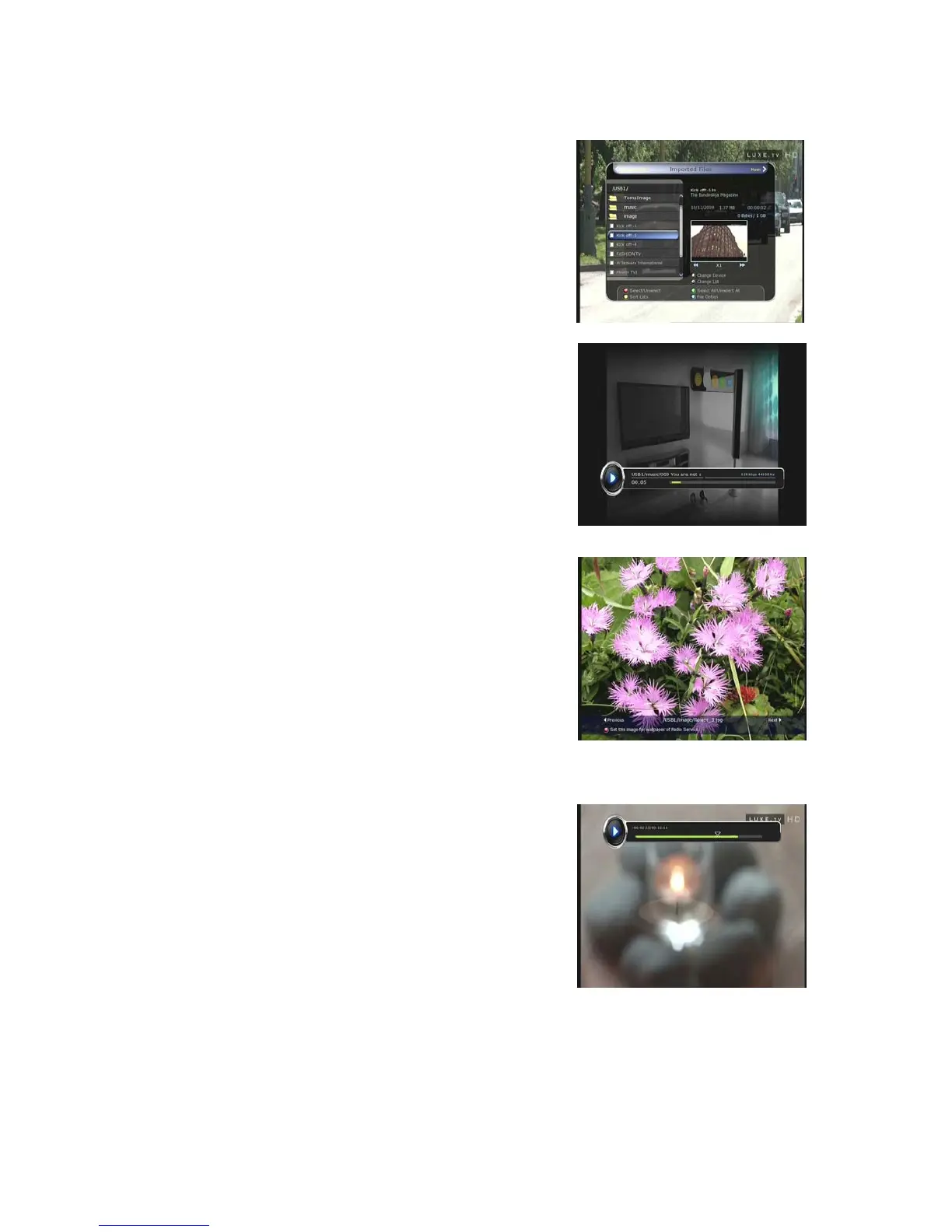
3.2 Imported Files
z
If you press RIGHT ARROW button in Recorded Files,
you can go to Imported File menu.
z Locate the file(s) you wish to play with the UP/DOWN
button and press the OK button to enjoy the movie.
z To choose a particular selection of files, select a desired
file and press the RED button. Press the OK button to
begin the selected files.
z You can use the same ‘Select Device’, ‘Sorting’ and ‘File
Option’ features as in the Recorded Files.
3.3 Music
z
If you press the RIGHT ARROW button in Imported Files,
you can go to Music menu.
z If you press the RECALL button, you can enjoy music with
Shuffle playback and repeat.
z You can use the same ‘Select Device’, ‘Sorting’ and ‘File
Option’ features as in the Recorded Files.
3.4 Photo
z
If you press the RIGHT ARROW button in Music, you can
go to the Image Photo menu.
z If you press the RED button or OK button, you can start
the slide show of image files. Press the EXIT button to
stop slide show.
z If you press the GREEN button, you can adjust the Slide
Time, Repetition, Title, Down-scale.
z You can use the same ‘Select Device’, ‘Sorting’ and ‘File
Option’ features as in the Recorded Files.
4. Bookmark
z When the Play bar is displayed, you may move to desired
time and book mark it by pressing the RED button.
Bookmark(s) are indicated with a Green line on the play
bar. Also, you may press the RED button to activate the
play bar to mark your bookmark(s).
29


 To Next Page