3. Playback (Play List)
You can playback many files with the Playlist which you access by the PLAYLIST button.
In the Playlist, you can check and playback recorded files, multimedia movie files, MP3 music files,
and image files. With the LEFT/RIGHT ARROW button, go to the Recorded Files, Imported Files,
Music and Photo category and check & for playback files in each category. Press the RIGHT
ARROW button once to go to Imported Files, press the RIGHT ARROW button one more time to go
to the Music menu and press the RIGHT ARROW button one more time to go to the Photo menu.
3.1 Recorded Files
z
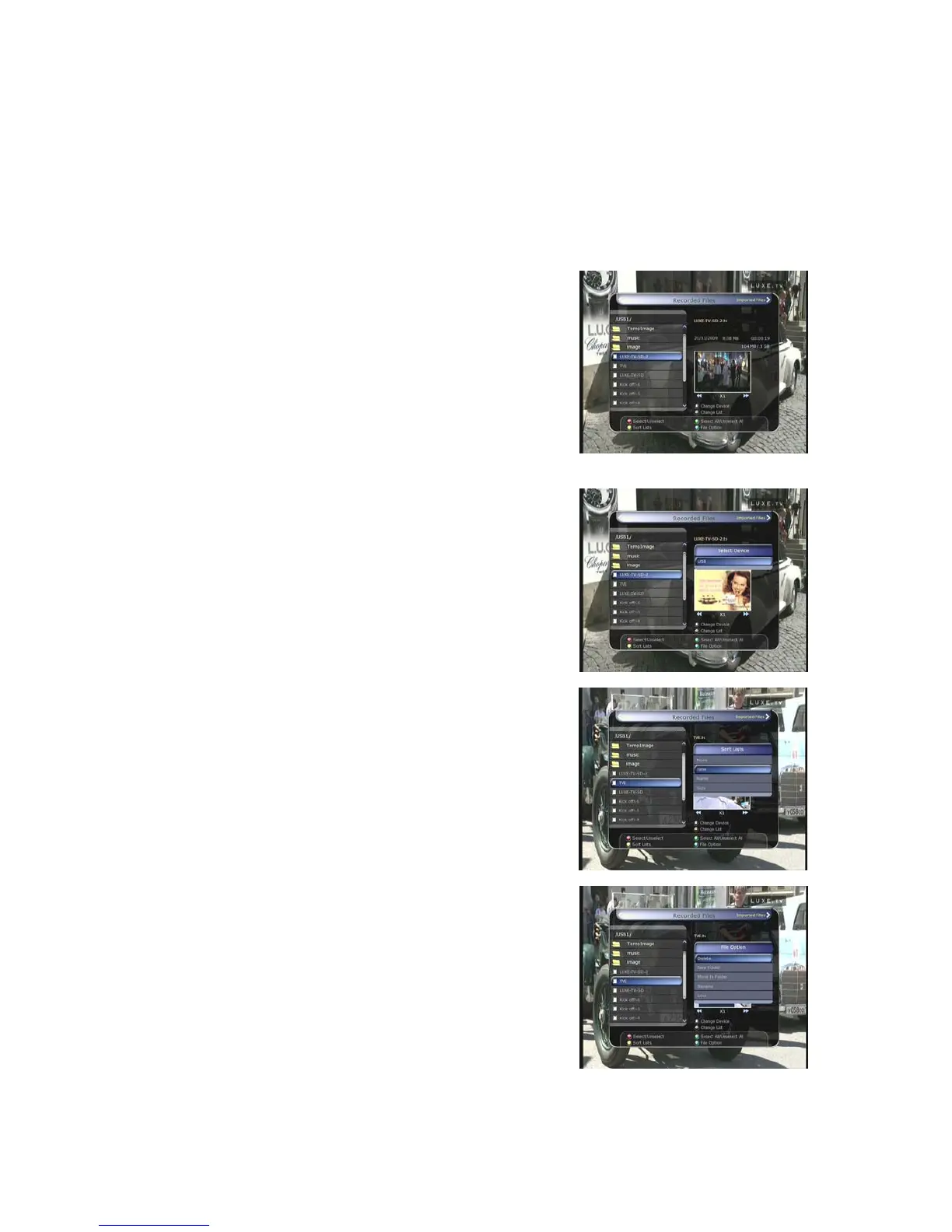
To enter Recorded Files menu, press the PLAY LIST
button.
z Locate the recorded file(s) you wish to play with the
UP/DOWN button and press the OK button to playback the
recorded file(s).
z To choose a particular selection of files, select a desired
file and press the RED button. Press the OK button to
begin the selected files.
z Select Device : Press PLAYLIST button one more time in
the Playlist mode to see “Select Device” window, and
select the device which has the file you want to play.
NOTE : “Select Device” window shows devices which are
currently connected to the STB.
z Sorting : If you press the YELLOW button, you can sort
the files by Time / Name / Size.
z File Option : If you press the BLUE button, you can delete
or move files, make a folder, rename in File Option. You
can select multiple files together and delete or move all of
them at once.
28


 To Next Page