2. Configuration
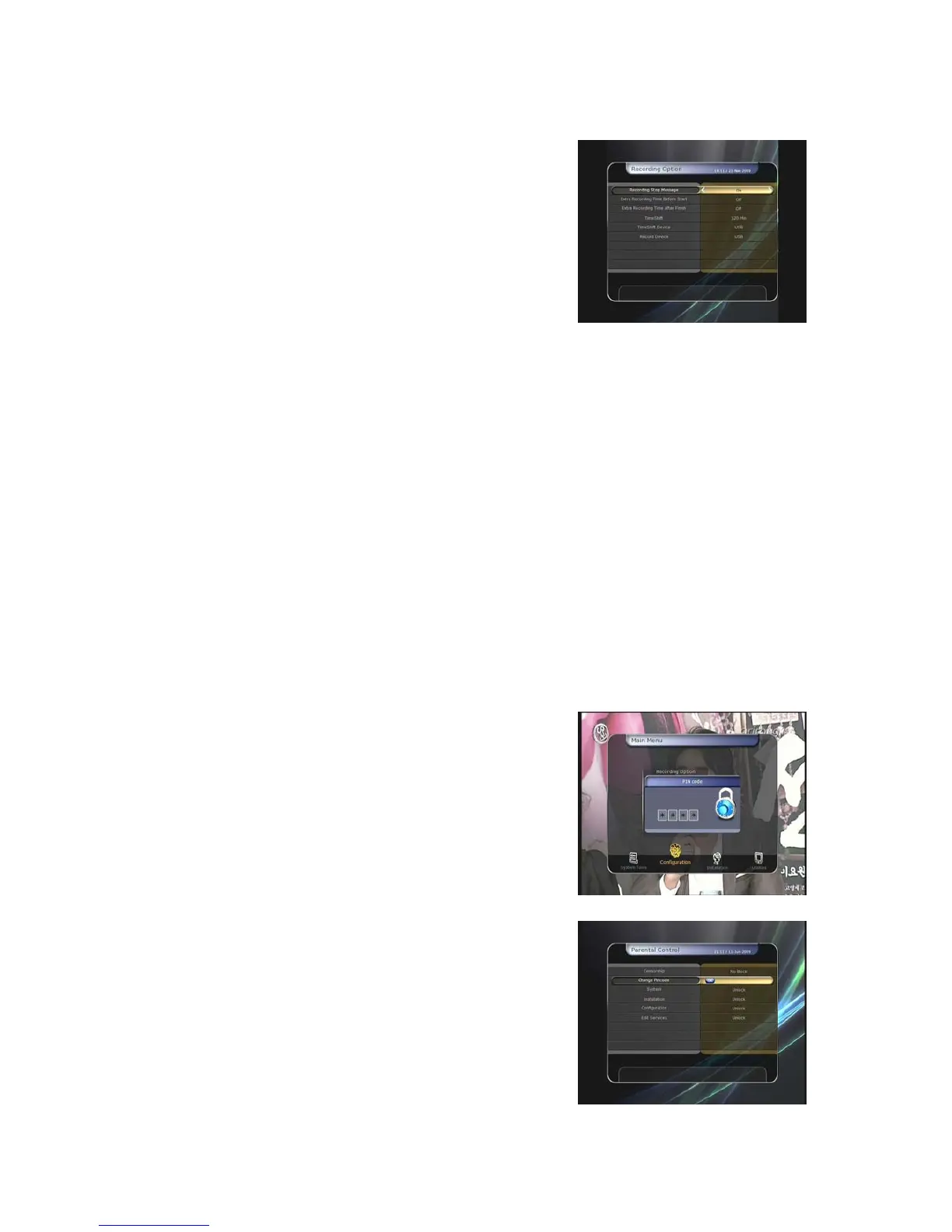
2.1 Recording Option
z
Recording Stop Message :
-
-
Set 'On' : When you press the STOP button while
recording, then a confirmation window is displayed.
Set 'Off' : When you press the STOP button while
recording, the STB will stop the recording process
immediately / instantly with no extra confirmation
message.
z Extra Recording Time Before Start (After Finish):
You can add an extra recording time before start/after finish
(1 Min/2 Min/3 Min/4 Min/5 Min/10 Min/15 Min/off ) to scheduled recording events.
If you set an extra recording time by using the ARROW and OK buttons, the scheduled recording
event will have a ‘Start’ / ‘Finish’ time of additional recording time added to the basic event..
This option only works for real time events. But, when you schedule a service recording in the
Timer Settings menu, this option has no affect.
z Time-Shift :
You can adjust the time-shift in 30 minute intervals. (Off/30 Min/60 Min/90 Min/120 Min)
When selected, time shifting function works automatically up to the limit of time that you set, as
long as the Time-Shift storage device has enough memory space.
If you set this option to ‘OFF’ status, then the time shifting function never works.
z Commercial Skip :
When you use LEFT/RIGHT ARROW button to move fast through the recorded time bar, You
can adjust skip time in 5 second intervals. (10 Sec/15 Sec/20 Sec/25 Sec/30 Sec)
z Time-Shift Device :
You can select the Time-Shift Device you want, such as USB / Network Drive.
z Record Device :
You can also set a Recording Device which you want to use, such as USB / Network Drive.
Recorded files are stored in the device you set.
2.2 Parental Control
User’s access rights to a service and programs are
controlled by a 4-digit secret code that is defined by the
user. Whenever you attempt to access the parental control
menu, a pop-up window will ask you to input a PIN code. (If
necessary, you can change it.)
NOTE : The default PIN code is ‘0000’
z Censorship : Set the parental guidance rating of
highlighted censorship classification. The parental level is
given as an age-based number.
z Change Pin code : To change your PIN code, input the
new PIN code using the NUMERICAL buttons. To verify the
new PIN code, input the new PIN code again.
z System : Set the access rights to the System menu.
z Installation : Set the access rights to the Installation menu.
z Configuration :
Set the access rights to the Configuration
menu.
z Edit Service : Set the access rights to the Edit menu.
35


 To Next Page