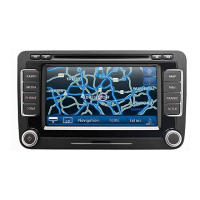
RNS 310, RNS 315
Automatic scan/tune
Fig. 8 RADIO main menu: Extras function button. Fig. 9 RADIO main menu with station scanning func-
tion.
Please first read and observe the safety in-
structions on page 3 and the introduc-
tory information on page 12.
When station scanning is running, all stations of
the current frequency band which can be received
are played for about 5 seconds each.
Starting and stopping station scanning
• Open the RADIO main menu and select the fre-
quency band ⇒ page 13.
• Press the function button.
• Press the function button in the pop-up
window ⇒ fig. 8.
• Station scanning starts and the function
button switches to ⇒ fig. 9.
• Press the function button or press the
tuning knob ⇒ page 6, fig. 1 in order to stop sta-
tion scanning at the current station.
Station scanning is also stopped if a station is man-
ually selected via the arrow or station buttons, .
Manually selecting a station frequency
Fig. 10 Select radio stations manually.
Please first read and observe the safety in-
structions on page 3 and the introduc-
tory information on page 12.
• Open the RADIO main menu and select the fre-
quency band ⇒ page 13.
• Press the function button.
• Press the function button in the pop-up
window ⇒ fig. 8.
• The frequency of the selected station is indi-
cated and the function button switches to
⇒ fig. 10.
• Change the frequency incrementally:Turn the
tuning knob ⇒ page 6, fig. 1 .
• Rapid scan of the frequency band: Keep the
arrow button pressed . After releasing the
button, the next receivable radio station is auto-
matically set.
• Press the function button in order to
end manual frequency selection.
After about 10 seconds of inactivity, manual fre-
quency selection stops automatically.
Manual frequency selection is also stopped if a sta-
tion is selected via a station preset button or the
display is changed to the FM station list.
For RDS-capable stations, the station name is dis-
played underneath the frequency
⇒ fig. 10 (Radio 2).
Extras
Scan
Extras
Scan
Scan


 To Next Page