Using Cura
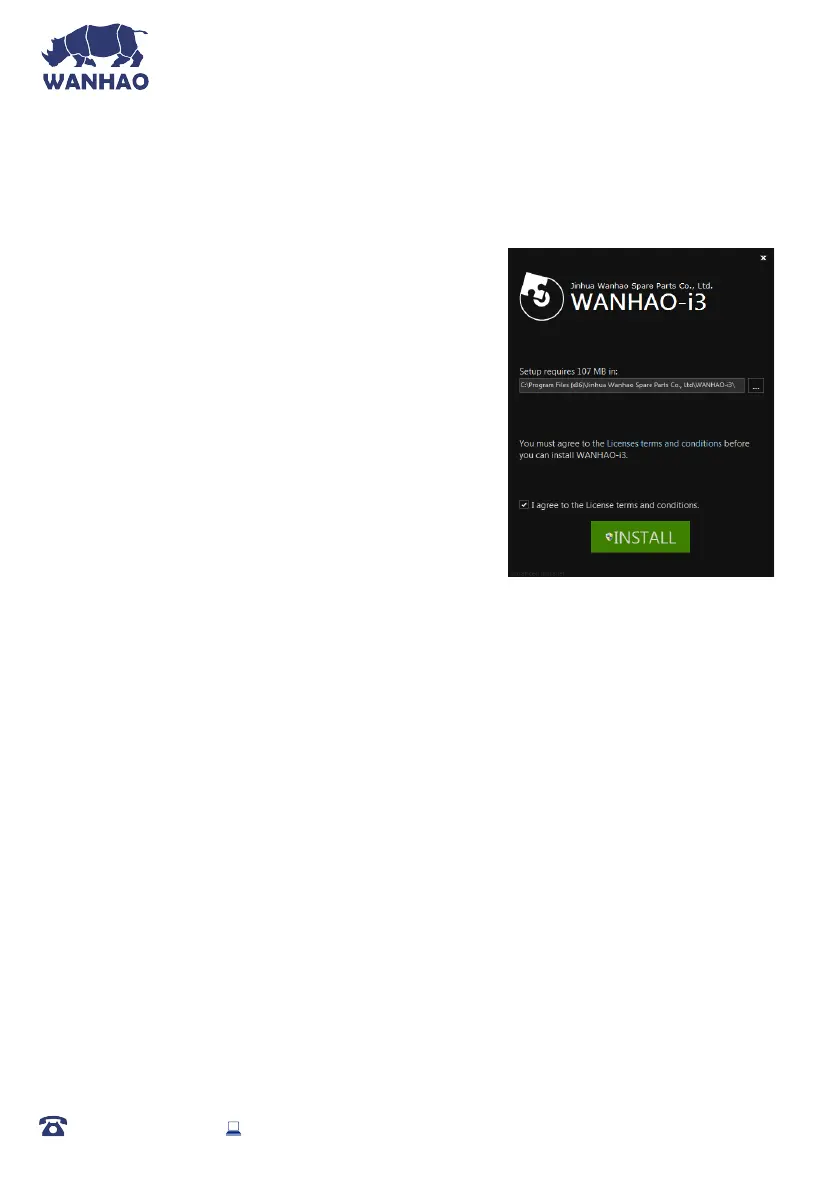
6.2 Install CURA WANHAO edition onto your
computer
1. Double click the le: CURA_WANHAO_15.04.EXE
2. Follow the instruction and click install and next.
3. The software has already embedded all the basic
settings for your Wanhao i3.
6.3 Loading a 3D Design into Cura
1.
Clear the platform using File > Clear platform…
2.
Then, load your 3D Design le onto the platform using
File > Load model le…
3.
Load any le with the following extensions: .STL, .OBJ, .
DAE, .AMF
TIP: You can load more than one le onto the platform. Cura will automatically move the
additional les to t.
NOTE: Files in grey are outside of the print area and need to be moved or scaled to t.
6.4 Viewing and Positioning your 3D Model in Cura
Changing the View:
•
Zooming In/Out: Use the mouse scroll wheel
•
Rotating the View: Hold down the right mouse button and move the mouse
Move Position:
Move your model to change where it is printed on the build plate. Do this by left clicking on the
model and dragging it to the desired location. The black outlined corner represents the lower left
hand corner of the Heated Print Bed on your printer.
AFTER SALES SUPPORT
86-571-23290996
support@wanhao3dprinter.com
Model : Duplicator I3 Plus
32


 To Next Page