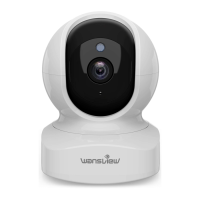
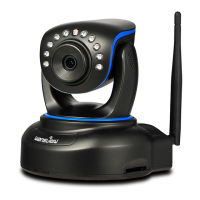
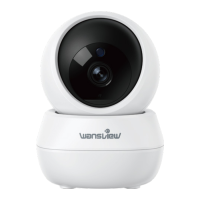
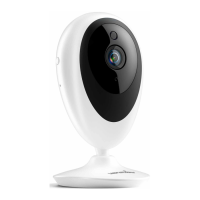
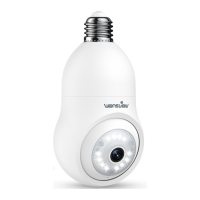
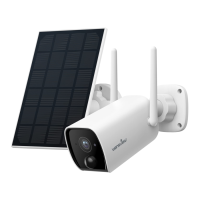
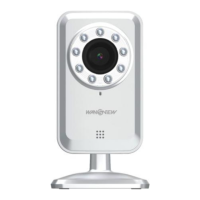
IP Camera W2(1080P)/W3(720P)
10
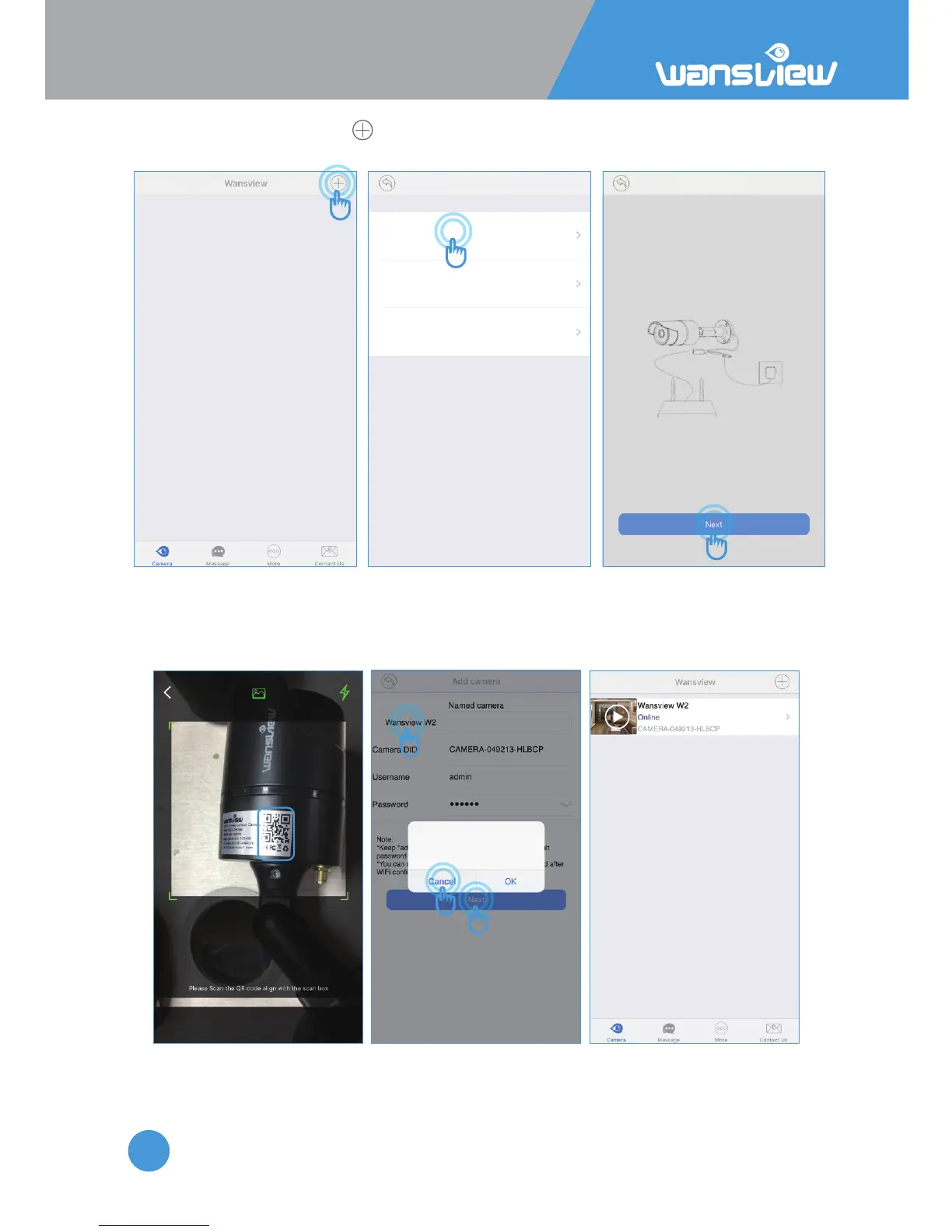
·Launch the Wansview app, click to access Add Camera page and select “Add camera via wired
method”, then follow the wizard step by step.
Add camera
Set up camera
Add camera via wired method
Power camera on and connect it to router using
Ethernet cable
Connect ethernet cable to set up WiFi
Add camera via WiFi mode
WiFi configuration to add cameras
Add already connrected network camera
·Scan the QR code on the camera’s scker, then “name camera” , keep “admin” as login name and
“123456” as the default password, then “Next”.
“Connect Success, do you want to Set up WiFi” will appear, if you do not need to set up WiFi, click
“Cancel”, then you will get camera “online”
QR Code
Tips
Connect success,do you want to set
up WiFi?
If it says "connect fail", please check whether you scanned the correct QR code and if
Camera's Ethernet cable Port has flashing lights.



 To Next Page