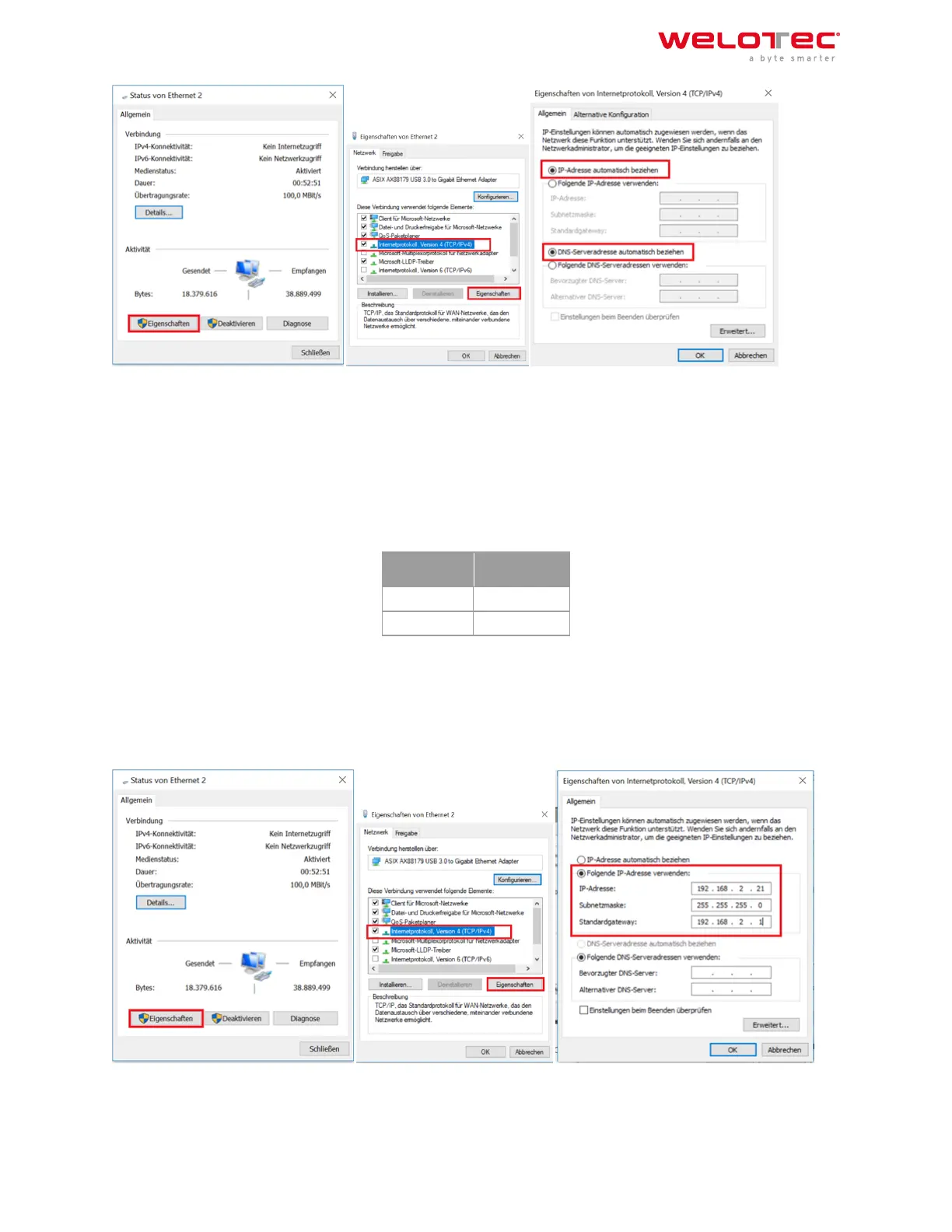
Aer configuring the IP address of the PC and connecting to the router, open a web browser.
Then enter “http://192.168.2.1” in the address line of your browser (e.g. Google Chrome). Aer confirmingwith the
“Enter” key, a pop‑up appears as the login page of the router. Enter the username (default: “adm”) and password
(default: “123456”) here and confirm with “Enter”. Now you will be redirected to the configuration web page. Now
configure the router according to your requirements.
To check if you are connected to the Internet, select Network > Cellular > Status from the navigation panel. Here
you can see the data of the cellular unit in the router. Alternatively, simply open a web page in your browser.
IP:
192.168.2.1
Username: adm
Password: 123456
2.9.2 2.9.2. Manual Configuration
Configure your PC so that it is in the same subnet as the router (192.168.2.1). The subnet mask must be
255.255.255.0. The following image shows the process of configuring the IP address on a PC with the Windows
10 operating system.
Aer configuring the IP address of the PC and connecting to the router, open a web browser.
Then enter “http://192.168.2.1” in the address line of your browser. Aer confirming with the “Enter” key, a pop‑up
appears as the login page of the router. Enter the user name (default: “adm”) and the password (default: “123456”)
Welotec GmbH
Zum Hagenbach 7
48366 Laer
www.welotec.com
info@welotec.com
+49 2554 9130 00
Page 10


 To Next Page