9 ‒ Bluetooth | P1PY201 ‒ Laser Distance Sensor ToF 35
9 Bluetooth
These sensors have an integrated Bluetooth interface. This interface can be used to configure and param-
eterize devices using a smartphone and the wenglor “weCon” app. In addition, process data is sent to the
app, where it is displayed in a clear, concise manner.
9.1 weCon Installation
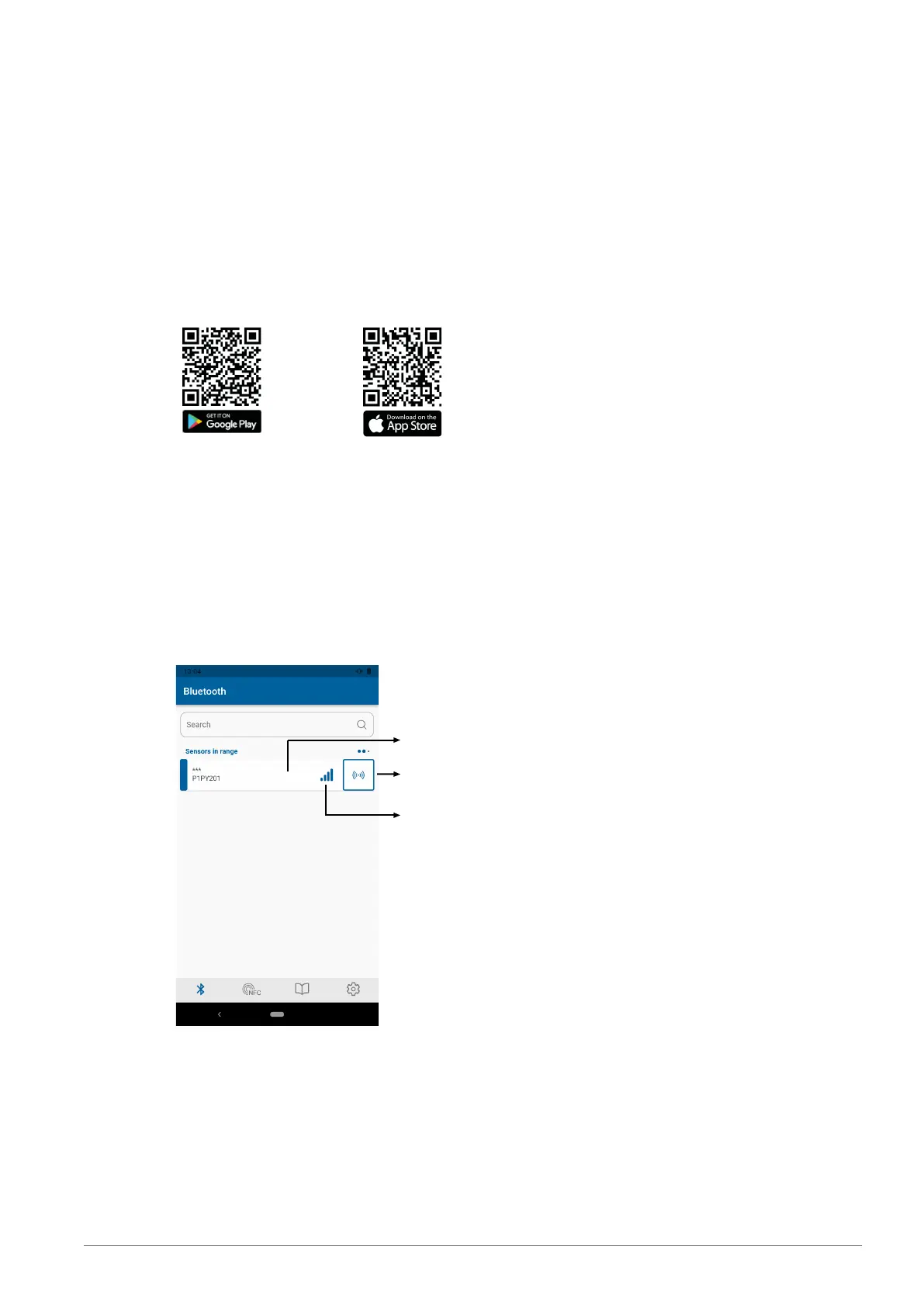
The wenglor app can be downloaded free of charge from the Google Play Store and Apple App Store.
Download the app and follow the installation instructions.
Scan the code below to access the wenglor app directly.
9.2 Establishing Connection with Sensor
Open the weCon app on your smartphone.
When the app is opened, all wenglor sensors with Bluetooth interface and within range are set to Pairing
mode.
This mode is indicated by the flashing blue LED on the sensors.
Pairing mode is used to pair the app with a corresponding sensor.
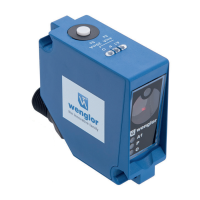
Once the app is opened, a list of all sensors within range is shown.
Connect to sensor
Bluetooth signal strength
Localization
If too many sensors of the same type are fitted within the Bluetooth range, the sensor’s supply voltage
LEDs can be switched to flashing green by pressing the “Localization” button. This simplifies identification.
Press the “Back” button to open the sensor list again. Pressing the “Connect with sensor” button estab-
lishes a connection to the sensor and opens the user interface.
The blue LED will continuously illuminate from now on, indicating that the sensor is paired, and Pairing
mode will deactivate.


 To Next Page