Chapter 2: Getting Started
EN-30
3. Enable IP camera wireless function then select the Gateway as an
access point (AP).
4. Disconnect the Ethernet cable. Then reboot both Gateway and IP
camera to take effect.
2.5.3 Wireless via WPS Configuration
1. Make sure your WLAN security type is WPA. Refer to "4.1.4 WLAN" on
page 60. for more details.
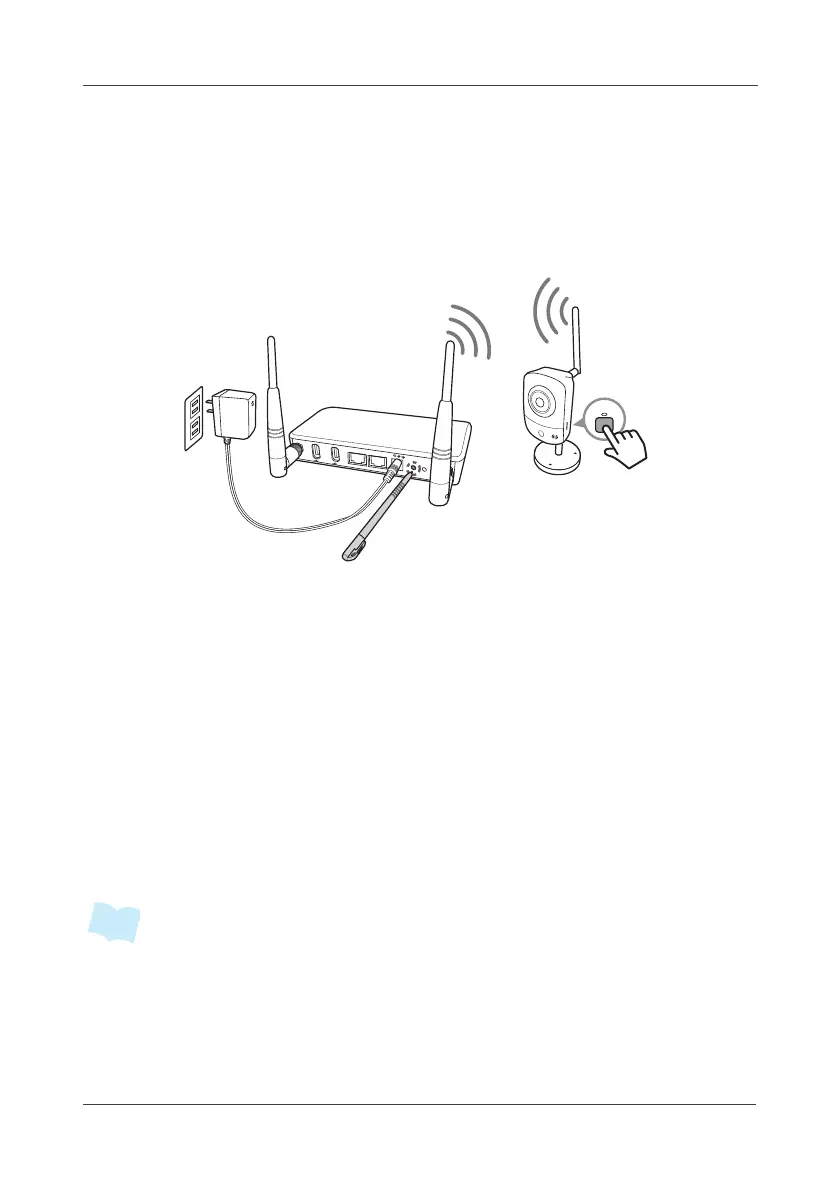
2. Click the WPS button of IP camera, then click the WPS button of the
Gateway for 3 seconds to start WPS pairing process.
IP camera will obtain an IP address from the Gateway via DHCP protocol.
3. To obtain the IP camera MAC address and configure related IP camera
settings, refer to "4.7 Surveillance" on page 90..
4. Reboot both Gateway and IP camera to take effect.
5. If the WPS pairing process is failed, reset the IP camera to its default
settings and try it again. If the problem persists, connect the IP camera
to the Gateway either using Wired or Wireless Configuration method.
• The IP default range: 192.168.19.60~99 is reserved for IP camera.
• For details on the 3rd-party IP camera setup, please refer to its user manual.
• It is highly recommended to install VLC media player (v1.1.9 or above) on your
PC before displaying the video of IP camera via HTTP browser.
USB
USB
L
A
N
W
A
N
D
C
IN
1
2
V
W
P
S
S
E
T
WPS
WPS


 To Next Page