18 | Page
Configuration Setup and User guide for:
Normal Mode Pages 18 to 22
The following are instruction on connecting your unit
to the PC to configure settings and choose the
Operating Mode.
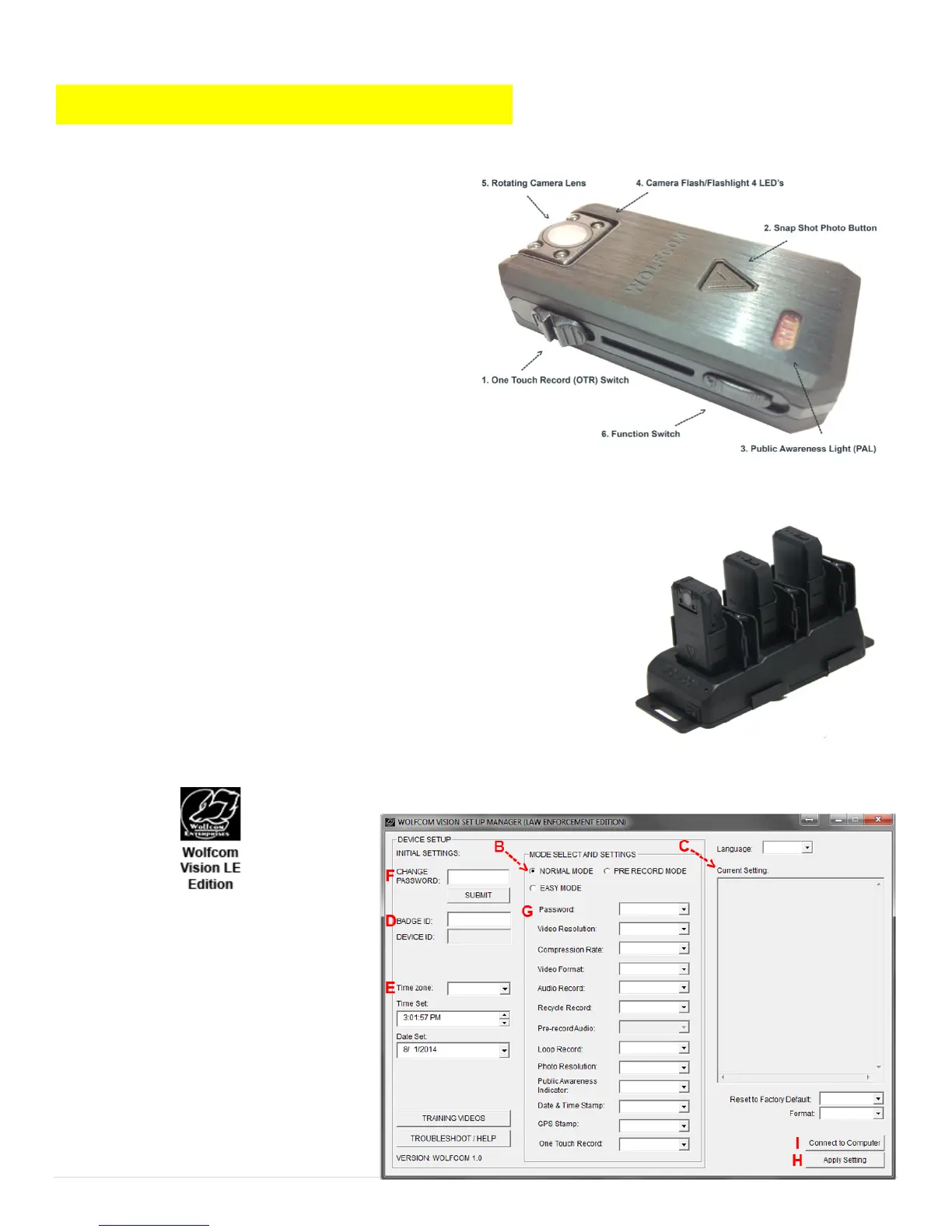
1. First make sure that the OTR Switch (1) is in the
up position and that the unit is powered off.
2. Next make sure that the Function Switch (6) is set
to the up position.
3. Plug the supplied 10 pin USB cable into the bottom
of the unit and the other end into the USB port on
your computer.
4. Power on the unit by sliding the OTR Switch (1)
Down and the unit will power on.
If your unit came with a docking station, insert the Wolfcom Vision into
any available port on the docking station. Make sure that the docking
station is powered on and that the docking station is plugged into the PC
via a 10 pin USB cable. Also make sure that the docking station is
powered by the included power supply.
IMPORTANT* The USB cables that are included with your unit are
specially designed with a 10 pin connection. Using a 3rd party USB cable
will not work and may damage the unit. Please be sure to only use the
cables that came with your unit.
4. Click on the Wolfcom Vision Setup Manager icon on your computer desktop. You should see an Icon that
looks like this:
5. The Wolfcom
Vision Setup Manager will open.
6. With the Wolfcom Vision plugged into
the PC via the 10 pin USB cable or
docked into the docking station, press
the OTR switch down. The unit will
vibrate 3 times and settings that are
currently configured onto the unit will
populate in the CURRENT SETTING
Window (C).


 To Next Page