30 | Page
How to extract files from the unit:
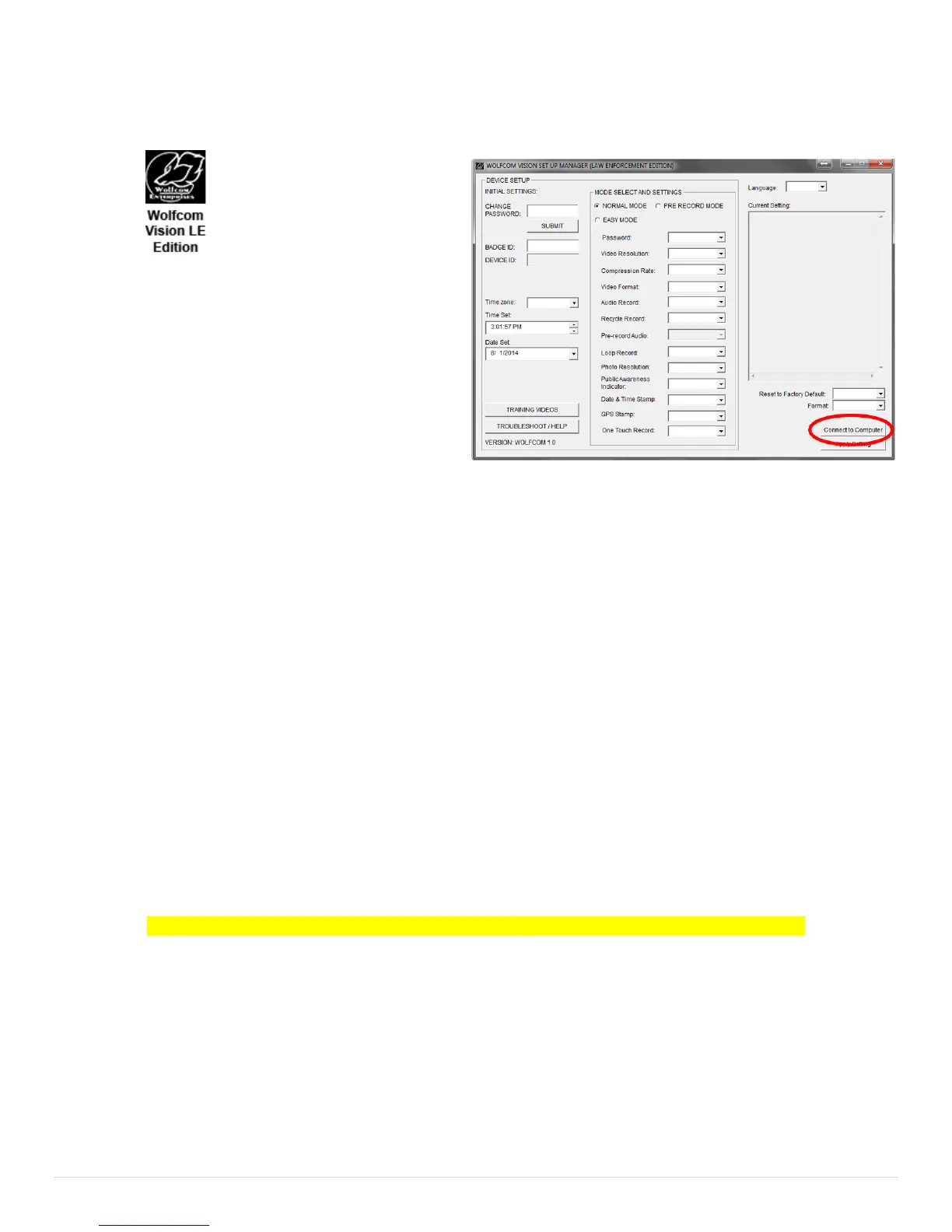
Click on the Wolfcom Vision Setup Manager icon on your computer desktop. You should see an Icon that looks
like this:
1. First make sure that the OTR Switch (1) is in the
up position and that the unit is powered off.
2. Next make sure that the Function Switch (6) is set
to the up position.
3. Plug the supplied 10 pin USB cable into the
bottom of the unit and the other end into the USB
port on your computer.
4. Power on the unit by sliding the OTR Switch (1) Down and the unit will power on.
5. On the Wolfcom Vision Setup Manager window. Click on the "Connect to Computer" button on the button
right. Your unit will connect and the auto play window will pop up.
How to use the flashlight:
The flashlight will only work during video and audio recording. The flashlight will not work if the OTR
switch is in the UP position. To activate the flashlight, press the flashlight button (14) once. To
deactivate the flashlight, press the flashlight button (14) again.
How to Reset the unit:
If you unit freeze or become none responsive. Make sure the One touch record switch (1) is in the up
position. Take a paper clip or needle and stick into the Reset hole (8) gently and you will feel a click.
Need Help in Training or trouble shooting? Click on the Buttons on the PC software.
This concludes operating instruction for the Wolfcom Vision in Pre-Record Mode


 To Next Page