EVOM™ Manual
World Precision Instruments 49
APPENDIX F: INSTALLING THE EVOM™
COMPANION APPLICATION
1. Locate the USB drive (WPI #97893), which contain the EVOM™ Companion
Application program and the Python 3.8 program for continuous digital
monitoring.
NOTE: The installation package is also available from the WPI website (https://
www.wpiinc.com/support/software-download).
2. Plug the USB drive into the PC where you want to install the EVOM™ Companion
Application.
3. Using Windows
®
Explorer, navigate to [DRIVE]:
/EVOM_APP_INSTALLER/
directory on
the USB drive
4. Double click on the
setup.exe
le to install the application. Follow the on screen
installation prompts.
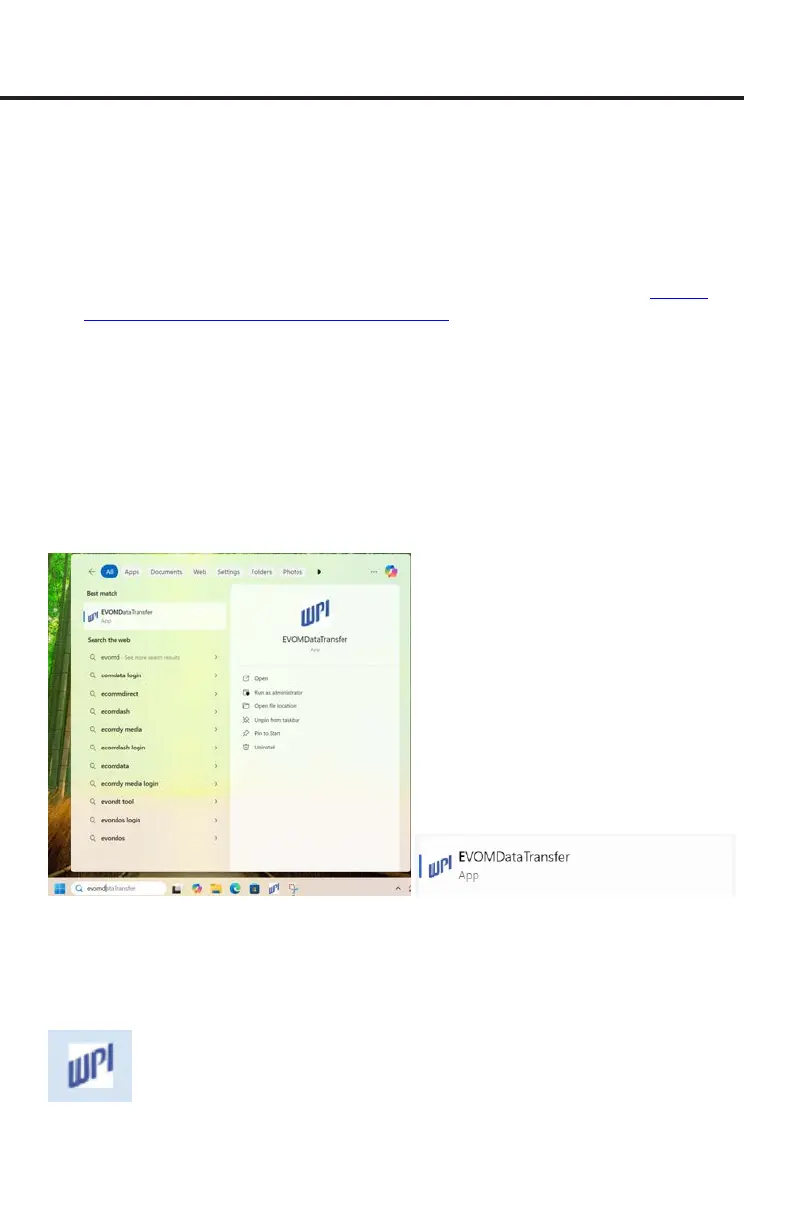
5. Launch the EVOM™ Companion Application by typing "EVOMDataTransfer" into
the Windows start bar search eld (Fig. 74). Select the WPI Application (Fig. 75)
from the list that appears.
Fig. 74—(Left) Enter EVOMDataTransfer into the Windows search eld.
Fig. 75—(Right) Select the WPI application from the list that display.
TIP: After the program has launched, right click on the WPI icon (Fig. 76) in the taskbar
and select
Pin to taskbar
. Then, you can double click the taskbar icon to load the
program in the future.
Fig. 76—The WPI icon appears in the taskbar when the program is running. Right click to
pin it to the taskbar for future use.


 To Next Page