22 World Precision Instruments
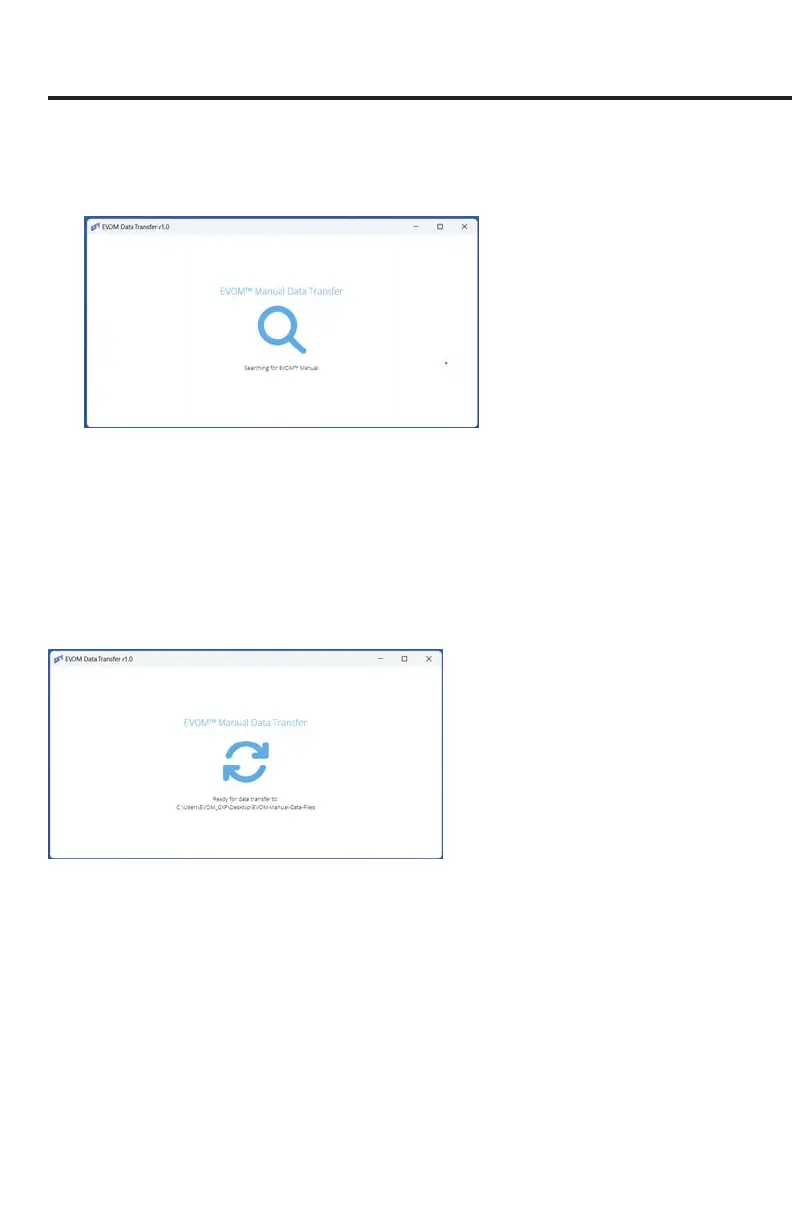
5. Once the location is selected, the EVOM™ Companion Application continuously
scans the USB port for an EVOM™ device and displays a magnifying glass icon (Fig.
39).
Fig. 39—The application is scanning the USB port looking for a connected EVOM™ Manual.
6. Connect your EVOM™ Manual to any USB port on the computer using the USB
cable provided (WPI #803026). Plug the USB A type connector into any available
port on your computer. See "Appendix F: Installing the EVOM™ Companion
Application" on page 49 for installation instructions. Insert the USB type B
connector into the port on the back of the EVOM™ Manual.
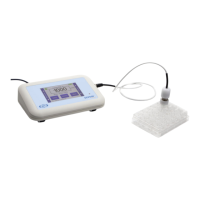
When an EVOM™ Manual is connected, wait for a few seconds for the application
to nd it. Once found the icon changes to indicate that the EVOM™ Manual was
found. It displays the selected directory under the icon (Fig. 40).
Fig. 40—The EVOM™ Manual was found, and data les will be stored in the directory
designated at the bottom of the window.
Viewing Data in a Spreadsheet Program
1. If you stored the data on the USB ash drive, remove it from the EVOM™ Manual
and plug it into a free USB slot in your computer. Using Windows® Explorer,
navigate to the USB ash drive directory. If you saved the data directly to the PC,
navigate to the designated storage directory.


 To Next Page